Initiating Payments via Superfiliate
Last updated: December 4, 2025
An important part of running your programs is paying your Superfiliates for their commission (and flat rate fees if applicable) in a timely manner. We recommend incorporating your payment terms in your program details and setting a regular payment schedule, and most importantly - sticking to it so that your Superfiliates know what to expect and payments are a seamless, positive experience.
Payments to Superfiliates are NOT processed automatically. You will need to initiate payouts when you’re ready, and can choose to do so via our integrations (more info below) or by handling payments outside of the platform and simply marking those payments as completed offline so that your records are up to date. You will need to have an account with your payment platform of choice and complete the integration process within Settings>Integrations>Payments to send funds via Superfiliate.
Payment Options
Superfiliate currently has integrations with three payment platforms:
Initiating Payments
Commission
Navigate to: Management>Payments>Pending
From here, you can filter conversions up to the date you’d like to process payouts to (generally brands prefer to pay out last month’s commissions at the beginning/middle of the current month, for example)
You can also filter by program, contact tag or search for a specific Superfiliate you want to pay
Select who you’d like to pay - make sure you select all pages of Superfiliates if you have multiple pages of members to pay out
Click “Pay Commission” after it appears on the bottom right
Select the payout method
Then click “Pay Commission”
Prior to completing the payment you can manually adjust the amount you will be paying out per person (up or down)
Note: “Mark as Paid” does NOT transfer any funds and is merely marking funds as paid offline/outside of Superfiliate. Your Superfiliate will not receive any payment unless you do so outside of the platform
One Offs/Flat Rate
Navigate to: Management>Payments and click “Send Money" in the upper right corner
Select the Superfiliates that you’d like to pay and click “Next”
Select the payment method, enter the amount you’d like to pay, and include an optional payment reason note before selecting “Send money” and completing the payment
Here's a video covering how to process payments via Superfiliate (Flat Rate, Commission etc.)
Troubleshooting
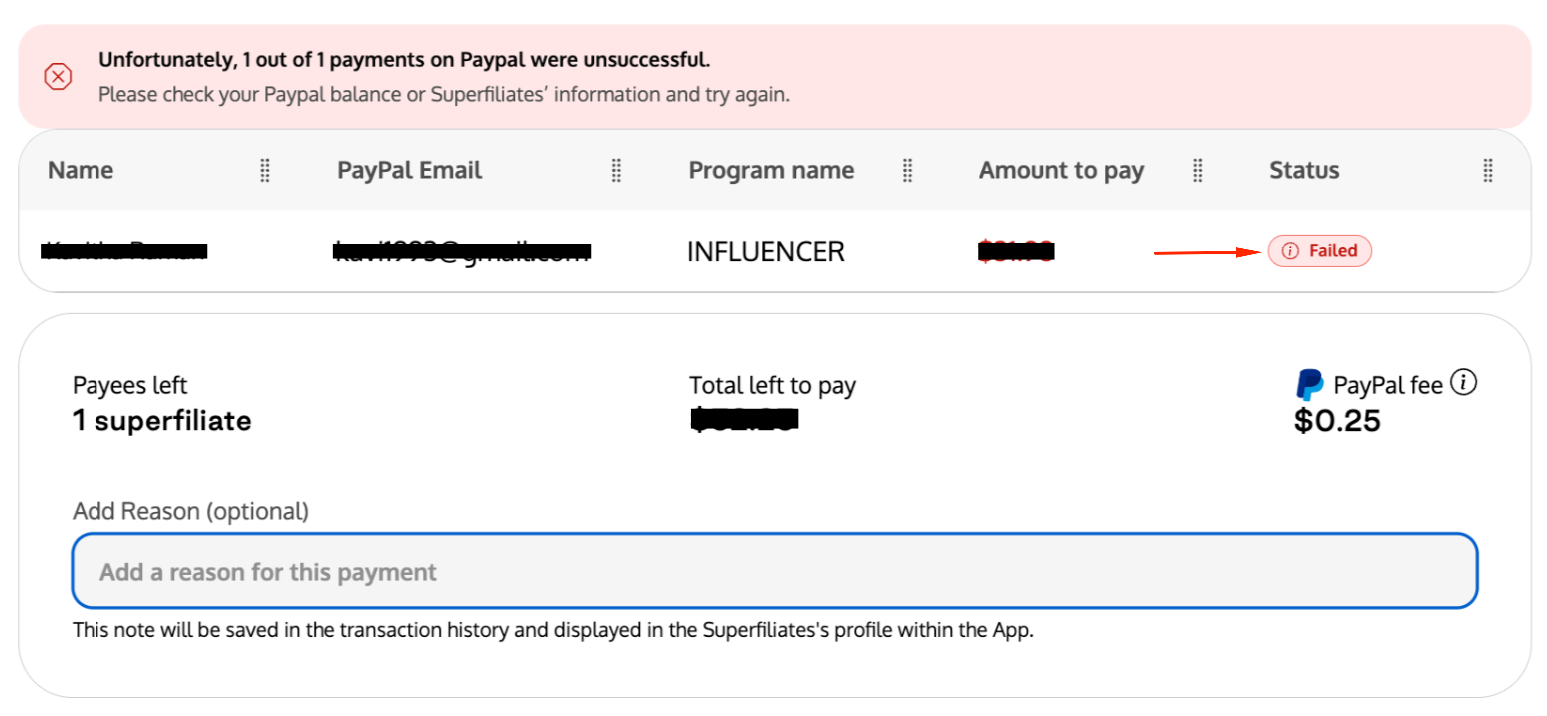
When a payment fails, you’ll see a red “i” icon next to where it says “Failed” to the right of the Superfiliate whose payment did not successfully go through
Hover over the icon to learn more about the failure
Common Issues:
Issue With Your Integration - Check you have all the necessary set up complete
Tremendous: Funds, Campaign
PayPal: Business PayPal, Payouts API Enabled, Sufficient Funds Available in USD
Not Seeing a Superfiliate in Pending Payouts
Verify Superfiliate's payout type is Payouts and not Store Credit by checking the Settings of the Program they belong to