How to import a CSV file with your collections from Shopify
Last updated: October 9, 2026
Running a successful gifting campaign requires careful product selection to ensure a seamless experience for both brands and creators. One of the most effective ways to streamline this process is by using Collections.
With collections, you can import products in bulk and help creators easily navigate the landing page. You can create collections manually by selecting individual products or import them via CSV from Shopify.
Exporting a CSV from Shopify
To export a CSV file of selected products from Shopify:
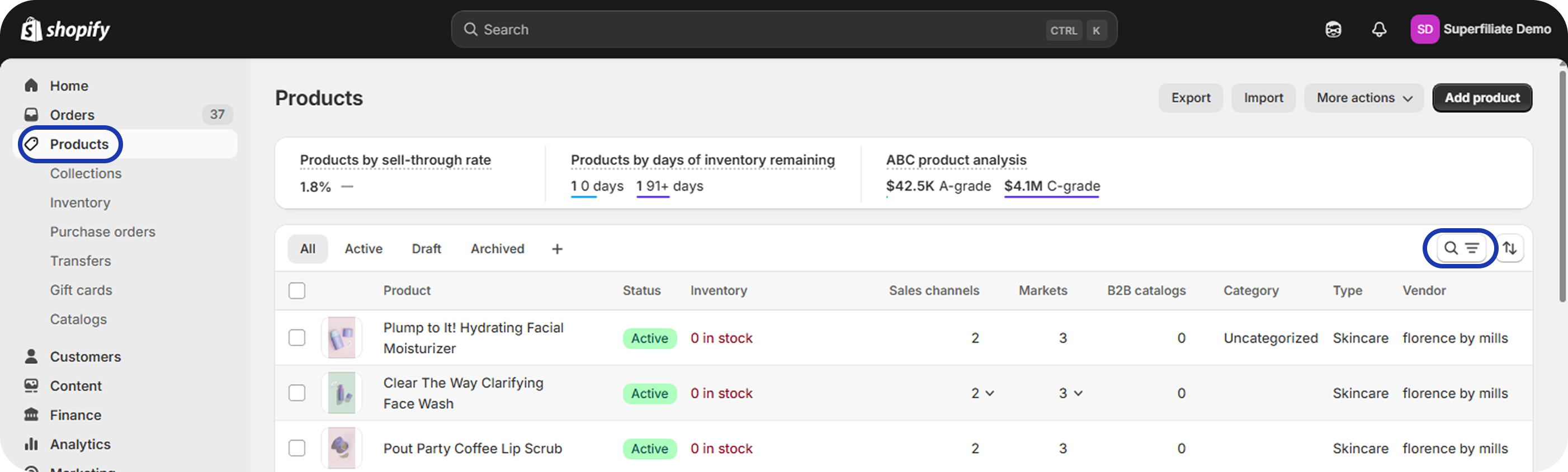
Go to Products in your Shopify Admin Panel.
Click on the “Search and Filter” icon.
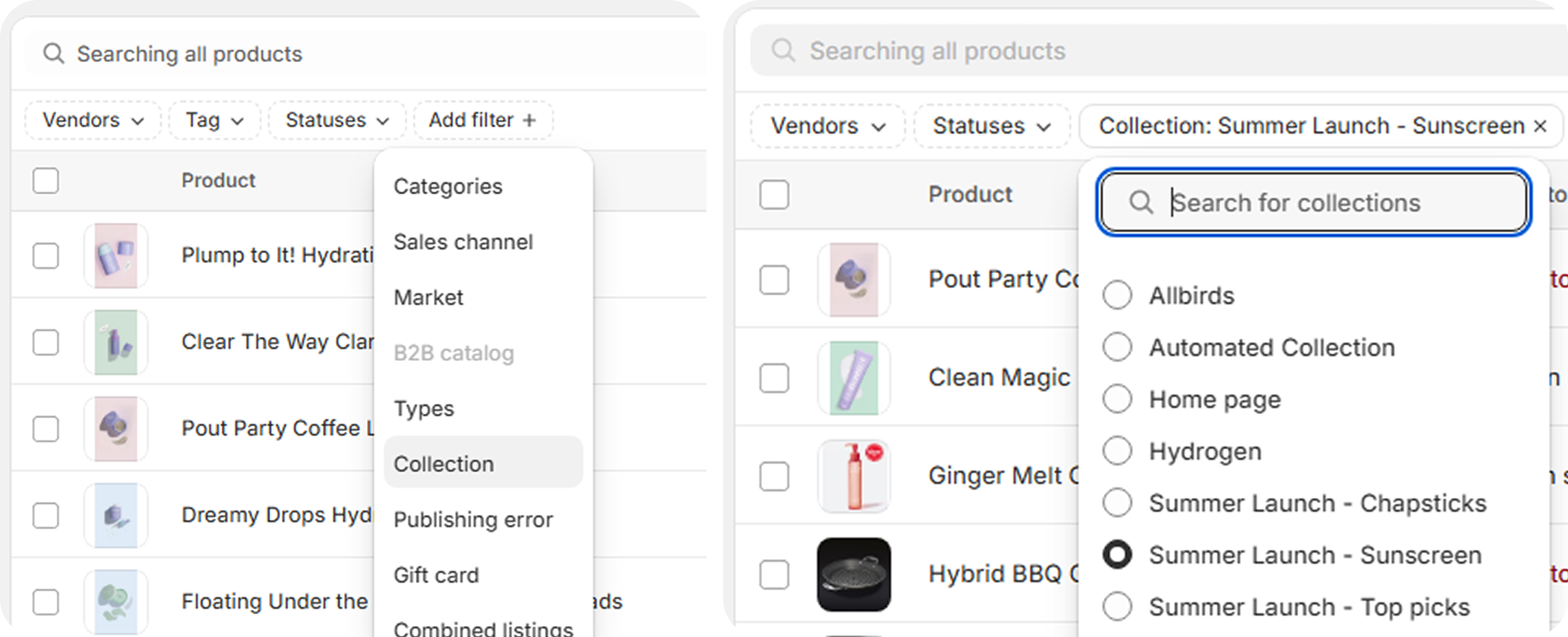
Use filters to refine your product selection. In this case, select Collections to filter items by an existing collection.
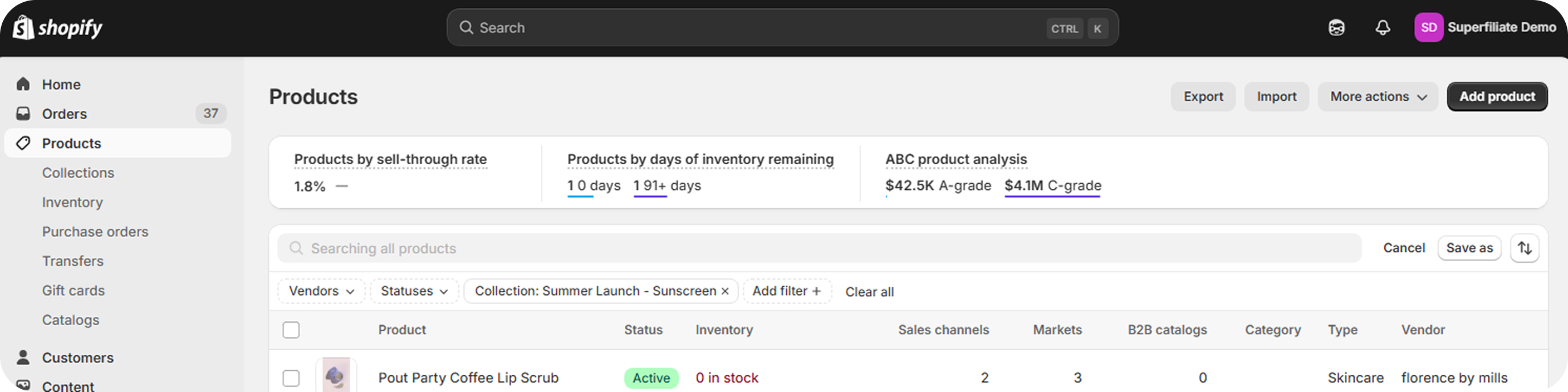
The collection is filtered, click the Export button in the top-right corner.
In the export settings, choose “Products matching your search” and select “CSV for Excel” as the file format.
Creating a collection
To create a new collection for gifting campaigns:
Go to Products and open the Collections tab in the header.
Click “Create new collection”.
Name your collection and optionally add a label in “Category Navigation” to help creators browse products in the gifting landing page.
Add products to the collection by either:
Browsing and selecting them manually
Importing the CSV file exported from Shopify
Once created, the collection will be available in Product Selection when setting up gifting campaigns.
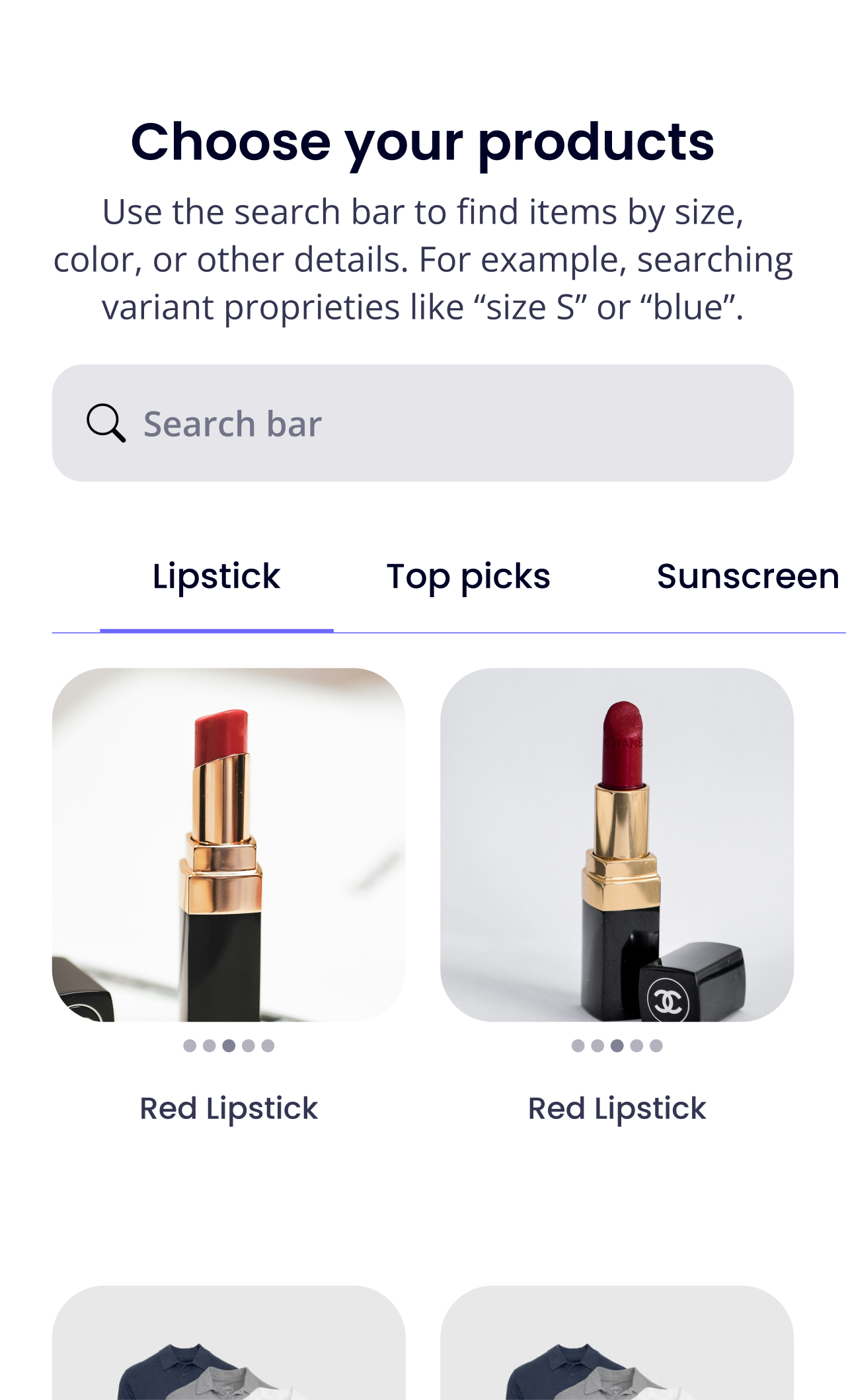
The image above shows how the category navigation will be displayed
Use clear names. The Category Navigation label, or the collection name if you leave it empty, is what creators see as the tab name on the gift page and in their cart. This matters most when you limit gifts per category. Shopify collections always show their Shopify title.