SuperBrief: Overview and Step-by-Step Guide
Last updated: October 30, 2026
What it is: SuperBrief brings all of your creator campaign management into Superfiliate, from the brief to the final content, with per-creator personalization and built-in approval and feedback.
Who it's for: marketing and creator-partnership teams that manage influencer campaigns across several tools or spreadsheets and want one workflow for content, gifting and paid campaigns.
Key benefits
Run content, gifting and paid creator campaigns in one place.
Personalize the brief and its actions for each creator while keeping a campaign-wide view.
Handle uploads, approvals, feedback and payments inside SuperBrief, without back-and-forth.
Give every approved asset its usage rights automatically with brief-level content rights.
Where to find it
Go to Campaigns > SuperBriefs.
Your team creates and manages briefs, actions and approvals. Creators see only their version of the brief (main or personalized) and complete their tasks. See How creators access and complete a SuperBrief.
Actions you can add to a brief
Actions are the building blocks of your brief:
Info Collection: collect information from creators, such as name, address and social handles.
Campaign Terms: write or upload terms creators must accept.
Gifting: connect the brief to an existing gifting campaign in Superfiliate.
Upload Content (Deliverables): define the content you need (stories, posts, reels, videos) and review submissions in SuperBrief.
Links & Codes: give creators a referral link and code to share. See Links & Codes in a SuperBrief.
Meta Partnership Ads: request Partnership Ads permissions from creators.
Payments: pay creators from the brief using your connected payment integrations. See How to pay creators in SuperBrief.
You can also:
Open the brief for applications with a public application link. See How to Receive and Manage Creator Applications in a SuperBrief.
Track published content during a Campaign Tracking Window. See How to Track Published Content in a SuperBrief.
Set default content rights so new content entering the brief's Content Library collection gets usage rights automatically. See How to set default content rights in a SuperBrief.
Requirements
Gifting requires Influencer Hub (Shopify).
Meta Partnership Ads requires Meta Ads Suite.
Step-by-step: create and run a brief
1) Create a new brief
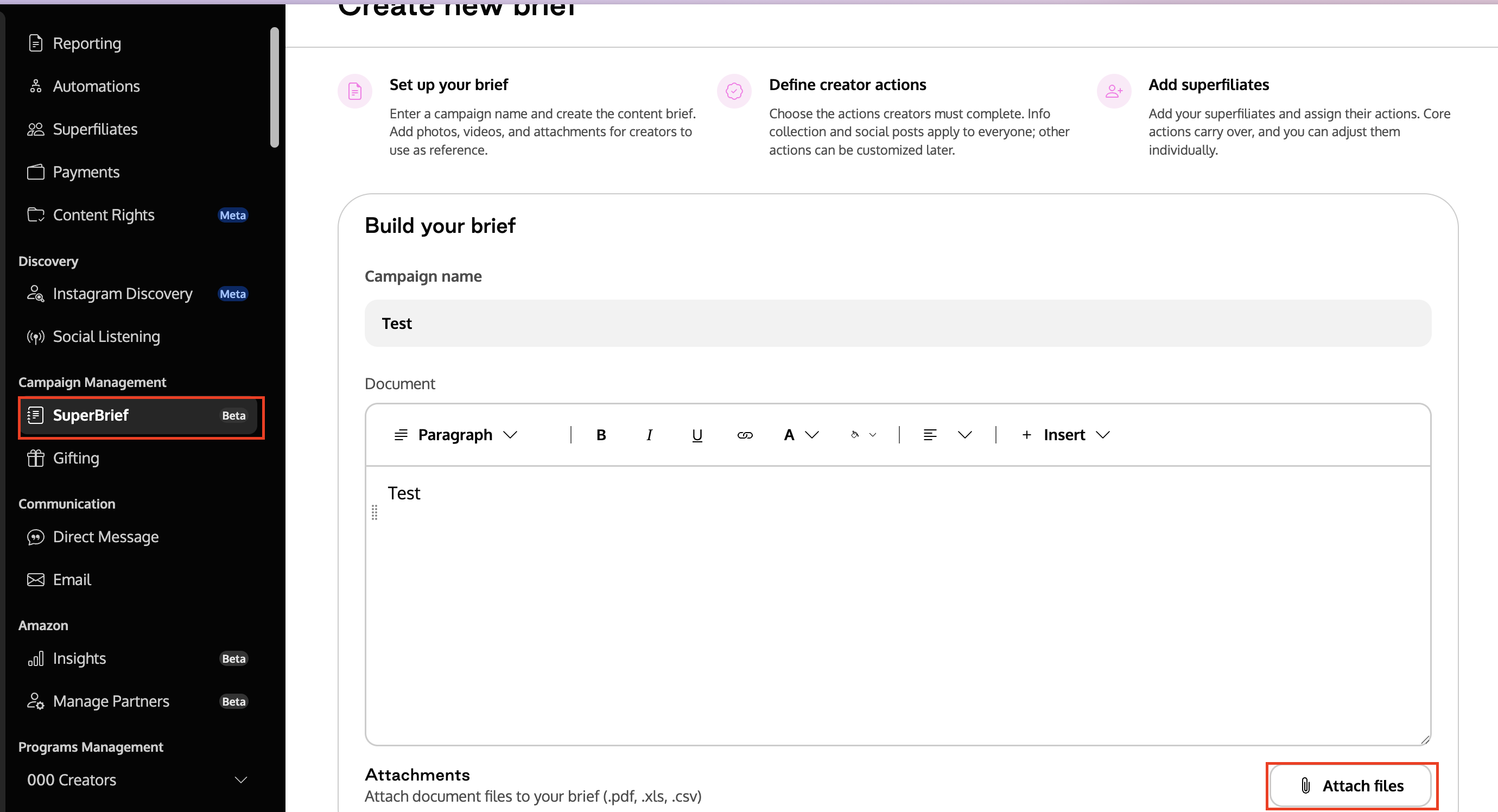
Go to Campaigns > SuperBriefs and click Create Brief.
Name your campaign and write the main brief document with objectives, timelines and key instructions.
Attach supporting files (brand guides, content examples, visual references, etc.).
2) Add and configure actions
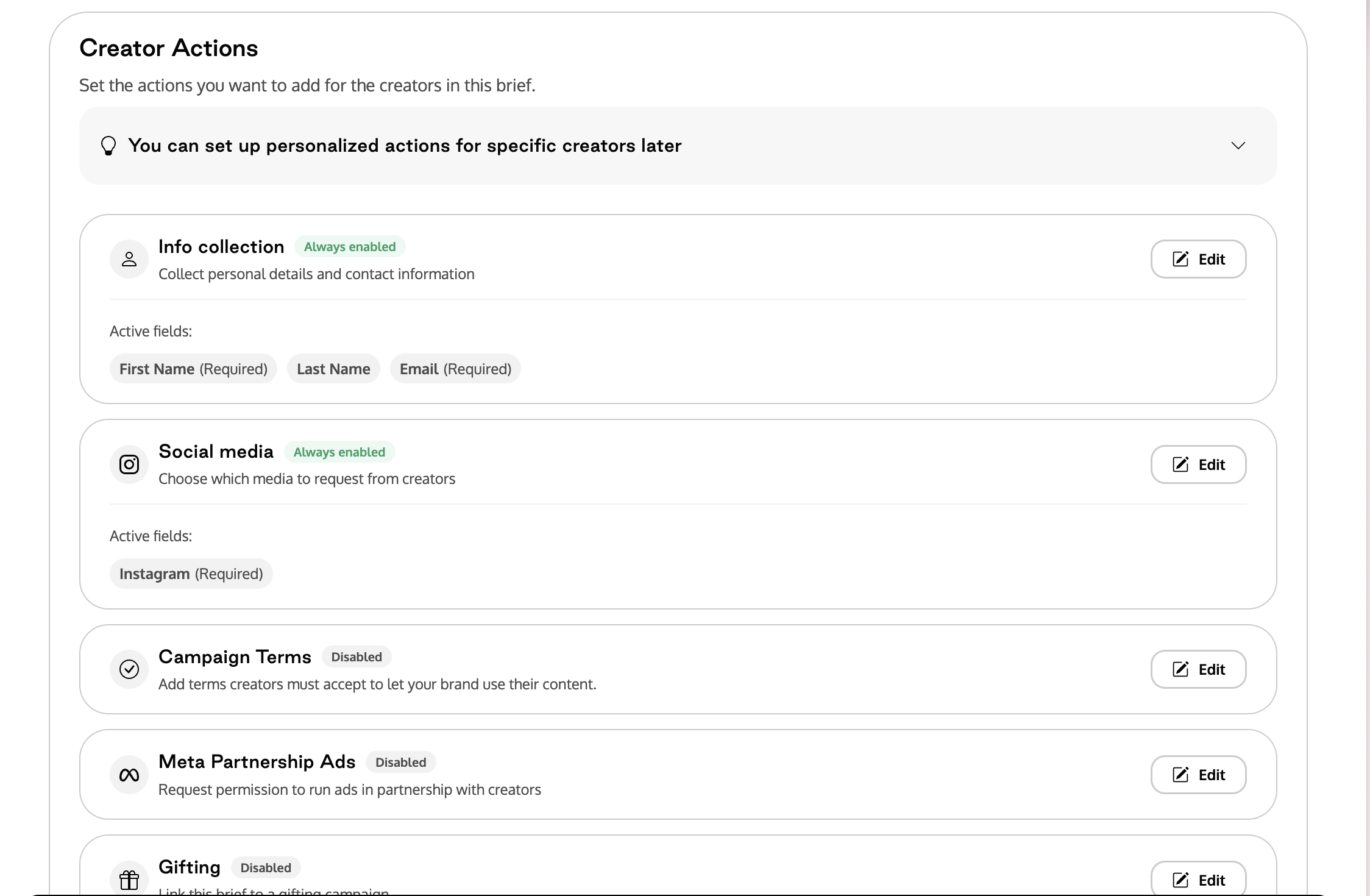
Select and customize one or more actions:
Info Collection: add the fields you need (name, email, social handles, etc.).
Campaign Terms: write or upload your campaign terms. Once creators accept, your brand can use their content as described in the terms.
Links & Codes: choose whether the brief uses the creator's program code or its own brief code, and set the redirect destination. Turn the action off if the brief doesn't need a link or code. This choice can only be changed while the brief is a draft.
Meta Partnership Ads (Meta Ads Suite): request Partnership Ads permissions.
Gifting (Influencer Hub): choose an existing gifting campaign.
Upload Content: create deliverable groups (for example "Pre-Launch" and "Launch") with due dates and add content types (stories, reels, posts). Mark each action as required or optional, and choose whether your team reviews deliverables.
Payments: enable payments, choose the payment method and set the amount.
Optionally, turn on Open for Applications and set the Campaign Tracking Window.
You can also turn on Content rights (actions menu > Edit main brief > Content rights > Edit) and choose Unlimited or Custom usage rights. New content that enters the brief's Content Library collection, such as approved uploads, inherits these defaults. Content already in the collection keeps its rights if you change the defaults later. See How to set default content rights in a SuperBrief.
3) Add creators
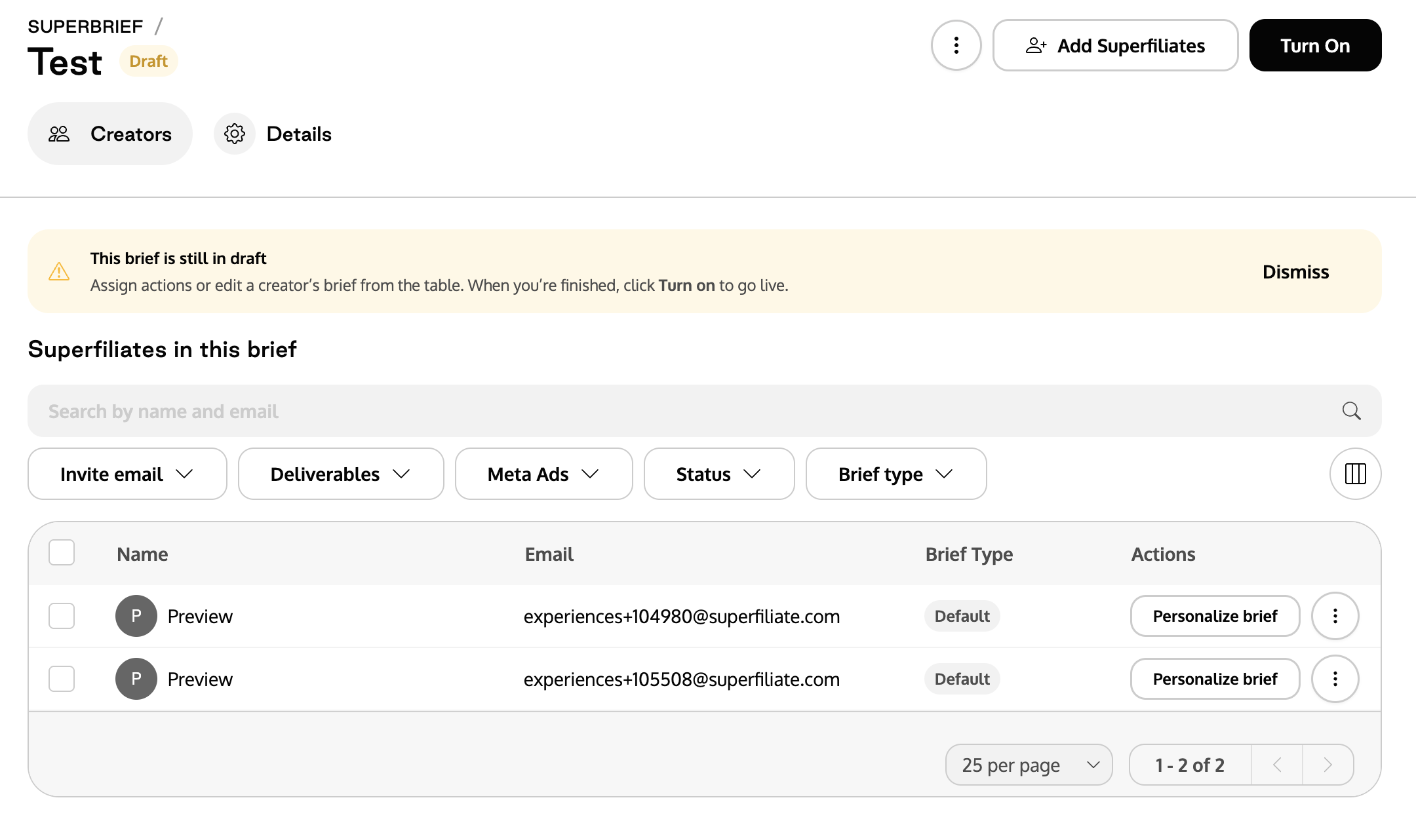
Click Add Superfiliates and select creators from your Superfiliate list.
Use filters (programs, tags, etc.) to find participants.
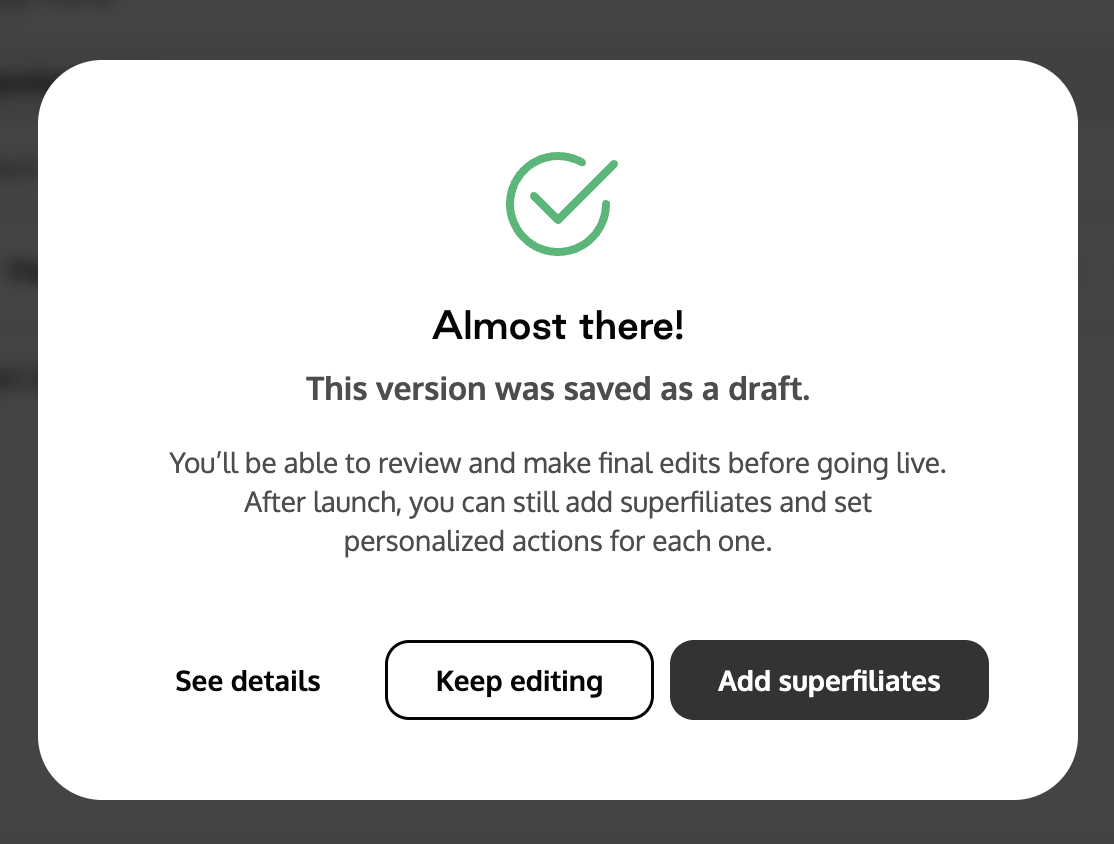
Add them to the brief. The brief stays in Draft until you activate it.
4) Personalize per creator (optional but recommended)
Select a creator and click Personalize Brief.
Edit the document and/or actions (for example, change the gifting campaign, the payment amount or add specific deliverables). To give this creator different usage terms, edit the Content rights card and turn on Override main brief.
Save.
Once personalized, the creator sees only their personalized version, which replaces the main brief for them. Content rights work a little differently: unless you turn on Override main brief, the creator keeps following the main brief's content rights, including later changes.
5) Activate and send the brief
Activate the brief and enable email notifications under Send to creators.
Each creator receives a personal link to their brief (document + task list). The link expires after 7 days; you can resend it.
6) Creator experience
Reads the brief and attached files.
Completes each task: submits information, accepts terms, grants permissions, claims the gift, uploads deliverables and confirms payment details.
Finds their link and code under Links & Codes, when the brief includes them.
See How creators access and complete a SuperBrief.
7) Review, approve and track progress
In the Creators tab, see each creator's progress and the campaign summary. See How to Track Campaign Progress and Manage Deliverables in the Creators Tab.
Open, download, approve or request adjustments on deliverables, with comments. If content rights are turned on, approved content enters the brief's Content Library collection with the rights in place at approval time (the creator's override if they have one, otherwise the main brief's defaults).
Track gifting, Partnership Ads and payment statuses when applicable.
See results in the Analytics tab. See How to Measure Campaign Performance with SuperBrief Analytics.
Automate your brief
Automations can react to applications, new creators, task and deliverable status changes, and gifting rewards in your brief, for example to send reminders or thank-you emails. See SuperBrief - Triggers & Actions.
FAQ
Can I edit a brief after sending it?
Yes. Changes apply to the main or the personalized version, depending on where you make them. The Links & Codes option can only be changed while the brief is a draft. See Managing a SuperBrief: Edit, Duplicate and Archive.Does the brief have its own code?
It can. In the Links & Codes action, choose a brief code to track the brief on its own, reuse the creator's program code, or turn links and codes off.If I change the brief's content rights, does existing content change too?
No. Only content added to the brief's collection after the change gets the new defaults. You can edit any item's rights individually in the Content Library. See How to set default content rights in a SuperBrief.Can one creator have different content rights?
Yes. Personalize their brief and turn on Override main brief on the Content rights card.The creator didn't receive the email. What should I do?
Check that the brief is active and resend. Also check the creator's email address.An action isn't showing for a creator. Why?
Check whether the creator has a personalized brief that changed or removed that action.The gifting campaign isn't showing up.
Check that your brand uses Influencer Hub (Shopify) and that the gifting campaign exists and is active.