Partnership Ads | Missing Permissions When Connecting Your Instagram Profile
Last updated: May 7, 2025
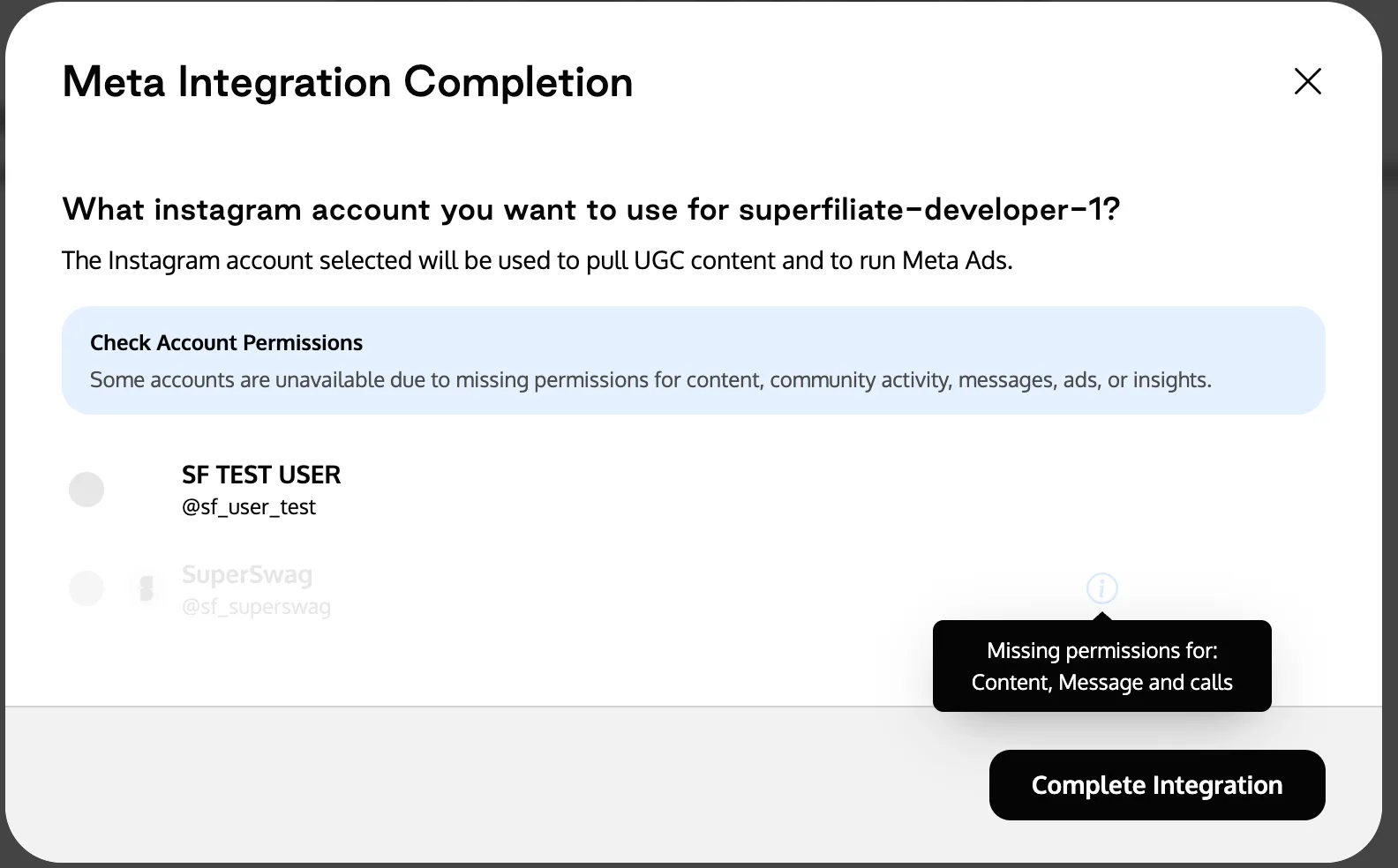
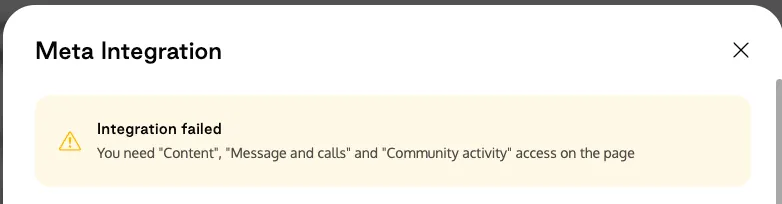
When connecting your Instagram Profile to our platform, you might see options disabled with a tooltip indicating missing permissions, or in the case you have selected only one Instagram Profile, you will be redirected to the authentication modal with an error message.
These issues usually happen when your Meta User doesn’t have all the necessary permissions for the Instagram Profile or Facebook Page you’re trying to connect.
What are Asset Permissions?
In Meta’s Business Suite, everything is organized under a Business Portfolio. This Portfolio can include multiple assets, such as Facebook Pages, Instagram Profiles, ad accounts, and more.
Each person you add to your Business Portfolio becomes a User, and each User must be given specific permissions for each asset. These permissions determine what actions that person can take, such as publishing posts, replying to messages, or managing comments.
To fully use your Instagram Profile with our platform, certain permissions must be enabled.
How to Assign or Edit Permissions in Meta Business Suite:
Log into Meta Business Suite at https://business.facebook.com.
Make sure that you are logging in with an User that has full control of the business portfolio or business asset, this way you can grant more permissions to other Users
Access Settings:
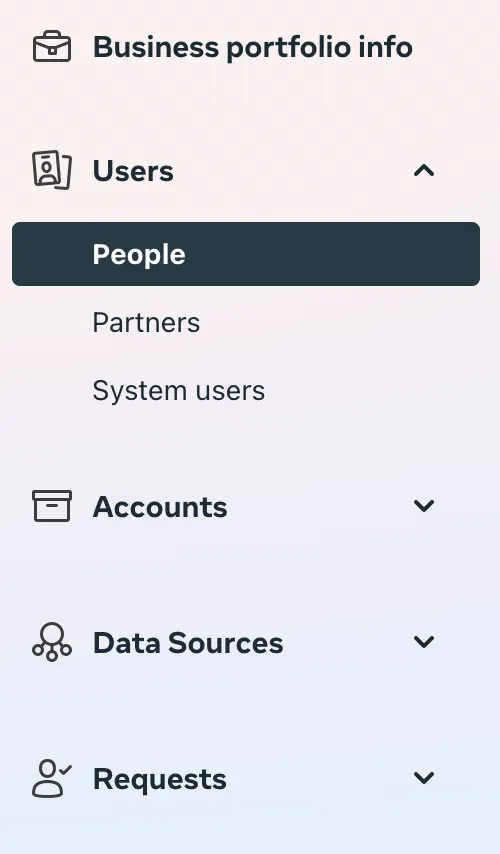
Click Settings on the left-hand menu.
Navigate to Users:
Under "Users," select People.
Choose the User you wish to grant permissions to:
Click the user's name.
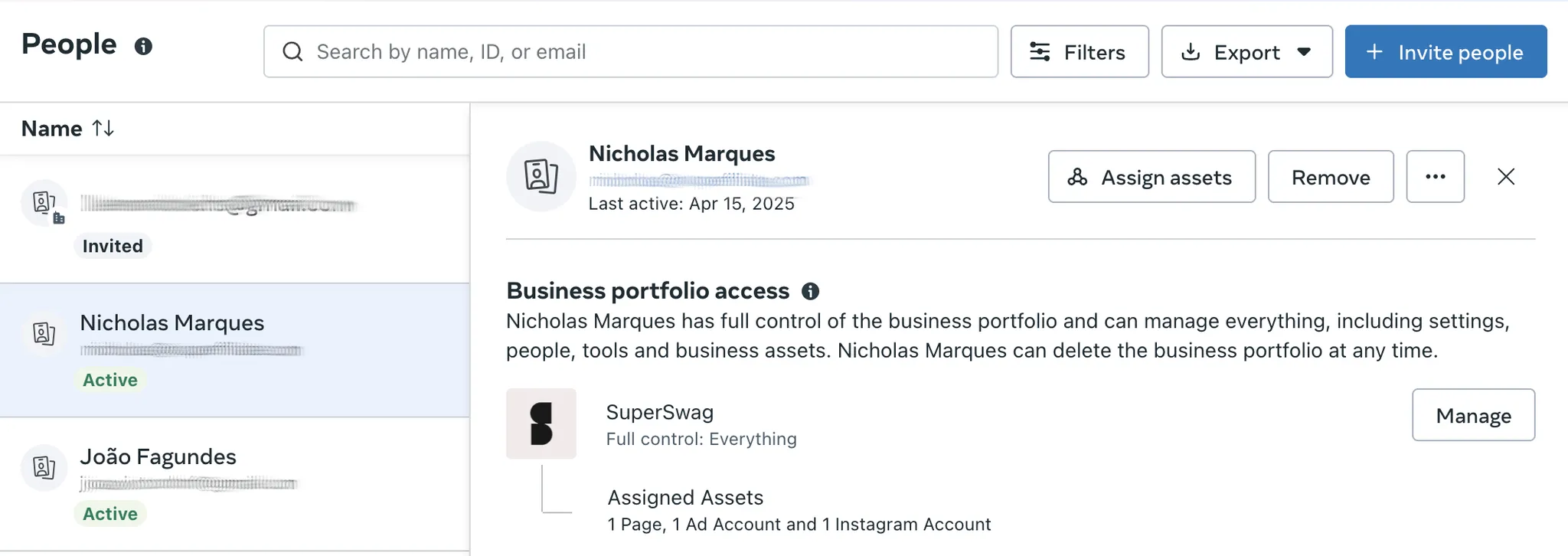
Assign Necessary Tasks:
Under "Assign Assets," locate the asset (Instagram Profile and Facebook Page) you need.
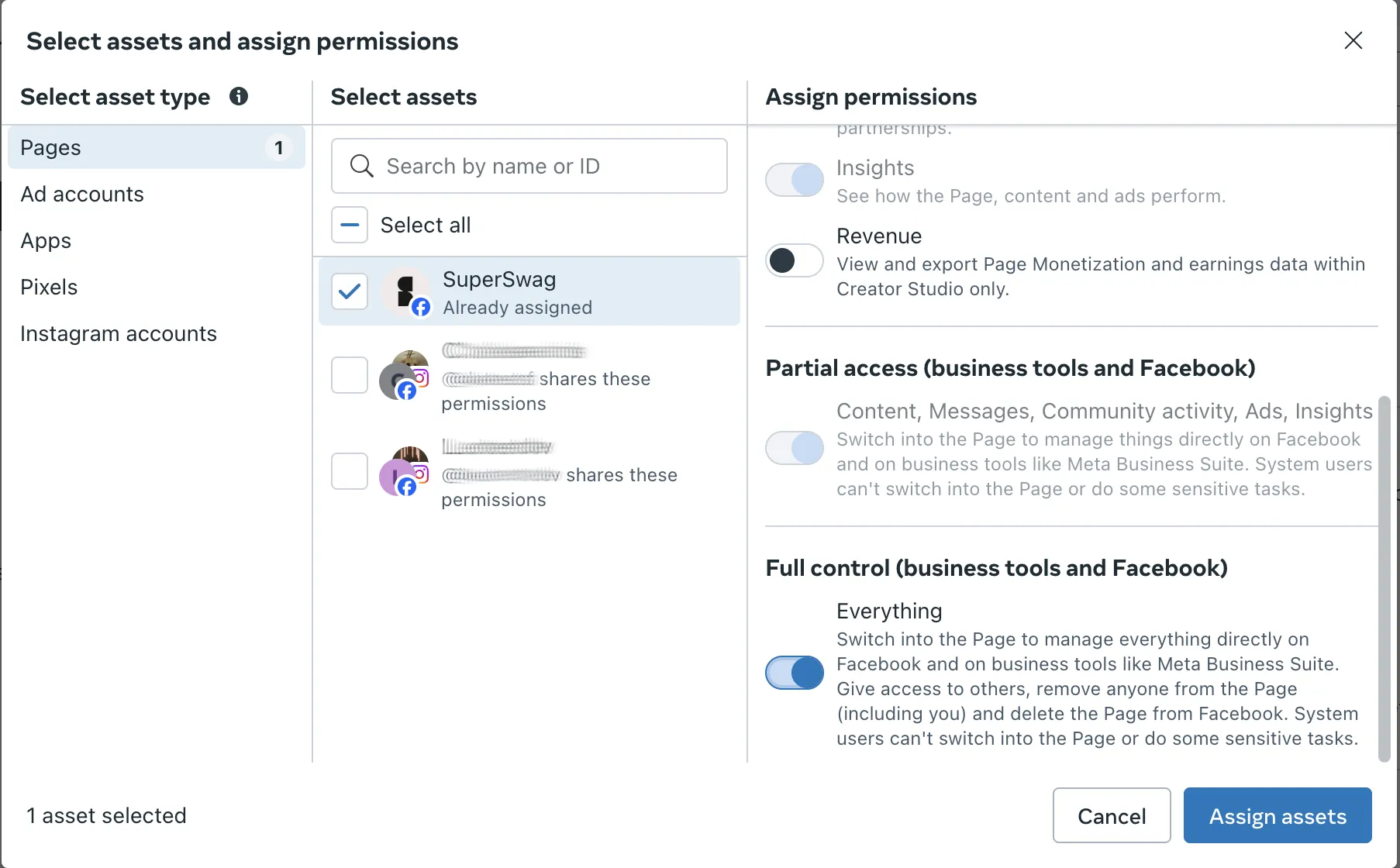
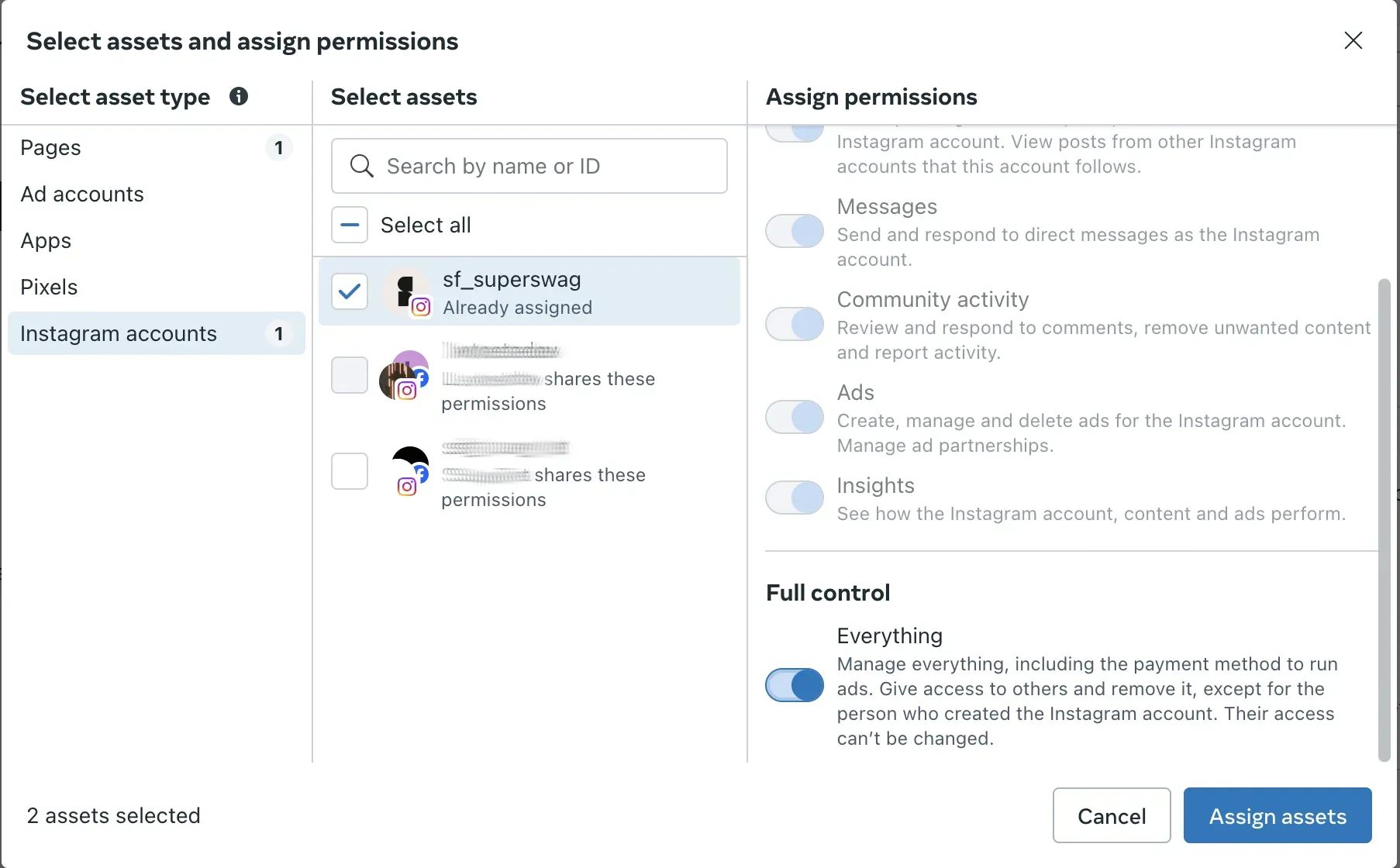
You can select Full Control → Everything to ensure all permissions are granted. However, at a minimum, ensure the following tasks are selected:
Content
Community activity
Message and calls
Save Your Changes:
After selecting these tasks, click Assign Assets.
Next Steps
After updating tasks:
Return to our platform and refresh the authentication page.
The previously disabled options should now be enabled, allowing you to proceed.
If issues persist, please contact support for additional assistance.