How to Use Discovery Autopilot to Find Creators
Last updated: July 3, 2026
Overview
Discovery Autopilot continuously finds creators based on your prompt and collects them in your Creators List — so you can review matches and reach out faster, without manually searching and filtering profiles yourself.
Instead of building a search by hand, you describe the kind of creator you want in a short guided chat. Autopilot then runs the search end-to-end in the background, scores every candidate, and surfaces the strongest matches for you to approve or dismiss. If you turn on auto-improvement, every approve or dismiss sharpens the next batch of results.
Use this feature when you want to:
Find on-brand creators without manually filtering through profiles
Describe your ideal creator in plain language and let Autopilot do the searching
Continuously collect fresh matches into a Creators List for review
Improve match quality over time based on the creators you approve and dismiss
Important behaviors
Autopilot runs end to end once you launch. After you start a search, it runs the full pipeline (fetching → analyzing → filtering → scoring) before you can tweak the brief. You'll need to wait for it to finish or re-run to change your inputs.
Searches run in the background. Your first matches land in a moment, but larger searches take longer (~15 minutes). Add your email in settings to get notified when a run completes.
Only strong matches are surfaced. Autopilot scores each candidate and only presents creators that clear its match threshold, so the results list is a shortlist, not every profile it looked at.
Some creators are automatically excluded — for example, creators with low engagement (less than 1%), inactive accounts, no recent videos, creators already in your lists, existing Superfiliates, or creators you previously dismissed.
Step-by-step
1. Starting an Autopilot search
Navigate to Creator Discovery and open (or create) a Creators List.
Launch Discovery Autopilot to open the guided chat.
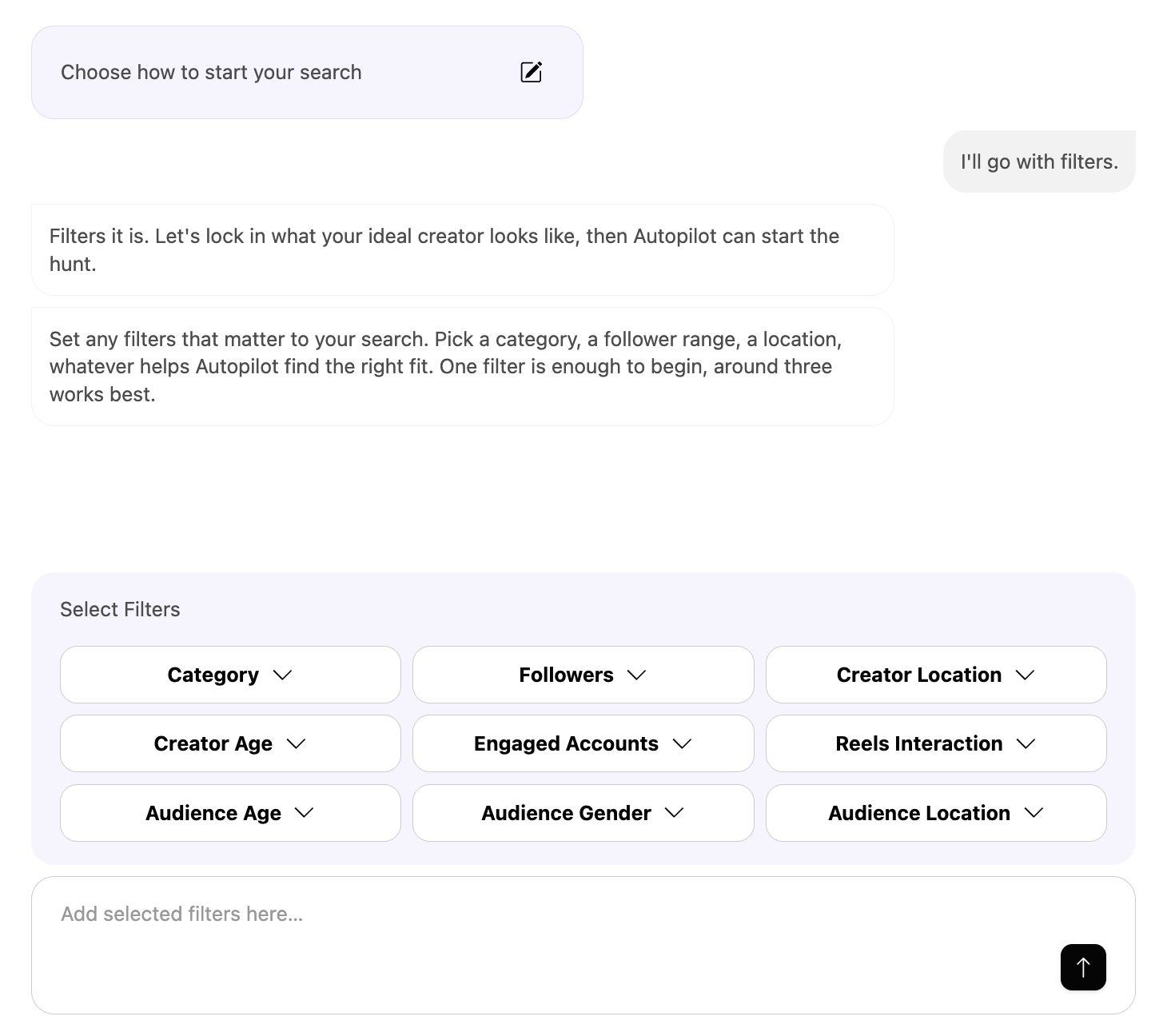
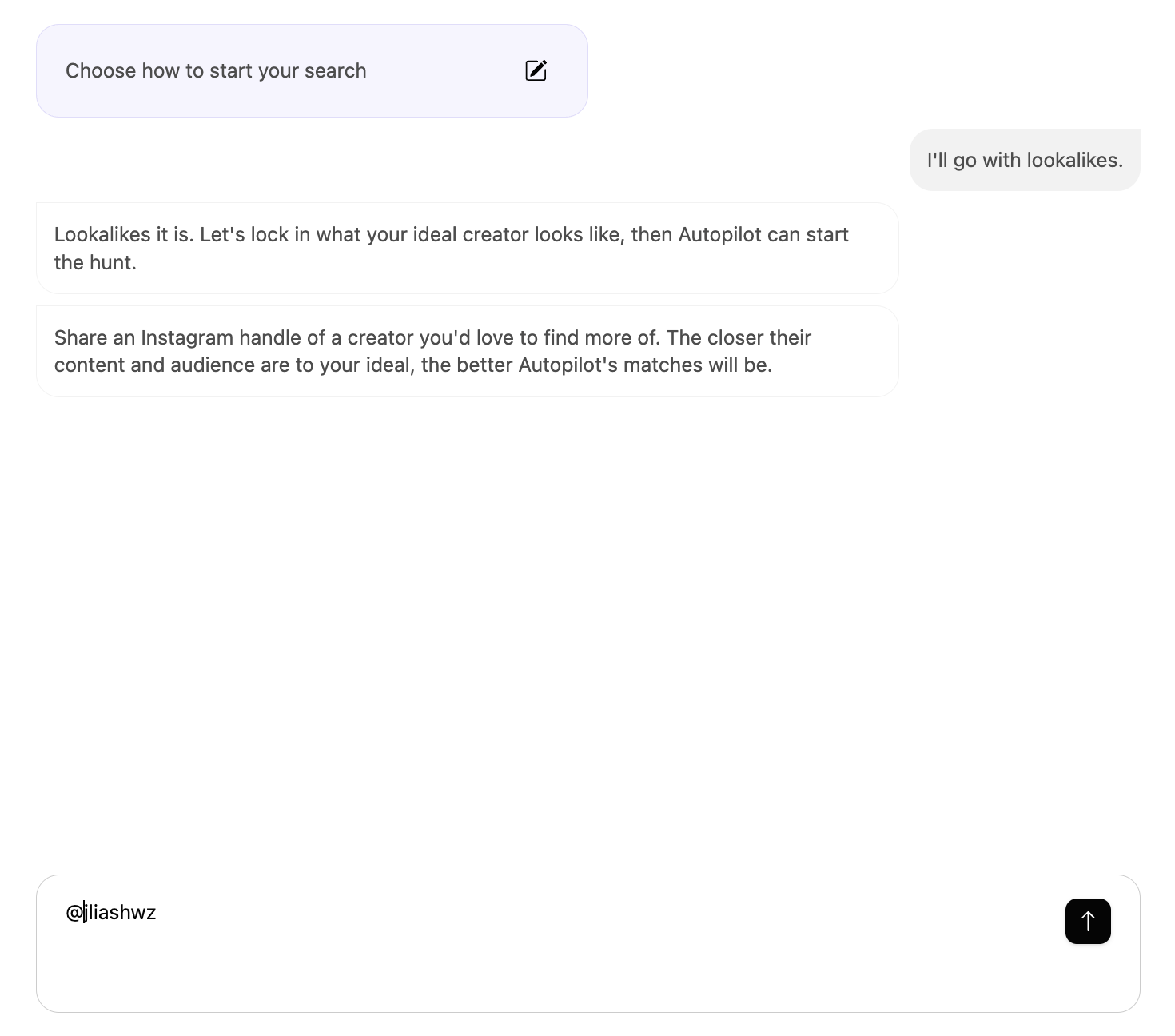
Choose your discovery style:
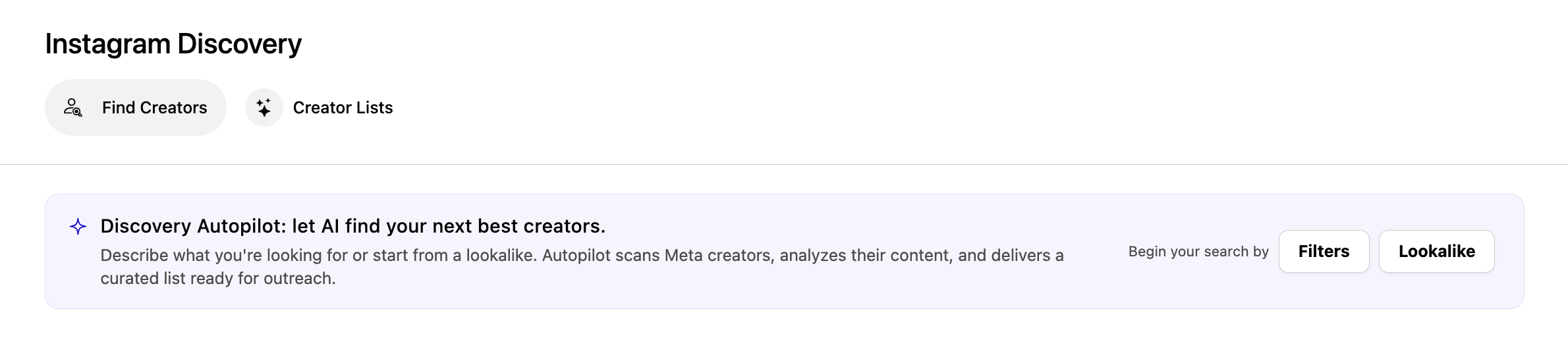
Set Filters — describe your ideal creator by category, follower range, location, etc. (one filter is enough to start; ~3 works best).
Find Lookalike — enter the Instagram handle of a creator you'd like to find similar creators to.
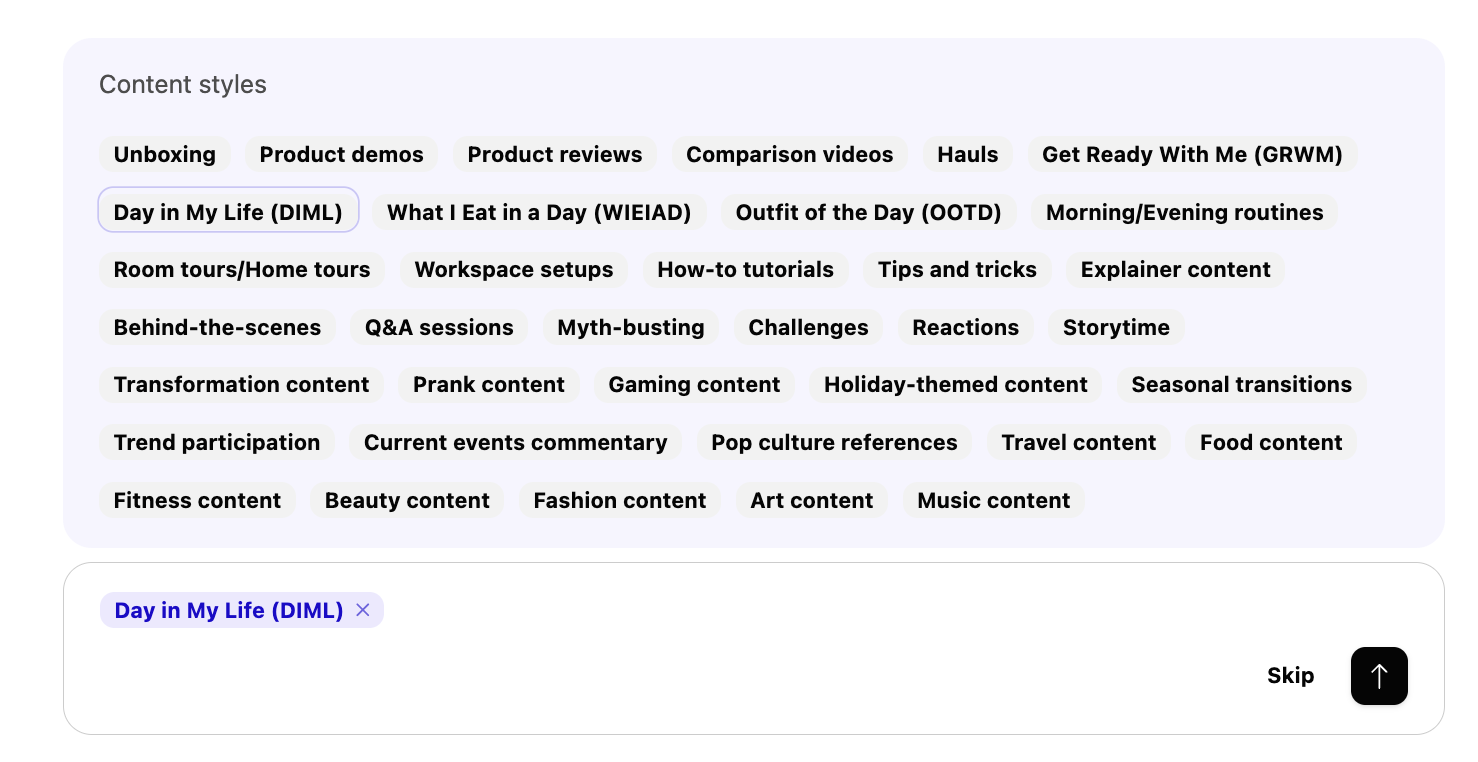
2. Setting your content preferences
Pick a content style — choose up to 2 formats, and Autopilot will prioritize creators who post them consistently. You can skip this to match across all styles.
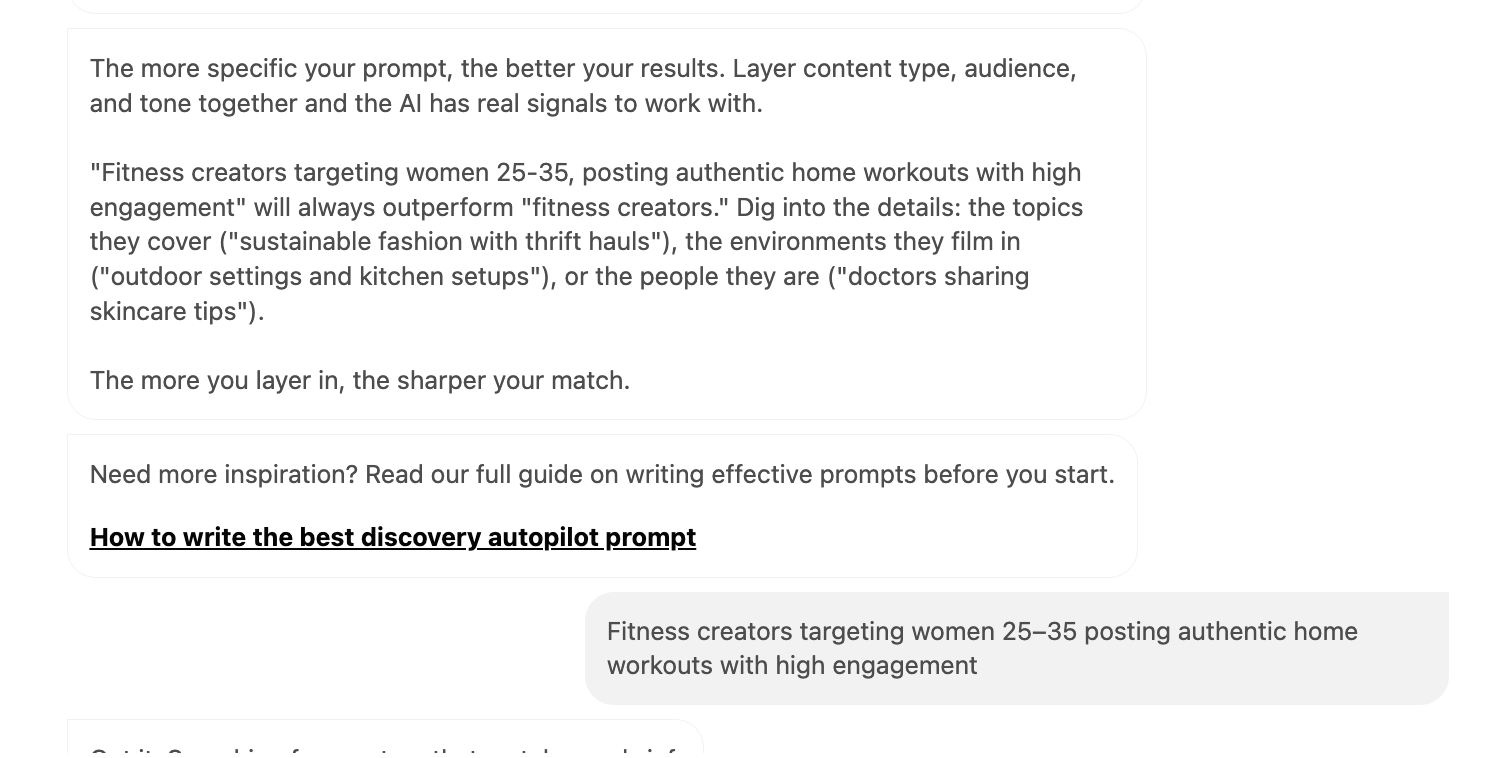
Write your content brief (prompt) — describe the content style, niche, audience, and tone. The more specific you are, the better the match (e.g. "Fitness creators targeting women 25–35 posting authentic home workouts with high engagement" beats "fitness creators").
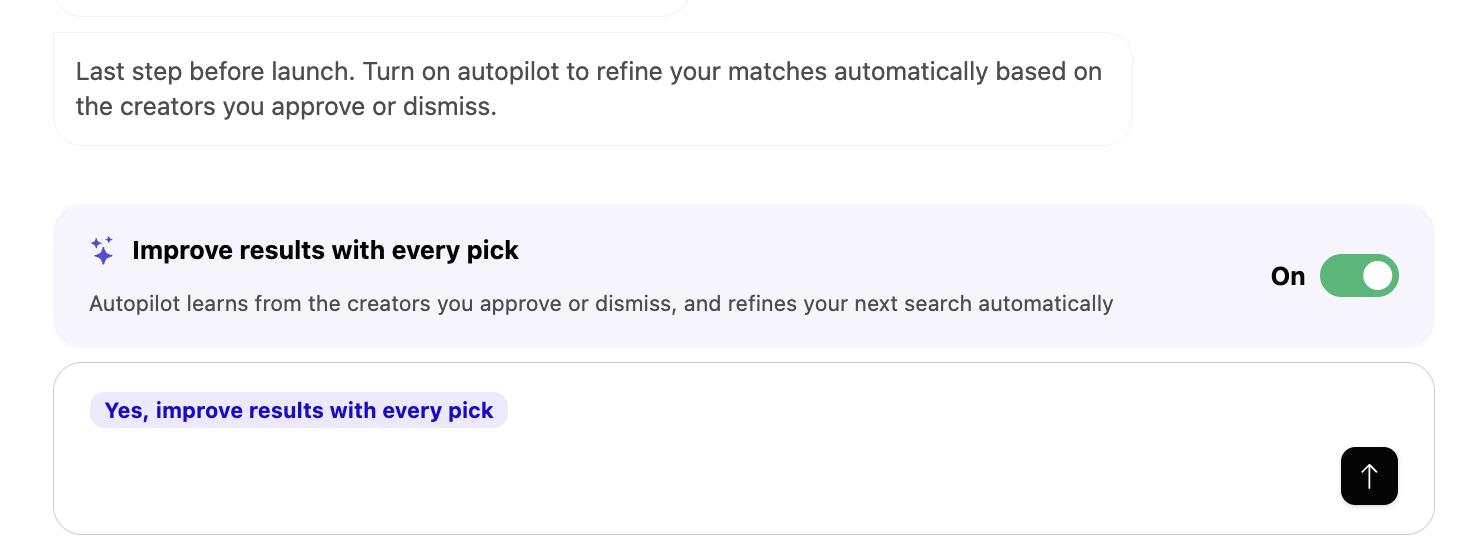
Choose your auto-improvement setting — turn it on to refine matches automatically as you approve or dismiss creators, or leave it off to keep results fixed.
3. Launching the search
Review the summary of your settings (discovery style, content brief, content style, auto-improvement).
Click Launch.
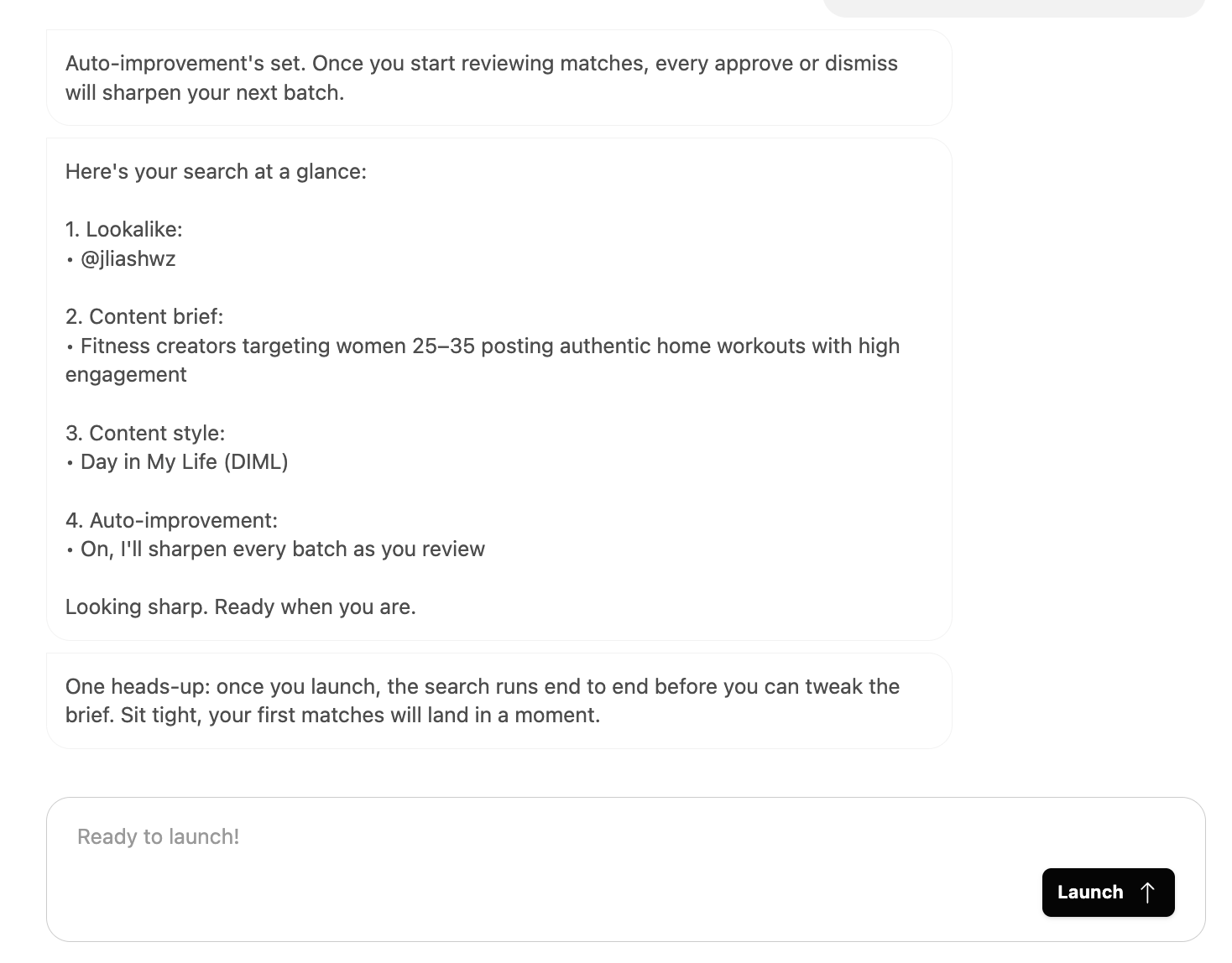
Autopilot runs the search in the background. Your first matches will appear shortly; you'll be notified by email when the run finishes (if your email is set).
4. Reviewing your matches
Open the Autopilot results for your list.
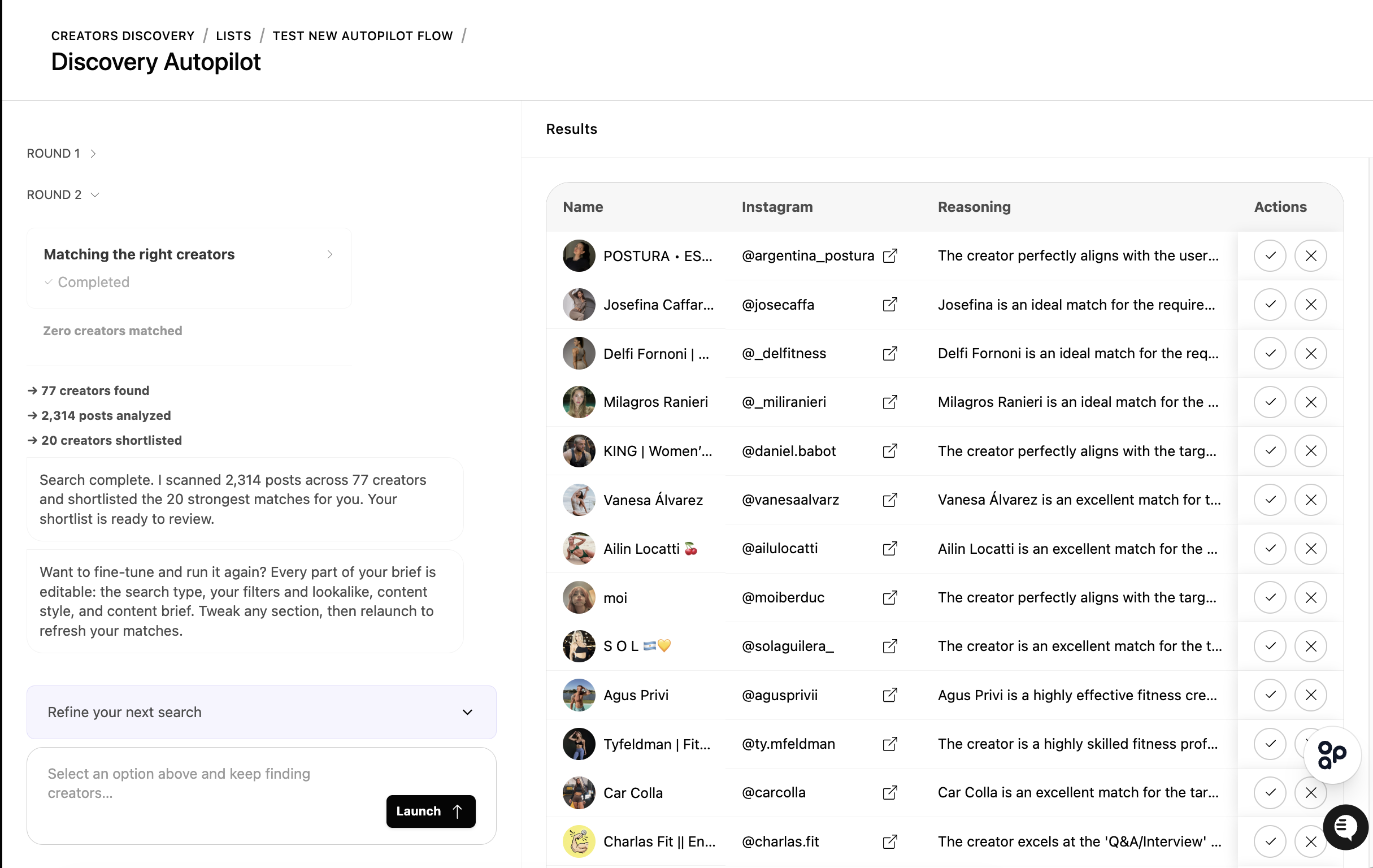
For each creator, review the profile and match details.
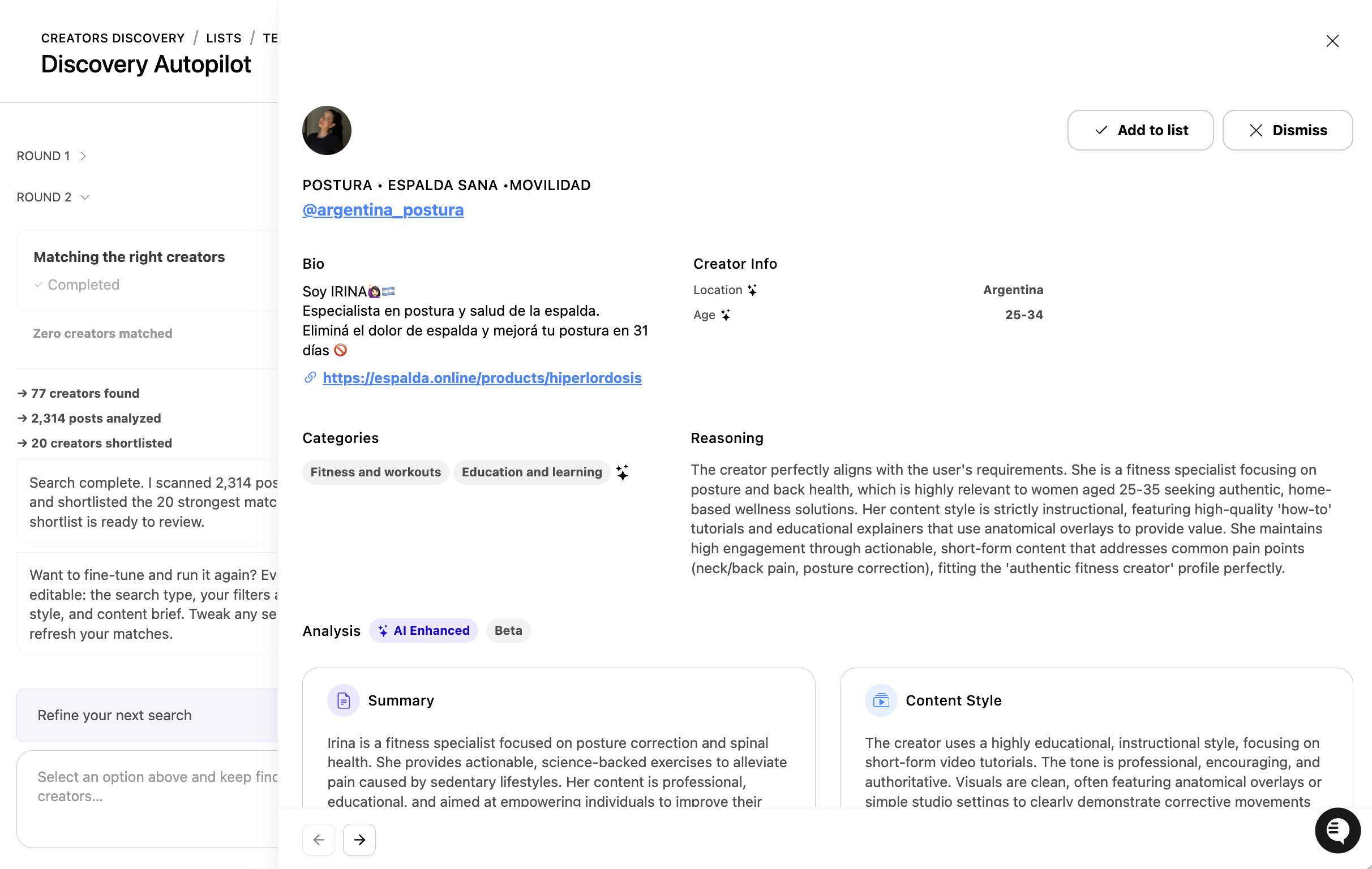
Approve a creator to add them to your Creators List.
Dismiss a creator you don't want. You'll be asked for a reason:
Aesthetic or vibe doesn't fit
Content is too niche
Inconsistent posting cadence
Wrong content format or style
Other (add a short detail)
If auto-improvement is on, your approvals and dismissals refine the next batch of matches.
5. Refining or re-running a search
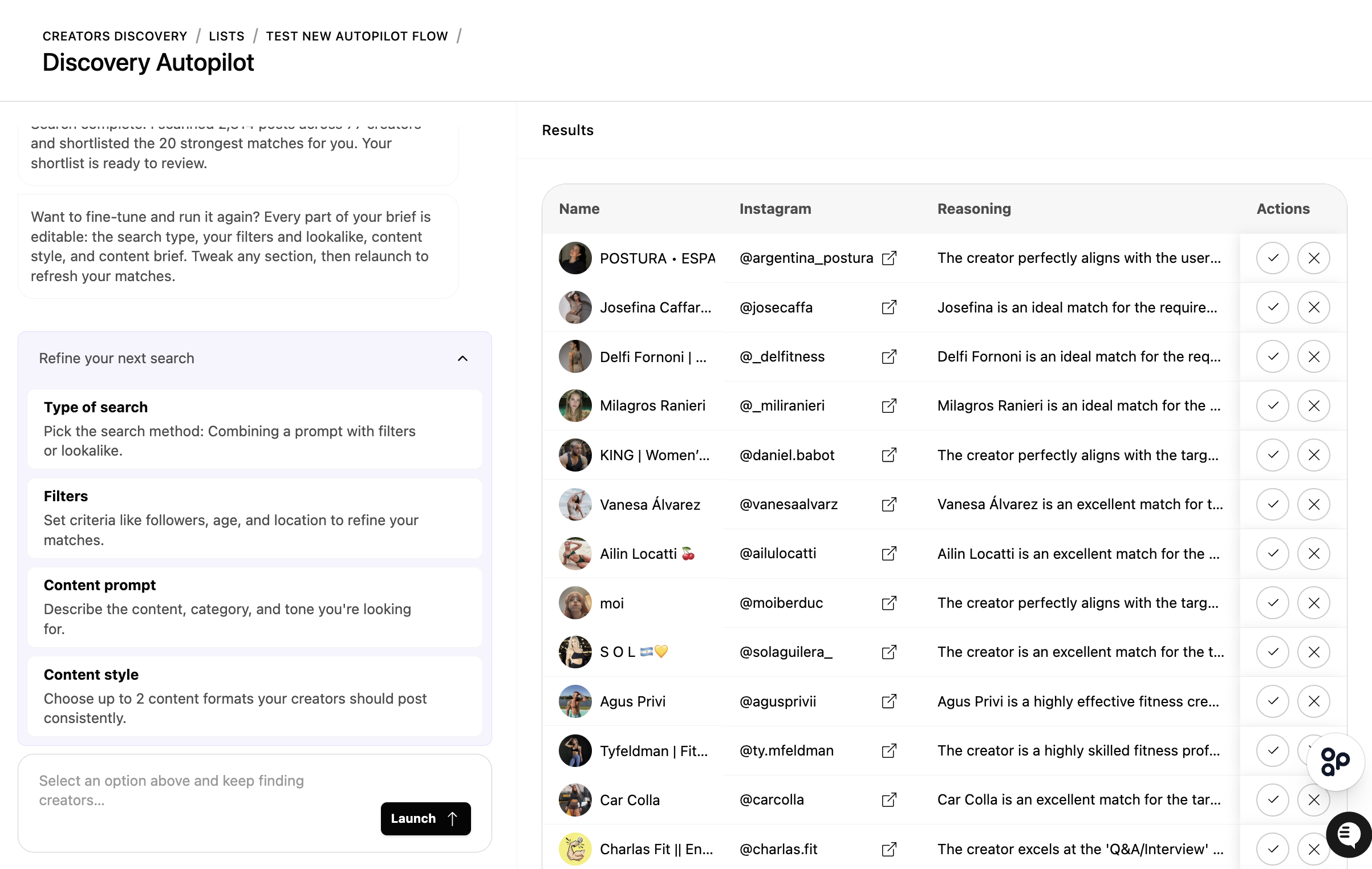
Once a run finishes, edit the prompt text and click Launch to run a fresh search with the new brief.
Or click Refine Search to change your discovery style or filters before running again.
Frequently Asked Questions (FAQ)
Q1. Can I change my search settings while Autopilot is running?
A. No. Once you launch, the search runs end to end before you can edit the brief. Wait for it to finish, then edit your prompt or use Refine Search to run again with new settings.
Q2. Why don't I see every creator Autopilot looked at?
A. Autopilot scores each candidate and only surfaces creators that clear its match threshold. It also automatically excludes creators like inactive accounts, low-engagement profiles, creators already in your lists, existing Superfiliates, and anyone you previously dismissed.
Q3. What does auto-improvement actually do?
A. When it's on, every creator you approve or dismiss is used as a signal to refine your next batch of matches. When it's off, your results stay fixed to the settings you launched with.
Q4. What's the difference between Filters and Lookalike?
A. Filters find creators matching criteria you set (category, follower range, location, etc.). Lookalike takes one Instagram handle and finds creators similar in content and audience. You can switch between them with Refine Search.
Q5. How will I know when a search is done?
A. Autopilot runs in the background and your first matches appear in a moment. To be notified when a full run finishes, add your email under Settings → Notifications → Creator Discovery.