How to Reject a Conversion
Last updated: August 13, 2025
To ensure that conversions from Internal Tests and Potential Fraud don't impact your Superfiliate Reporting, you're able to Manually Reject Approved Conversions.
This action removes the data from the conversion(s) from all reports and dashboards, removes commission from the creator, and provides a refund on any Superfiliate success fees -- you can see all of the potential outcomes at the very bottom of this page, under "Key Behaviors."
Because of the data and commission updates, any Manual Rejections are irreversible actions.
If you'd like to continue with Manually Rejecting a previously Approved Conversion, here's the process to 'Reject' them:
Go to the Reporting tab.
Open the Conversions report.
Find the conversion you want to reject:
Search by Order number or Customer email.
Click the three-dot menu next to the conversion.
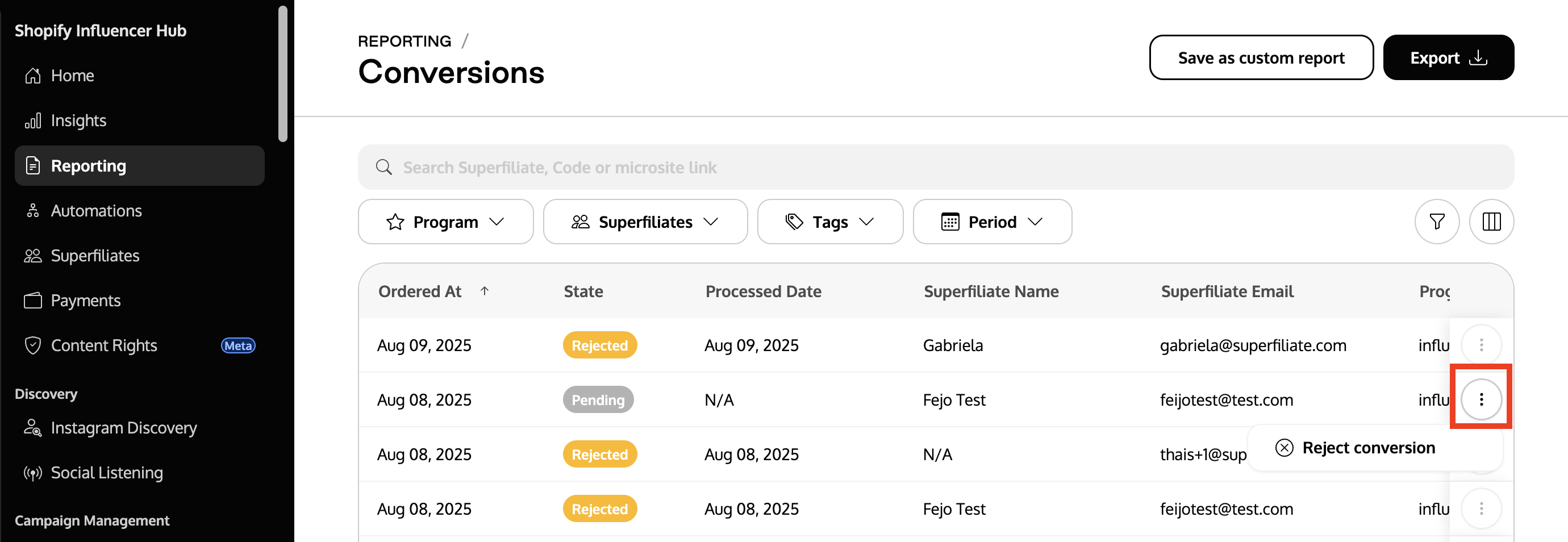
Select Reject conversion.
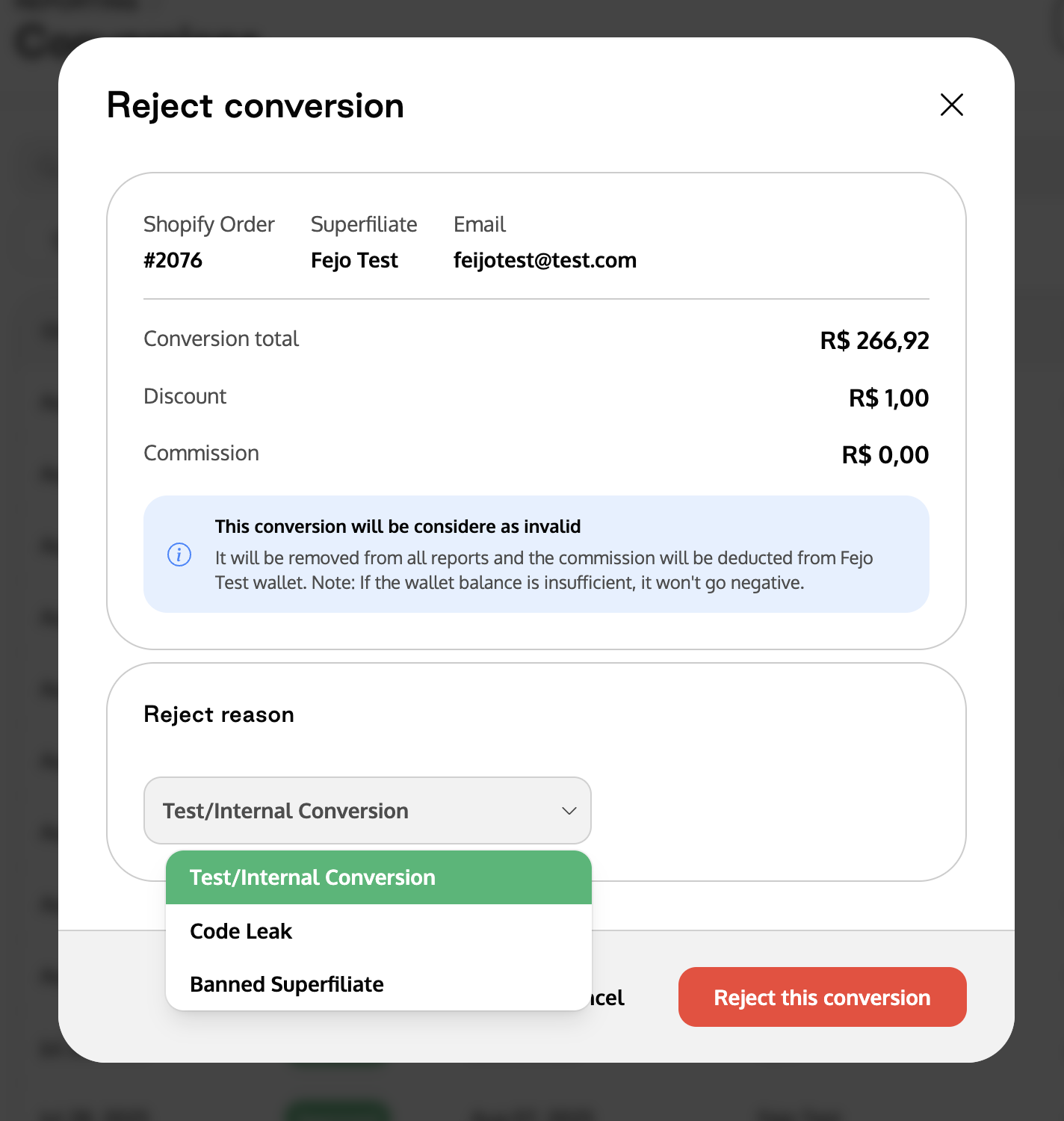
Choose a reason from the dropdown list.
Click Reject this conversion to confirm.
Key Behaviors
Permanent action — this action CANNOT be reversed.
The Merchant is credited back for the fee and the creator’s commission is revoked.
Credit is visible in the merchant’s Shopify billing activity.
Creator balance reduced only to zero (no negative amounts).
Conversion is removed from all reports and dashboards.
Both merchant and creator see the rejected status in their dashboards.
Automations triggered by the original conversion are not undone.
Within Gifting:
If the gift is unlocked, but not redeemed → the gift is re-locked.
If the gift is redeemed → no change.