Superfiliate Widgets
Last updated: September 23, 2026
Superfiliate has multiple widgets that can appear across your shopper journey. To understand when each widget appears and what can be customized, continue reading below.
On Site Widgets
Embedded Portal Widget
The Embedded Portal Widget allows shoppers to access the Portal Sign In experience for your Referral & Loyalty program directly from your website.
This makes it easier for shoppers to log in, view their cashback or rewards, and redeem them without leaving your store.
The widget mirrors your Portal styling and branding
Most of the widget content comes directly from your Portal
The widget can be positioned on different areas of your site based on your Program Widget settings
If you would like to update onboarding, perks, intros or other Portal content, those changes should be made through the Portal editor.
Here's a video of how you can customize your onsite widget:
Post Purchase Widget
The Post Purchase Widget appears on the Shopify Thank You / Order Status experience after a shopper completes an order.
If you have migrated/undergone the Shopify Extensibility Update, please follow the video below to add the widget to your website.
If you have not yet migrated to Shopify's new checkout extension, you can manage the embedded Post Purchase Widget from your Referral & Loyalty Program settings.
On Site Discount Widget
The On Site Discount Widget appears when a shopper arrives on your website through a Superfiliate referral link.
This includes:
A Superfiliate link redirects directly to your website, bypassing the Cobranded Landing Page
A shopper clicks "Continue Shopping", or the equivalent, to shop your entire store instead of staying within the curated collection on the landing page
A shopper otherwise navigates from the landing page to your main site
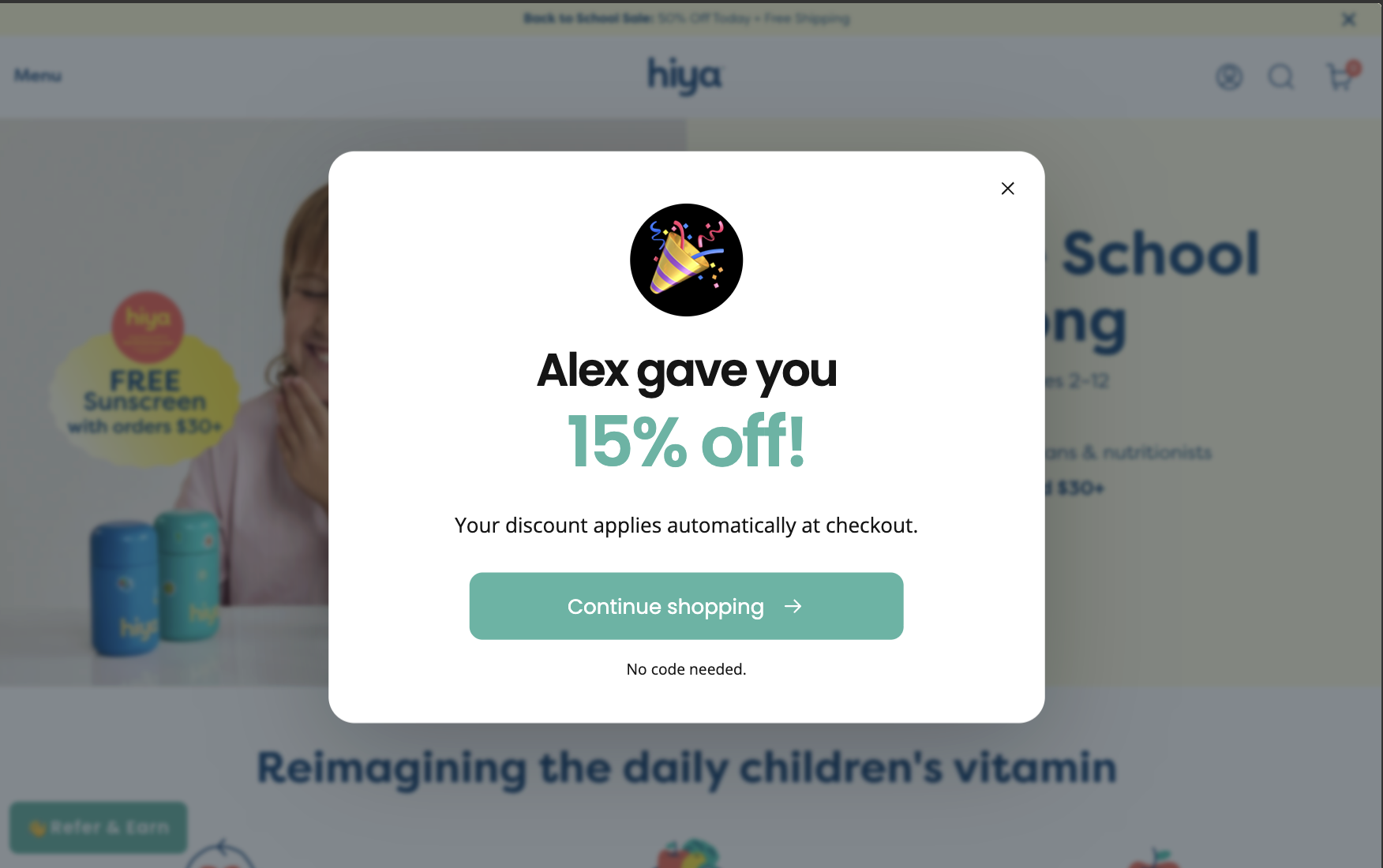
The widget lets the shopper know who referred them and displays the offer associated with that referral.
The referral information displayed is automatically based on the link the shopper used. This can include the referring Superfiliate's name, the discount amount or percentage, and any applicable minimum-spend terms.
Changing the widget's layout, styling or copy does not change your referral tracking or discount rules.
Superfiliate Redeem Widget
The Superfiliate Redeem Widget appears automatically when a Superfiliate returns to your store to redeem a reward they've earned.
This experience can be enabled or disabled and its copy can be customized from the Program Widget editor.
How to Customize Your Program Widget
To edit your on-site widget settings, navigate to:
Program > Experiences > Program Widget > Customize Now
From here, you can preview your widget on mobile and desktop and customize both the design and content.
Design & Style
Under Design & Style, you can customize:
Button color
Text color
Widget button format
Button text
Button icon
Fonts
Whether the widget button is displayed
Widget position on your website
Some widget design elements mirror your Portal branding. If you would like to change Portal-specific content or branding, those changes should be made directly through the Portal editor.
Content
Under Content, you can customize the experiences shown to shoppers.
For the Lead referral experience, you can:
Enable or disable the widget
Choose the offer layout
Add or remove an emoji
Customize the creator headline
Customize the discount headline
Edit the description
Customize the button text
You can also use dynamic fields so the widget automatically displays the correct referral information.
For example:
{{sf_first_name}}displays the referring Superfiliate's first name{{sf_lead_discount}}displays the discount amount or percentage associated with the referral
This allows the live widget to display messaging such as:
Alex gave you 15% off!
The creator name and discount will automatically update based on the shopper's referral.
The Superfiliate Redeem experience can also be enabled or disabled and its messaging customized from this section.
After making any changes, make sure to save them and click Publish changes.
Widget updates can take up to 5 minutes to appear on your website.