How to Track Published Content in a SuperBrief
Last updated: April 23, 2026
This action automatically captures and reviews social content posted by creators as part of a SuperBrief campaign, and optionally assigns it to specific deliverables.
Step 1: Set Up Content Tracking When Creating a Brief
1. Go to the correct page
Go to Campaigns > SuperBriefs.
2. Begin the action
Click Create Brief (or open an existing draft brief).
3. Enable content tracking
In the brief creation flow, locate the Campaign Tracking Window section.
Select Evergreen Campaign or Limited Time Campaign.
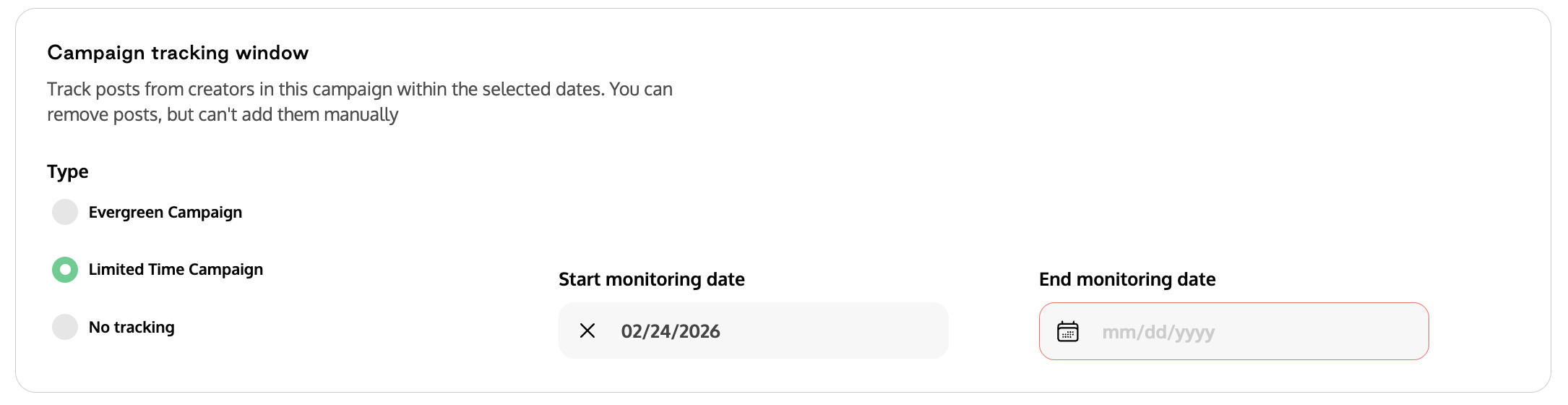
Set a Start Date — this cannot be earlier than the date the SuperBrief is activated.
Set an End Date (optional for Evergreen) — if left blank, tracking will continue indefinitely from the start date.
If you do not want to track content posted on Instagram or TikTok, select No Tracking instead.
Click Turn On to activate the brief.
Note: Once published, any creator who is part of the brief and posts content that mentions your brand within the defined date range will have their content automatically surfaced in the brief's content tab.
Step 2: Review Tracked Content
1. Go to the correct page
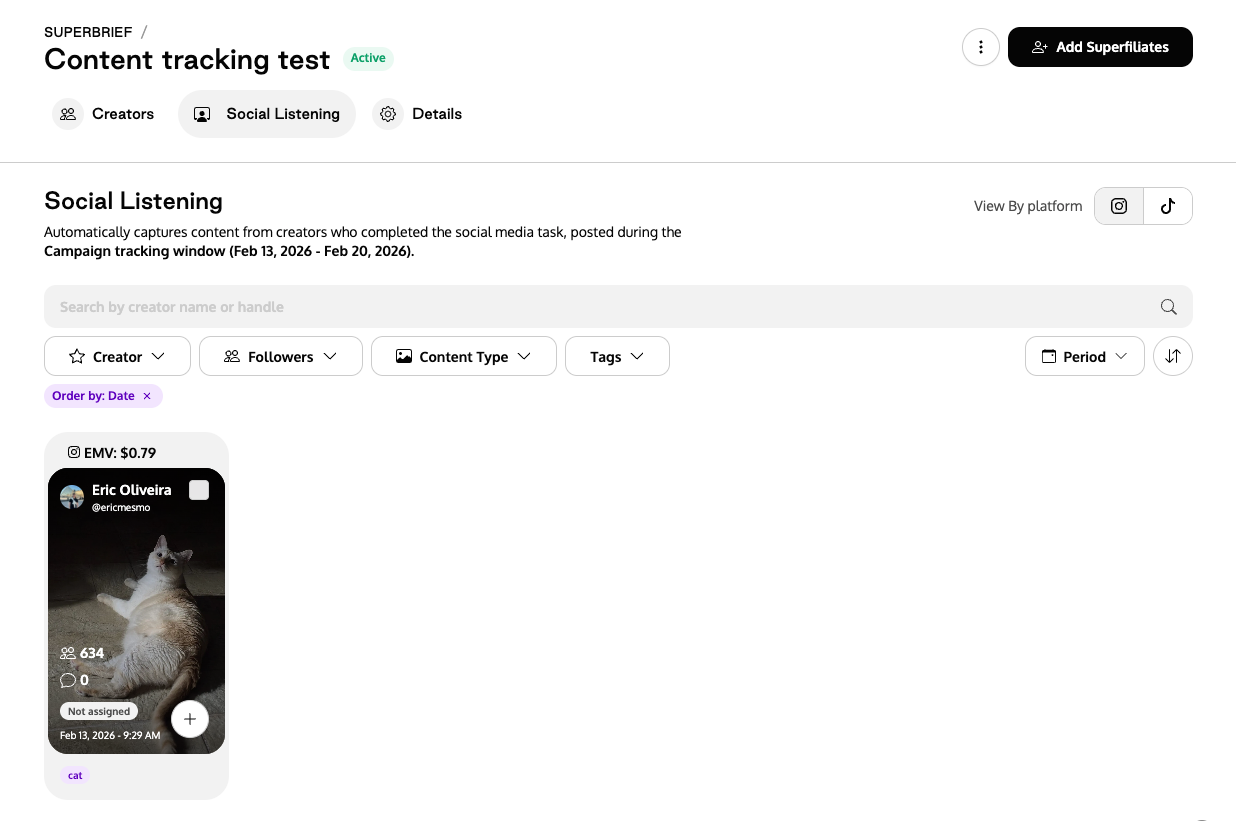
Open the SuperBrief and navigate to the Social Listening tab
2. Review the content
All posts from brief participants that mention your brand within the tracking window will be listed here.
The behavior mirrors the global Social Listening view — content is captured automatically when a creator tags or mentions the brand.
3. Unlink content from the brief (optional)
If a piece of content should not be associated with this brief, click Unlink from Brief on the content card.
This action is irreversible. Once unlinked, the content cannot be re-added to the brief manually.
The content will still be available in your global Social Listening view, but it will no longer be attributed to this campaign and will not populate its analytics.
Step 3: Assign Content to a Deliverable
1. Open a content card
In the Social Listening tab, click on any tracked content card.
2. Assign to a deliverable
Click Select deliverable
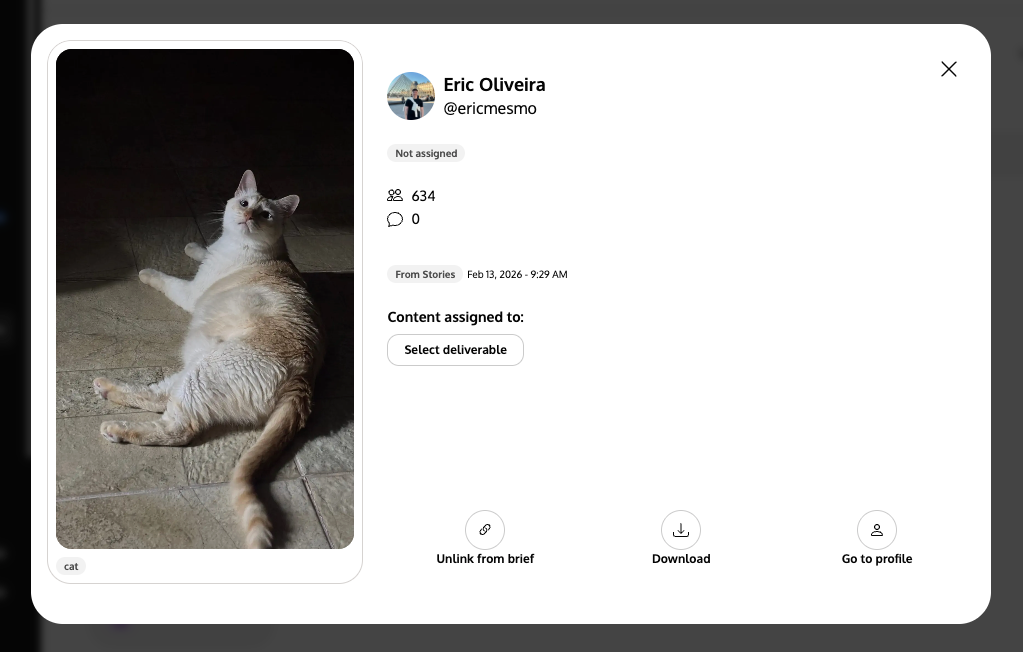
A list of deliverables with status Approved that are assigned to that specific creator will appear.
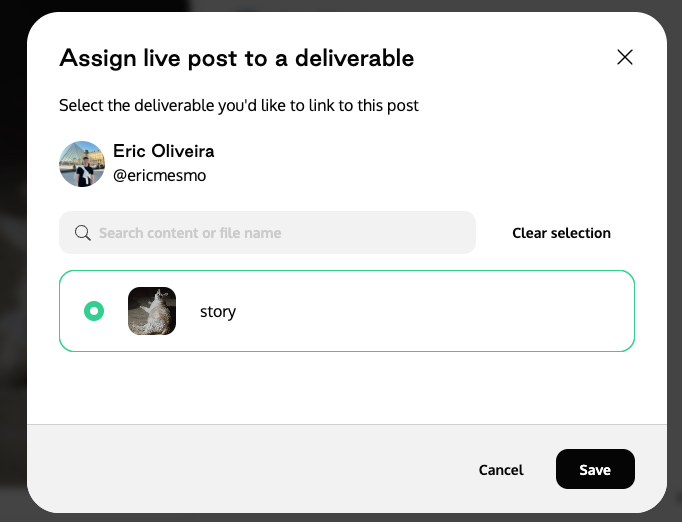
Select the appropriate deliverable.
Click Save.
3. Confirm the assignment
The content in the Social Listening tab will now be assigned to the selected deliverable.
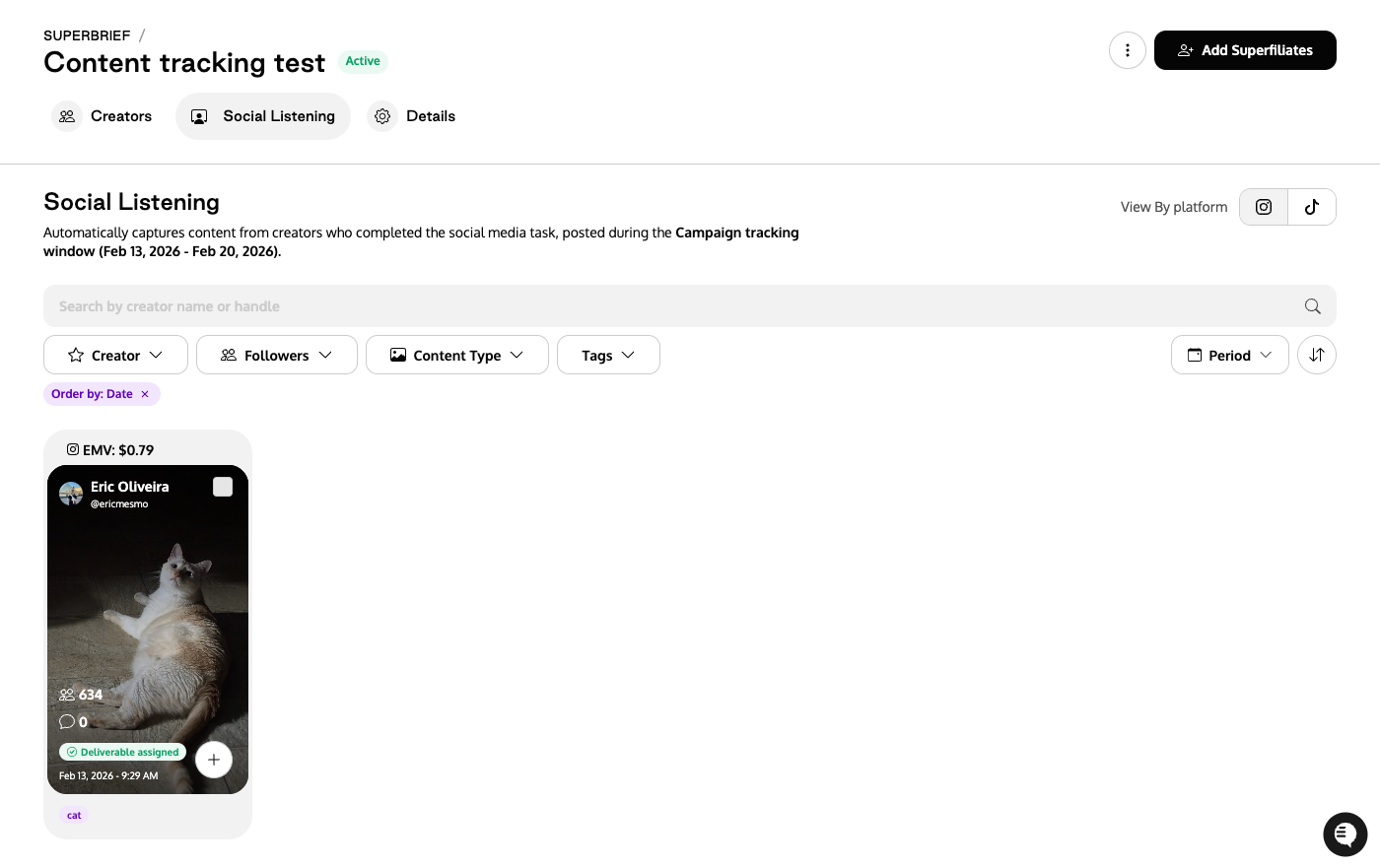
In the Creators table, that deliverable will be marked as posted.
Note: Content tracking is supported only for Instagram and TikTok.