How to Measure Campaign Performance with SuperBrief Analytics
Last updated: April 23, 2026
The Analytics tab gives you a complete view of your campaign's financial and social performance — including revenue, conversions, engagement metrics, and individual creator or deliverable-level breakdowns.
Prerequisites
Before the Analytics tab appears, the following conditions must be met:
The SuperBrief must have content tracking enabled (a Campaign Tracking Window must be configured).
The brief must be active and have at least one creator added.
Step 1: Access the Analytics Tab
Go to the correct page
Go to Campaigns > SuperBriefs.
Open the SuperBrief you want to analyze.
Navigate to the tab
Click the Analytics tab in the top navigation bar (next to Creators, Details, and Social Listening).
Understand the tracking window
At the top of the Analytics page, you'll see the Campaign Tracking Window date range. All metrics reflect data from posts linked to this brief within that window.
If the campaign is Evergreen (no end date), the label will show "from [Start Date]" onward.
Step 2: Review Revenue Overview
The Revenue Overview section appears when your brief includes an affiliate link and code setup. It provides financial health metrics for the campaign.
View revenue metrics
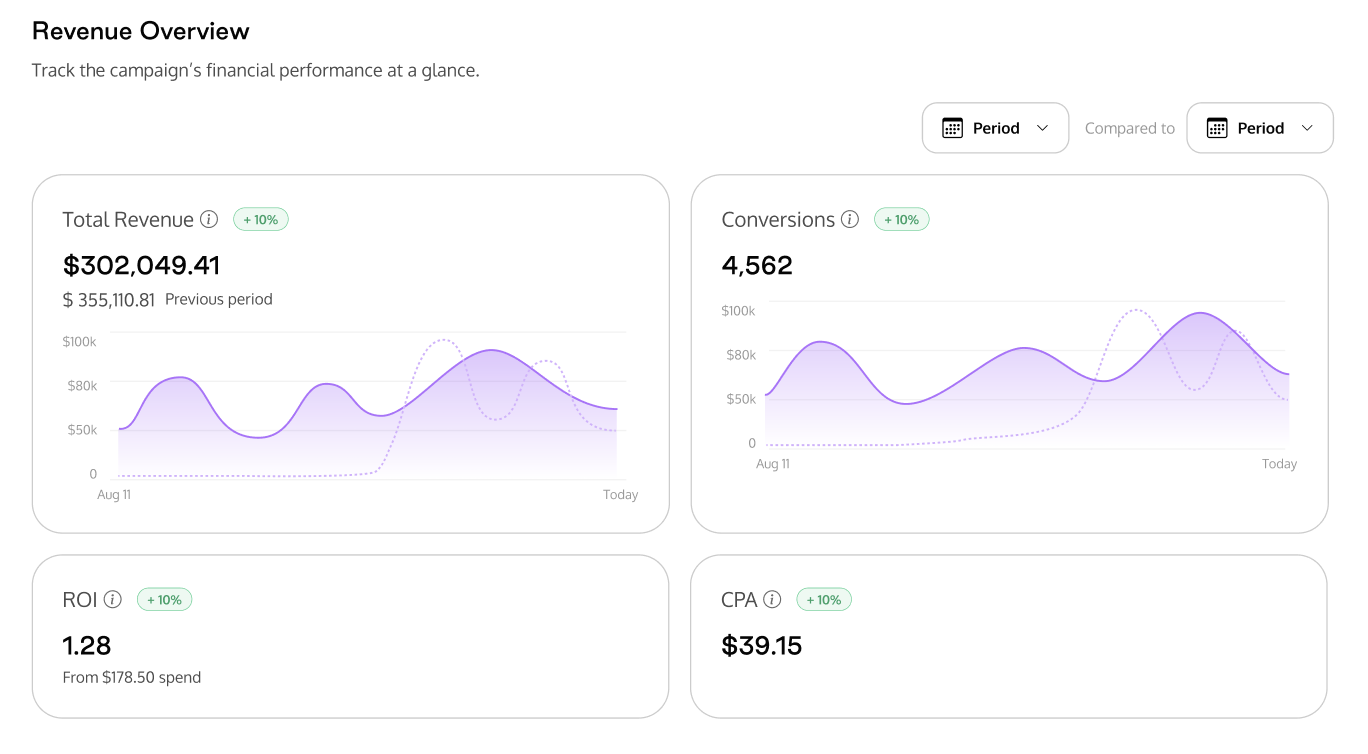
The following metric cards are displayed:
Metric
Description
Total Revenue
Total revenue generated from all conversions (confirmed, pending, and cancelled). Includes a trend chart over time.
Conversions
Total referred customer purchases to your shop, including both approved conversions and those below the minimum quantity or order value. Click to open the Conversions full view.
ROI
Return on creator payments. Calculated as (Total Revenue − Payments) ÷ Total Payments. Shown alongside total spend.
CPA
Cost Per Acquisition. Total creator payments divided by the number of conversions generated.
Filter by date range
Use the period filter (top-right) to adjust the reporting window.
Optionally enable a comparison period to see how metrics trend against a previous time range. Comparison values and percentage changes appear on each card.
Understand the charts
Total Revenue and Conversions cards include line comparison charts that visualize trends over the selected period.
When a comparison period is active, both periods are overlaid on the same chart.
Note: If no conversions have been recorded yet, you will see an empty state: "Revenue data will appear once creators start posting and driving sales. Track creator progress in the Creators tab."
Step 3: Review Social Performance Metrics
This section measures the visibility and engagement your creators are driving across Instagram and TikTok.
Filter by platform
Use the Platform filter to view metrics for All platforms, Instagram only, or TikTok only.
Filter by date range
Use the period filter to select a date range and optionally a comparison period, just like in Revenue Overview.
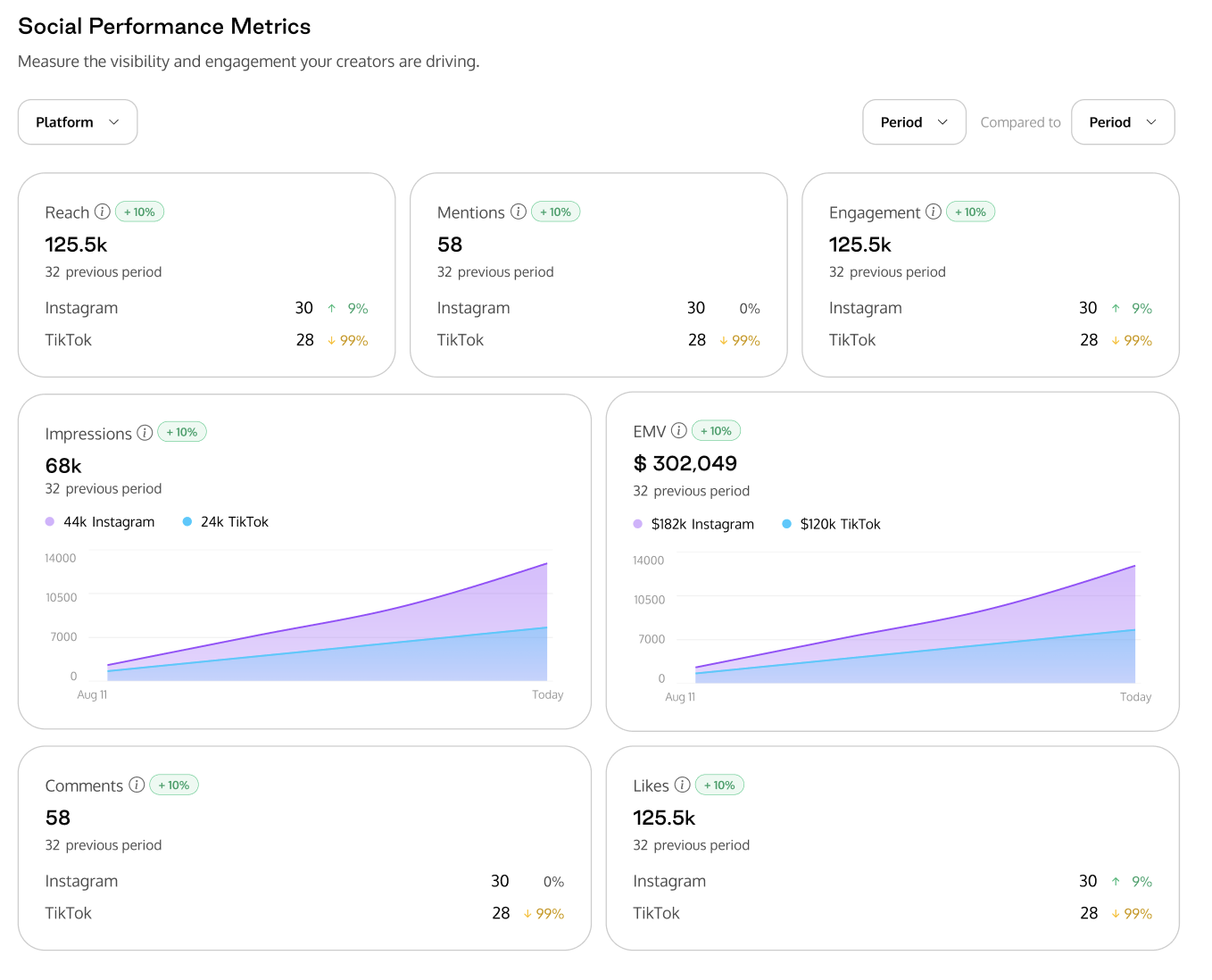
The following metrics are displayed as cards:
Metric | Description |
Reach | Total followers of creators who posted content. |
Mentions | Total number of social posts/mentions. |
Engagement | Total engagements (likes + comments) across all social posts. |
Comments | Total comments on social posts. |
Likes | Total likes on social posts. |
Impressions | Total estimated impressions from social posts. |
EMV | Earned Media Value — estimated monetary value of social media content produced by creators in this brief. |
Note: If no posts have been recorded yet, you will see an empty state: "No social data recorded yet. Keep an eye on their status in the Creators tab and ensure their Instagram handles are up to date."
Step 4: Review Creator Performance
The Creator Performance section lets you analyze results at either a creator or deliverable level using a segmented toggle.
Creator View
Switch to the Creators view
In the Creator Performance section, ensure the Creators toggle is selected (it is selected by default).
Review the table
Each row represents a creator in the brief.
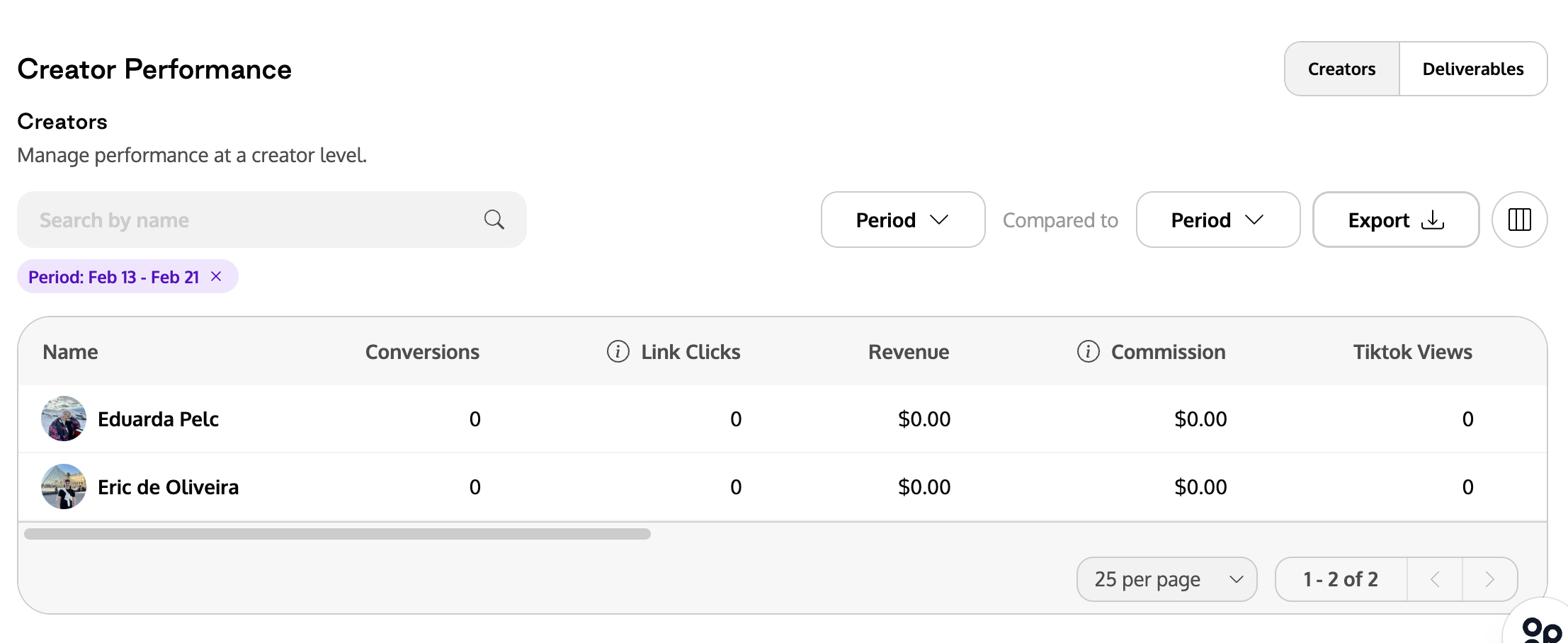
Filter and sort
Use the search bar to filter by creator name.
Use the period filter to adjust the date range and optionally compare against a previous period.
Click any sortable column header to sort the table.
Use the column visibility toggle to show or hide columns.
Export data
Click the Export button to download the creator performance data as a CSV file. The export respects any active filters.
Deliverable View
Switch to the Deliverables view
Click the Deliverables toggle in the Creator Performance section header.
Review the table
Each row represents a single deliverable linked to a post.
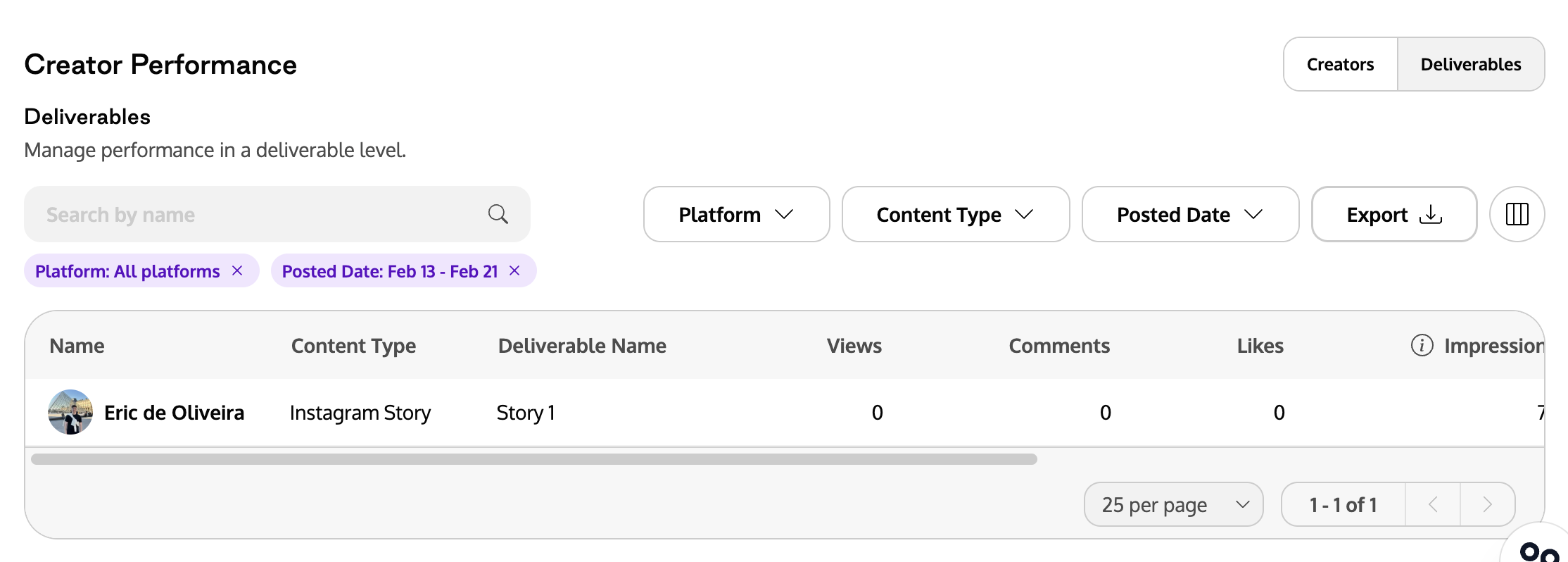
Filter and sort
Use the search bar to filter by creator name.
Use the Platform filter to view deliverables from Instagram only, TikTok only, or all platforms.
Use the Content Type filter to narrow down by specific post types.
Use the Posted Date filter to filter by when the content was published.
Click any sortable column header to sort the table.
Export data
Click the Export button to download the deliverable performance data as a CSV file. The export respects all active filters (platform, content type, posted date, search).
Note: If no deliverables have been assigned to posts yet, you will see: "Assign campaign posts to deliverables in Social Listening to see creator performance here." with a link to navigate to the Social Listening tab.
Key Notes
Platform support: Analytics data is captured from Instagram and TikTok only.
Data dependency: The Analytics tab only surfaces data from posts that have been linked to the brief via the Social Listening tab. If no content is linked, the analytics sections will show empty states.
Deliverable assignment: For deliverable-level performance data to appear in the Analytics tab, posts must first be assigned to deliverables in the Social Listening tab.
Export: Both the Creator Performance and Deliverable Performance tables support CSV exports. All active filters are included in the export.
Comparison periods: All metric sections support date range comparisons, showing percentage change indicators (green for improvement, amber for decline) to help you evaluate campaign trends.
Campaign Tracking Window: All analytics are scoped to the Campaign Tracking Window dates set during brief creation. You can further narrow by using period filters within each section.