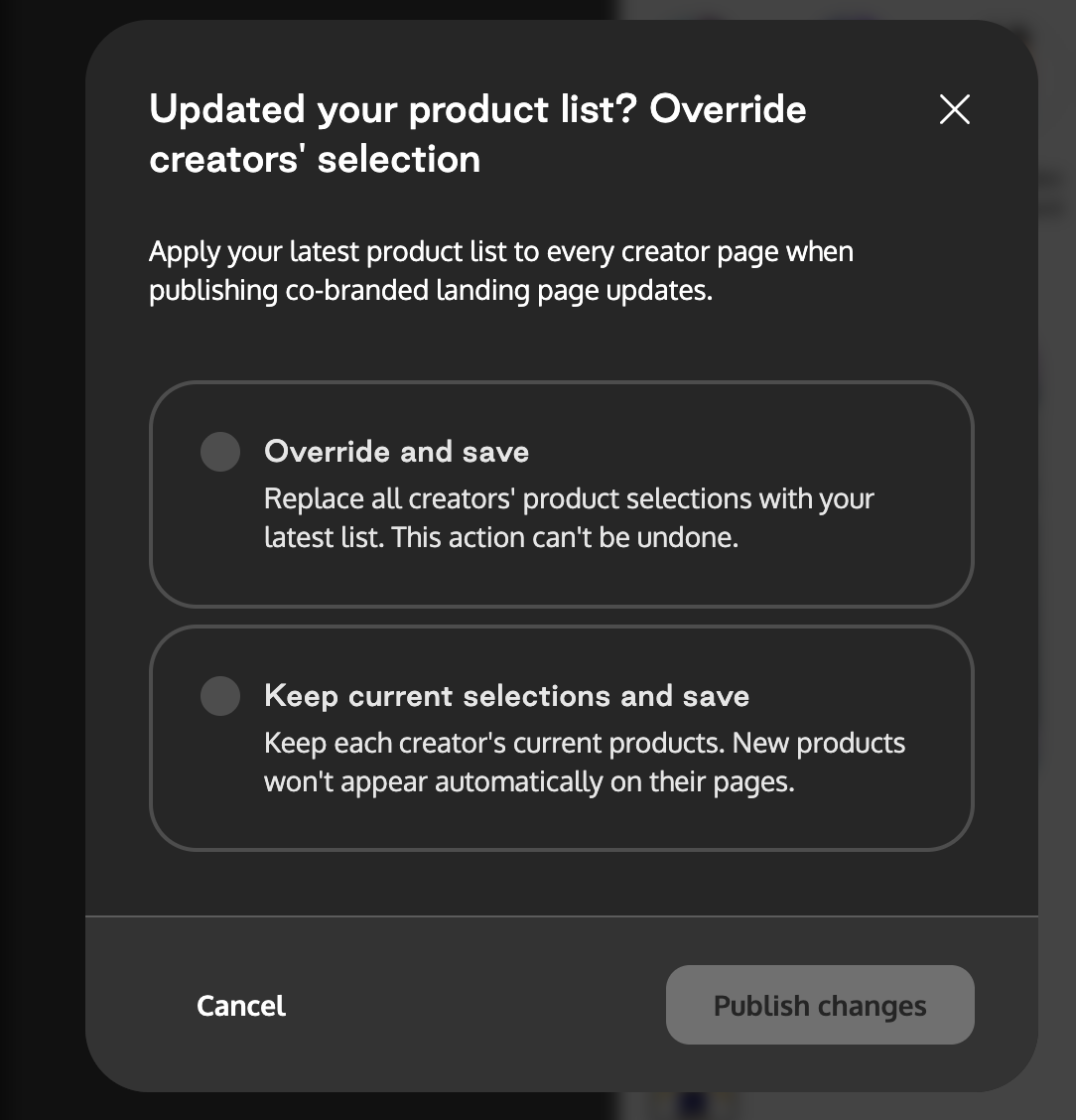
How to Edit the Landing Page and Products Available
Last updated: December 15, 2025
Step 1: Access the Landing Page Customization
Go to the Experiences of the program you want to edit.
Click on Customize.
Step 2: Edit the Landing Page Design
In the first tab (Design), you can edit:
Colors
Fonts
Logos
Step 3: Edit the Landing Page Content
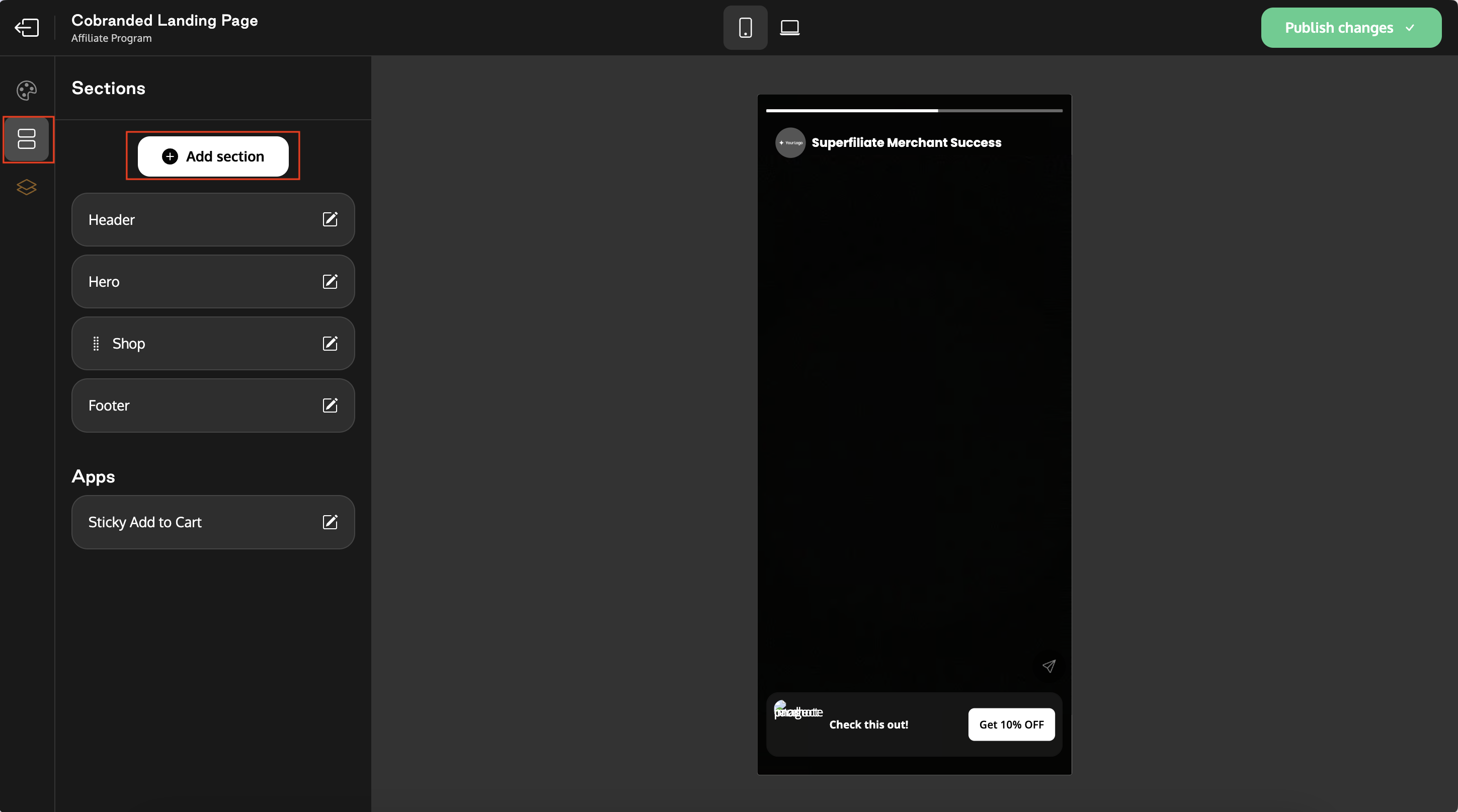
In the second tab (Content), you can:
Edit the content of all landing page sections.
Add new sections.
Delete sections you don’t want to display.
Step 4: Edit the Products Available
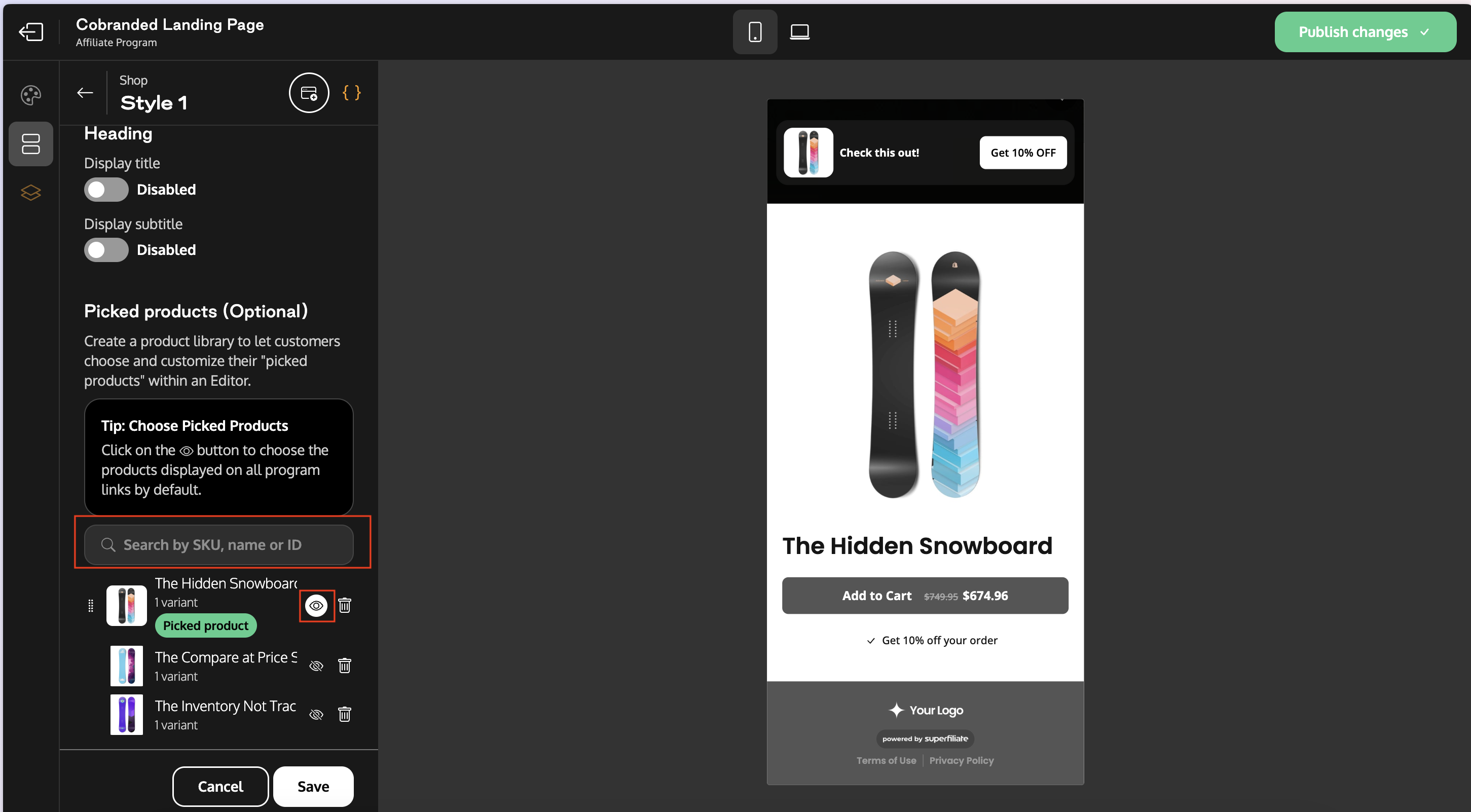
Go to the Shop section of the landing page.
Search for the products you want to add.
Remove products you don’t want to display.
The icon next to each product controls its visibility:
Enabled (white) → The product will be shown by default on the landing page.
Disabled → The product won’t appear by default, but it will still be available for affiliates to add to their landing page.
Step 7: Publishing Products Across Landing Pages
Once the affiliate selects the products and clicks Save, the landing page will be ready to be published.
Before publishing, a pop-up modal will appear asking how the products should be applied:
Apply these products as default to all landing pages
→ The selected products will be set as the default across every landing page in the program.Keep the affiliate’s current configuration
→ The products will only apply to the current landing page, preserving each affiliate’s individual setup.