How to Edit the Landing Page and Products Available
Last updated: October 15, 2026
Customize the design, content, and products shown on your program's Cobranded Landing Page. Affiliates' landing pages use this configuration as their starting point.
If your program's Cobranded Landing Page is disabled, creator links send shoppers to a redirect destination instead. See Choose where your creator links send shoppers.
Step 1: Access the Landing Page customization
Go to the Experiences of the program you want to edit.
Click Customize.
Step 2: Edit the Landing Page design
In the first tab (Design), you can edit:
Colors
Fonts
Logos
Step 3: Edit the Landing Page content
In the second tab (Content), you can:
Edit the content of all landing page sections.
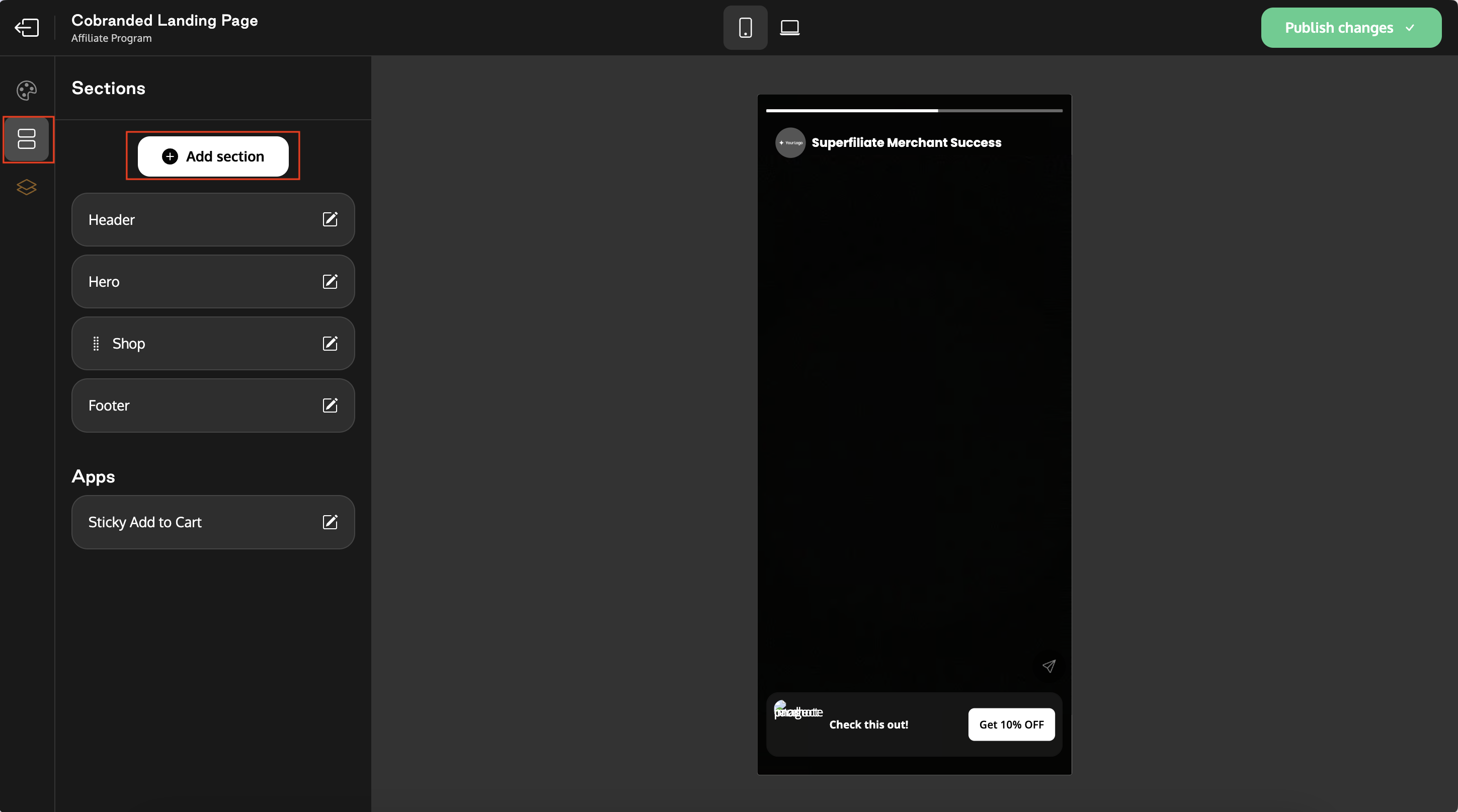
Add new sections.
Delete sections you don't want to display.
Step 4: Edit the products available
Go to the Shop section of the landing page.
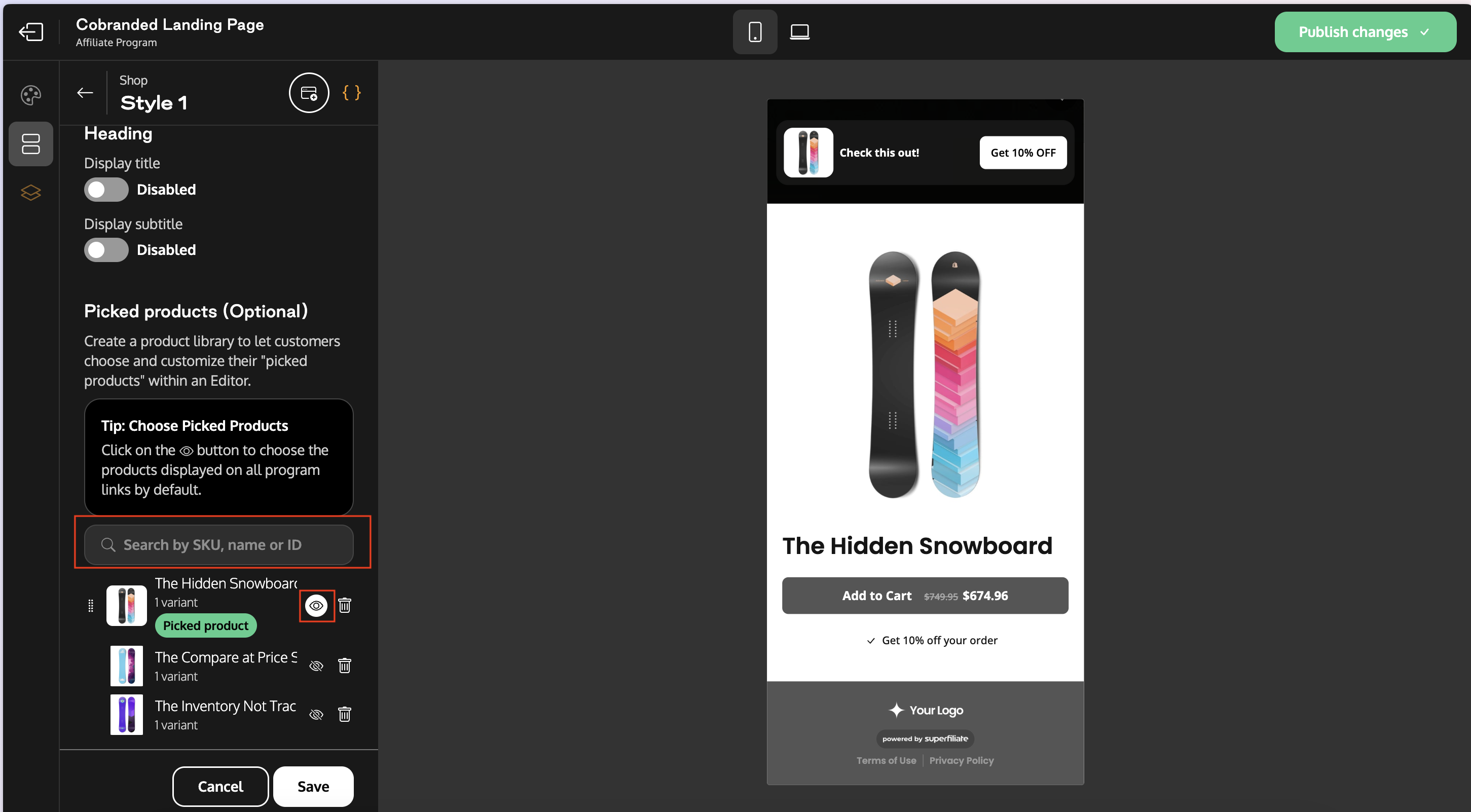
Search for the products you want to add.
Remove products you don't want to display.
The icon next to each product controls its visibility:
Enabled (white): the product is shown by default on the landing page.
Disabled: the product isn't shown by default, but affiliates can still add it to their own landing page.
Step 5: Save and apply products across landing pages
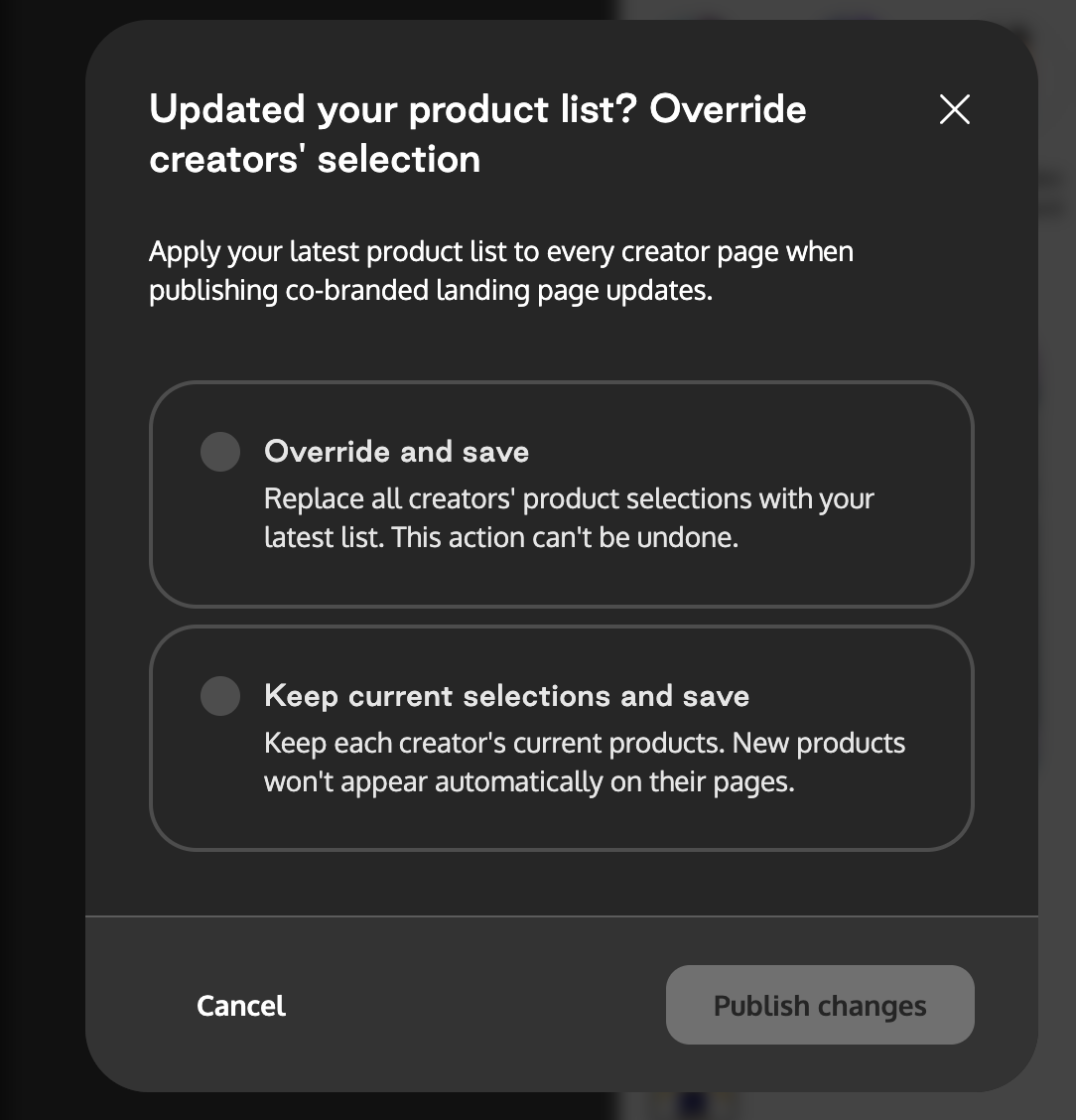
When you click Save after changing the products, a pop-up asks how the products should be applied:
Apply these products as default to all landing pages: the selected products become the default on every landing page in the program.
Keep the affiliate's current configuration: each affiliate's existing product selection on their landing page is preserved.
After saving, publish the landing page to make your changes live.