How to Create a Gifting Campaign
Last updated: October 29, 2026
Gifting Campaigns let you send free products to your Superfiliates or to external creators through a centralized campaign experience.
Before you start, make sure the products you want to gift are Active in Shopify. Products don't need to be visible on your Online Store: you can also gift hidden or unreleased products. See Sending Hidden Products in Gifting Campaigns.
Step 1: Create a new campaign
Go to the Gifting app in the Shopify Influencer Hub.
Click New Campaign.
Enter a campaign name.
Choose the gifting method:
You Choose and Ship: using the creator's shipping information on file, you select the product(s) and Superfiliate places the order in your Shopify store.
Creator selects the product: creators redeem their gift on a dedicated gift page, choosing from a product list you define.
Add a welcome message with clear instructions for the creator (everything they need to know about the campaign).
Select a tracking window:
No tracking window
Limited-time campaign
Evergreen campaign
Want to gift creators on a schedule? Campaigns where the creator selects the product can renew automatically every 1, 2, or 3 months. See What is Recurrent Gifting?
Step 2: Select gifts & configure rules
Choose the gift type
You can base your campaign on:
Collections: select Superfiliate collections, Shopify collections, or both.
Products: select individual products manually.
These two options appear when creators pick their own gift (Creator selects the product in Step 1). With You Choose and Ship, you select the products to send directly.
Configure campaign rules
Set the campaign rules, including:
Product redemption limit: how many items each creator can choose, overall or per collection (see Limit gifts per category below).
Repeated SKUs: allow or block selecting the same product more than once.
Shipping rules: brand covers shipping, free up to a limit, or creator pays.
Pricing model availability: choose whether creators can receive the subscription or the one-time version of a product in this campaign.
Expiration date for the gift redemption link (optional): the last day gifts can be claimed.
Limit gifts per category
Want creators to pick a mix, such as 1 toothpaste and 1 accessory, in a single shipment? Set a maximum for each collection instead of one overall limit.
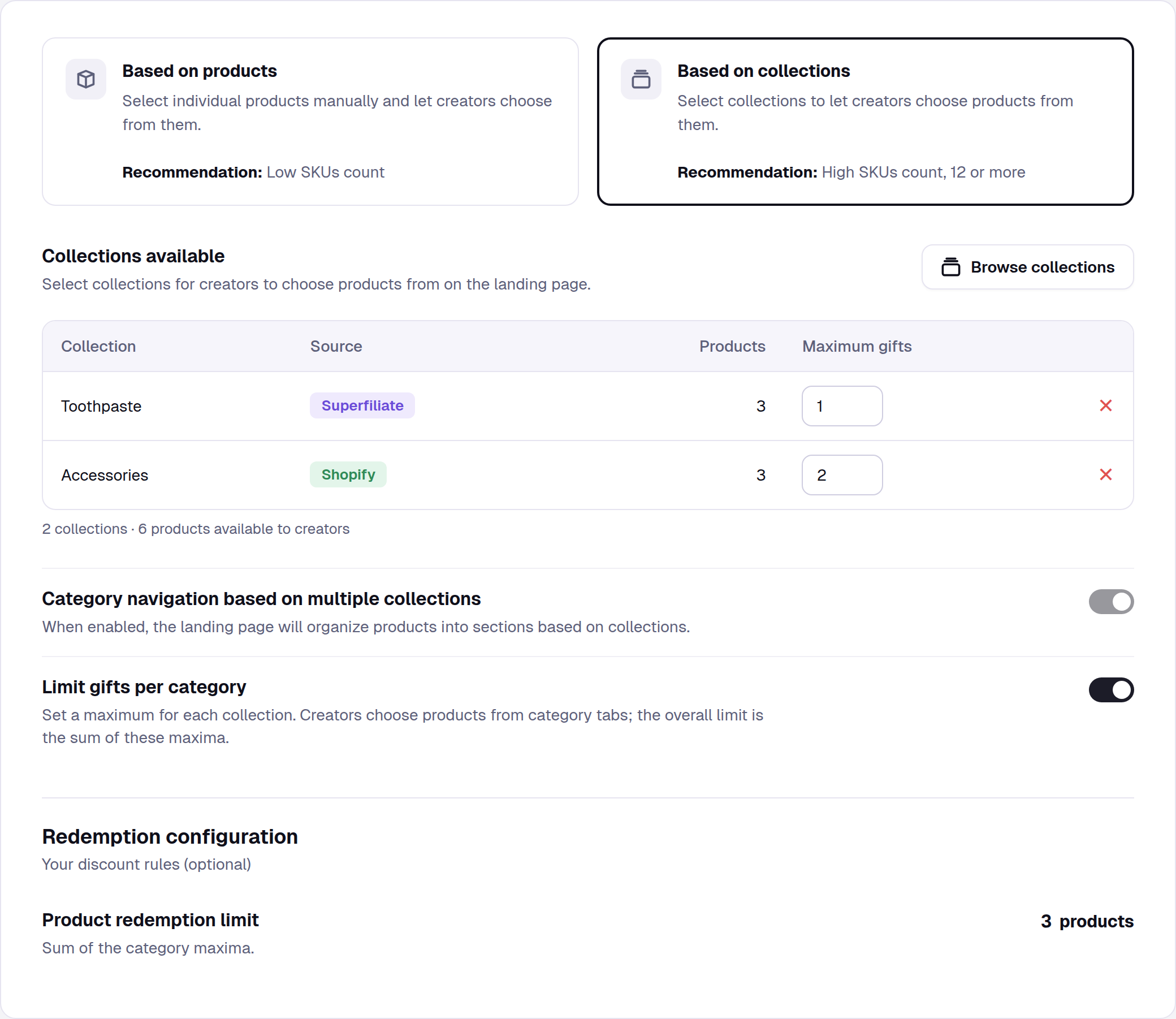
Choose Based on collections and add your collections with Browse collections.
Turn on Limit gifts per category. The switch stays greyed out until at least one collection is added.
In the Maximum gifts column, set a maximum from 1 to 99 for each collection.
Good to know:
Your Product redemption limit becomes the sum of the collection maximums (in the example above, 1 + 2 = 3) and can't be edited separately. The combined total can't go over 99.
Category navigation turns on automatically and stays on, so creators pick from one tab per collection. There's no "All" tab.
Maximums are caps, not requirements. A creator must pick at least one gift, but can skip a collection.
Available for Creator selects the product campaigns fulfilled through Shopify.
Turning it off restores your previous overall limit. Existing campaigns keep their single overall limit unless you turn this on.
What creators see
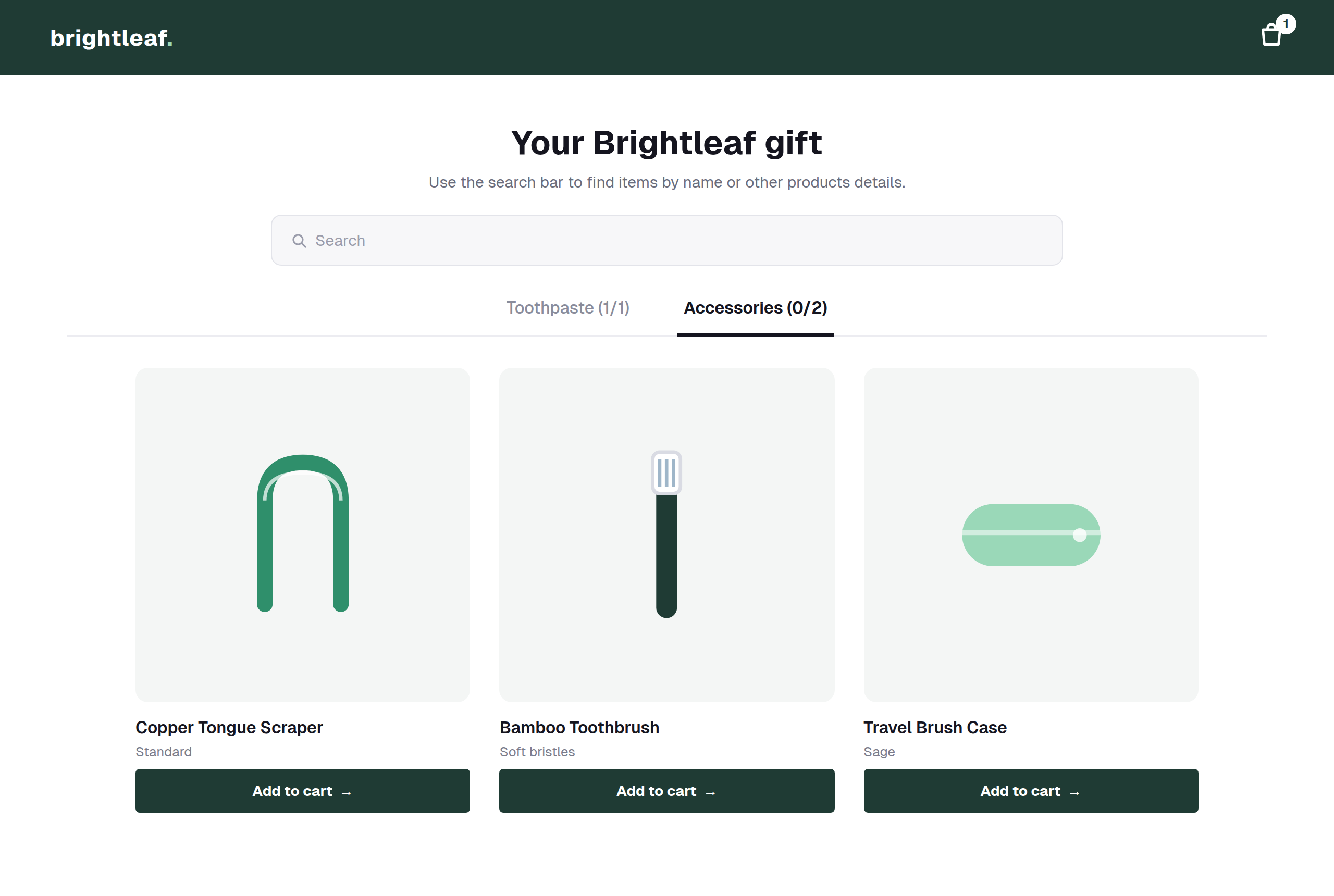
On the gift page, each collection is a tab showing how many items the creator has picked out of its maximum.
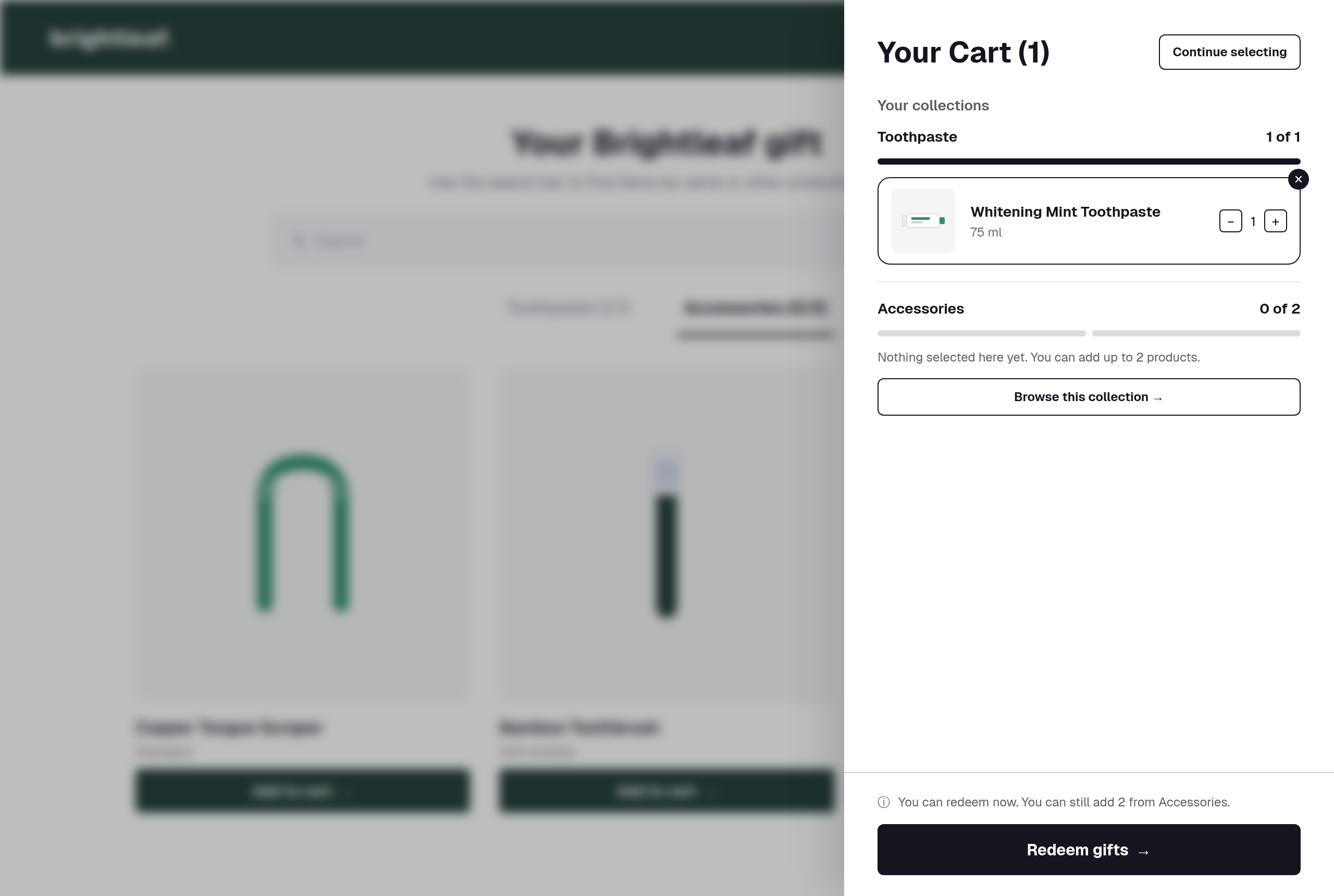
The cart groups picks by collection, with progress for each one and a shortcut to any collection they haven't picked from yet. Creators can redeem as soon as they have at least one item, and are told when they reach a collection's maximum.
Collection names appear on these tabs and in the cart, so use clear ones. See How to import a CSV file with your collections from Shopify for setting a category navigation label.
Step 3: Select your audience
Choose who will receive the gifting campaign:
All Superfiliates
A filtered group (by program, performance, or other criteria)
Individual Superfiliates (manual selection)
Add external creators (optional)
You can also invite creators who aren't enrolled in any program by:
Adding their email
Adding their social handle
Importing a list of creators
For details, see How to Gift External Creators.
Final step: Review & launch
Review all campaign details.
Confirm products, rules, and audience.
Click Create Campaign.
Your Gifting Campaign is now live and ready to be shared.