How to Add a Custom Tag in Shopify to Gifted Orders
Last updated: October 13, 2025
Using Automations, you can add a custom tag to Shopify orders when you send product through Superfiliate's gifting campaigns.
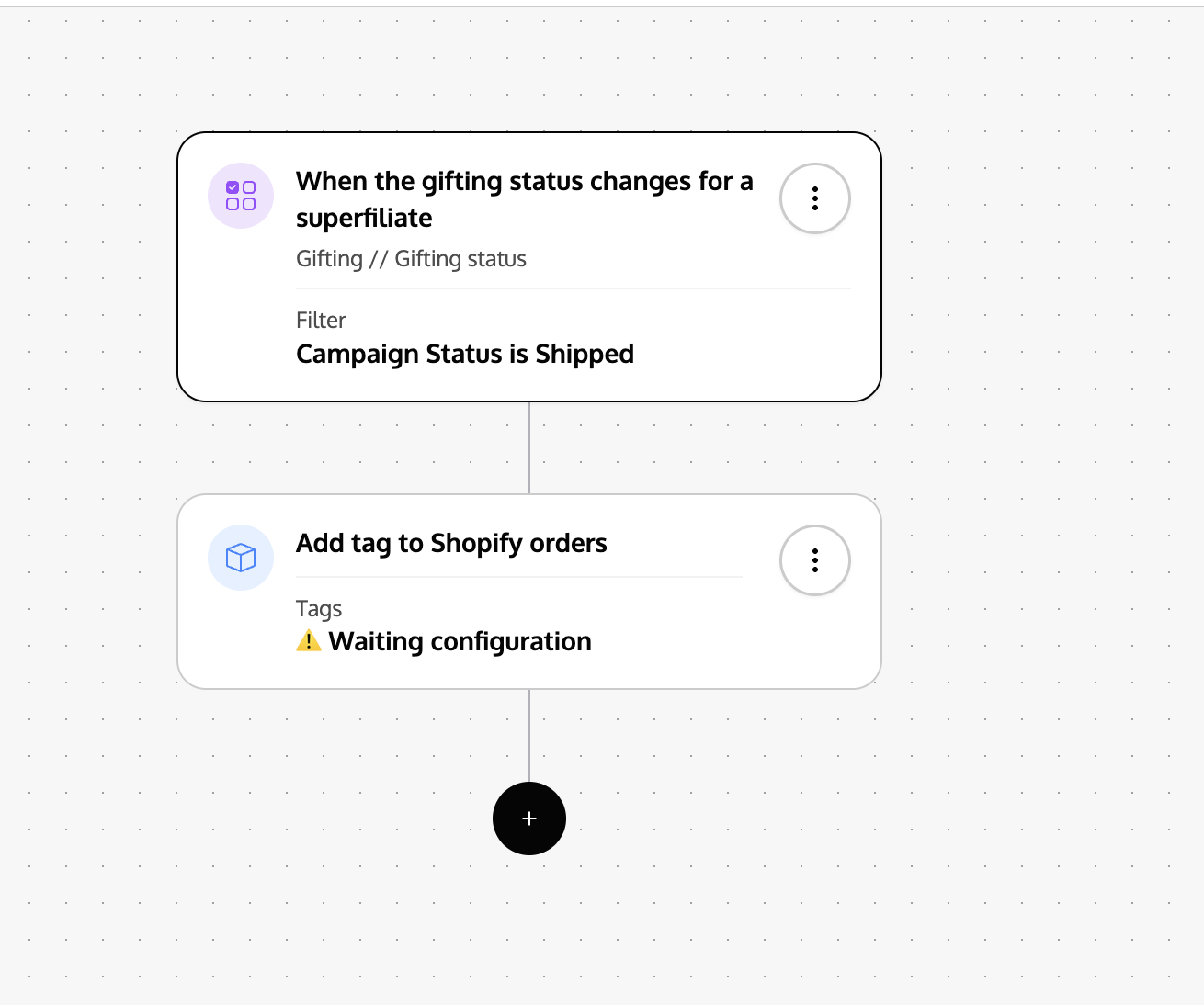
We have a helpful template you can use as a base (look for "Add Custom Order Tag to Superfiliate Gifts When Shipped"), but below is how to make one from scratch, along with some modifications you may want to consider depending on your needs:
Trigger
Gifting Status
Properties about the trigger
Campaign Status is Shipped
If you want to add a custom tag for specific gifting campaigns, you can add a secondary filter by clicking "+AND" and selecting "Properties about the trigger" Gifting Campaign is "the specific gifting campaign you want the tag to be added for"
This is helpful if you want to identify all orders in Shopify that come from a specific gifting campaign (like a product launch or a gifting campaign you limit to a program/tier in your account)
Action
Add tag to orders
Click Apply
Type the text of the tag you want to create (or select from the list of already created tags)
Click Apply
Make sure to save and publish your Automation
By default, Superfiliate applies tags to in several instances automatically. You can learn more here