How to Enable Channel Insights Sharing for Brand Collaborations
Last updated: December 16, 2025
To collaborate with brands on Superfiliate and share non-public YouTube performance data, creators need to enable channel insights sharing in YouTube Studio.
Channel insights sharing allows advertisers, brands, and third-party platforms like Superfiliate to access public and non-public channel performance metrics.
Step by step
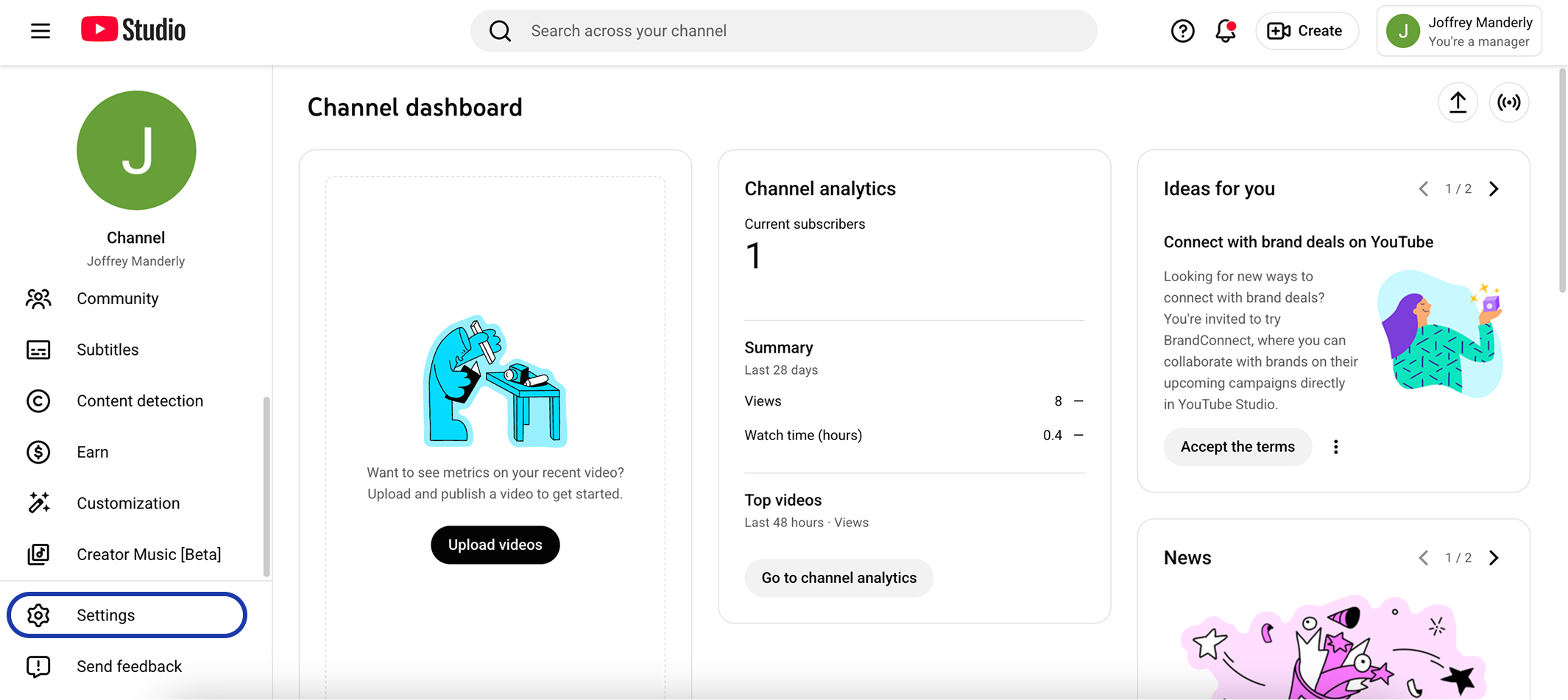
Sign in to YouTube Studio on Desktop.
On the bottom left, click Settings.
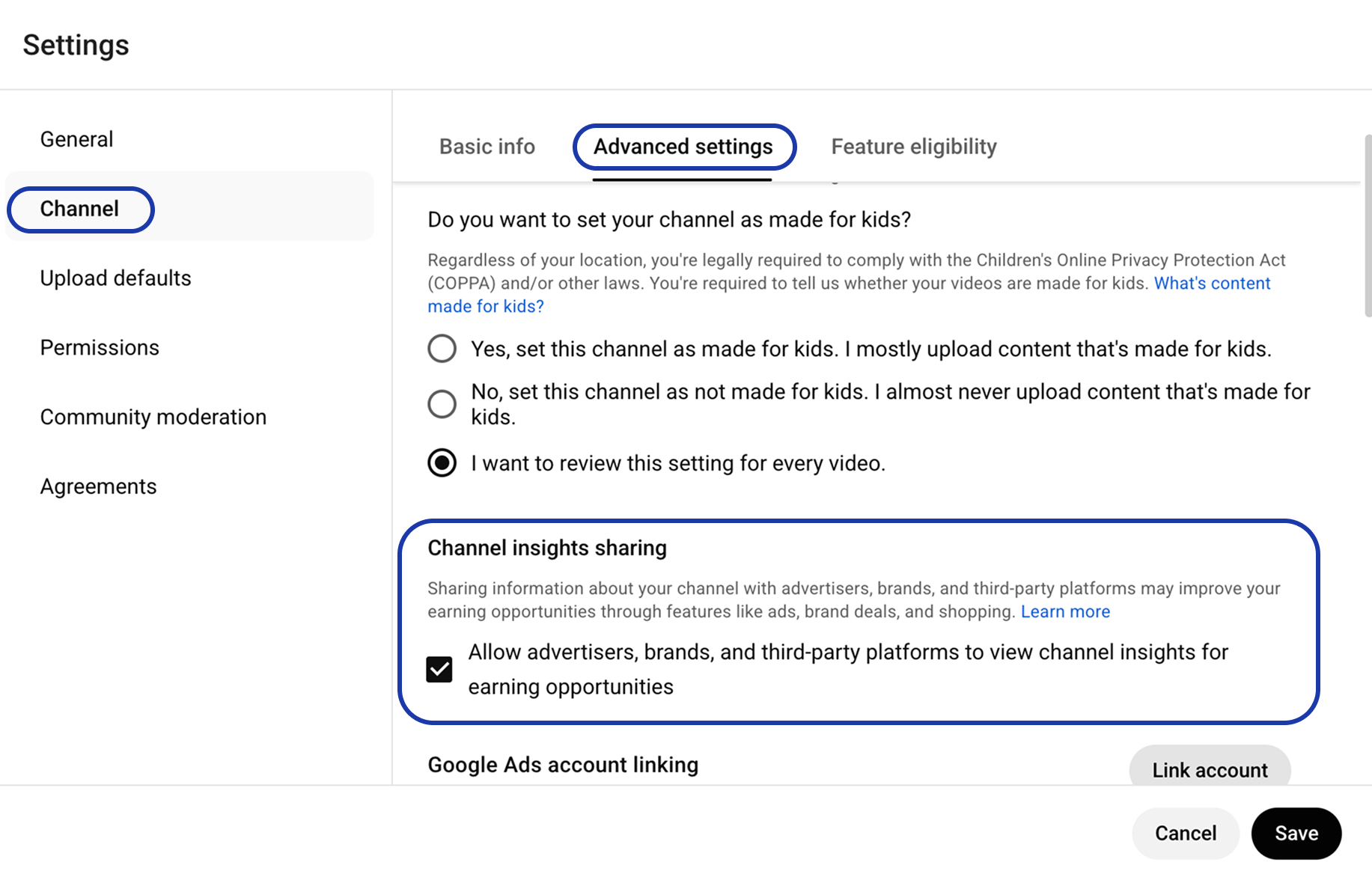
On the left, click Channel then Advanced settings.
Under “Channel insights sharing,” check the box for Allow advertisers, brands, and third-party platforms to view channel insights for earning opportunities.
Save.
For more details on how YouTube handles channel insights sharing and data access, you can also visit the official YouTube Help Center: