Ads Management - How to Create Campaigns, Ad Sets and Ads?
Last updated: April 1, 2026
Overview
The Create Ads workflow allows you to build Meta ad campaigns, ad sets, and ads tied to an Ad Partnership directly from Superfiliate.
You can create a campaign, ad set, or ad individually, or complete the full Campaign → Ad Set → Ad flow in one continuous setup.
Use this feature when you want to:
Create new campaigns, ad sets, and ads for an Ad Partnership
Attach new ads to existing Meta campaigns and ad sets
Build campaign structures gradually and publish ads when ready
In this article, you will learn:
How campaigns, ad sets, and ads are created in Superfiliate
How items relate to each other in the Meta hierarchy
Important limitations and common questions
Requirements
Make sure that:
The advertiser’s Meta account is connected through Superfiliate
The Meta account has a valid pixel and conversion events available
Have at least one partner who has granted your brand permission to create partnership ads on their behalf
Important limitations
Only Sales campaigns are supported.
Ad Partnership ads require a conversion-focused setup, so only Sales campaigns can be created or selected.
Budget hierarchy is enforced by Meta.
If Advantage Campaign Budget is enabled, budgets are managed at the campaign level and ad set budgets are disabled.
If it is disabled, each ad set manages its own budget.
Step-by-step
1. Starting a Creation
Go to Meta Ads > Manage Ads.
Click the Create button at the top of the page.

Select what you want to create:
Campaign
Ad Set
Ad

2. Creating a Campaign
A campaign is the top-level container for ad sets and ads.

The options available in this step depend on how the creation flow was started.
If you clicked Create → Campaign
You can only:
Create a new campaign
When creating a new campaign, configure:
Campaign name — Internal name used for organization and reporting.
Campaign objective — Currently fixed to Sales.
Special Ad Categories — Enable only if your ads relate to regulated topics (e.g. credit, housing, employment, social or political issues).
Advantage Campaign Budget — When enabled, Meta distributes the campaign budget automatically across ad sets.
At the bottom of the step:
Click Publish Campaign to create the campaign without continuing to ad set creation, or
Click Create Ads to continue building the ad set and ad.
If you started from Create → Ad Set or Create → Ad
You can either:
Create a new campaign, or
Use an existing campaign from the connected Meta account
When using an existing campaign:
Only campaigns with a Sales objective are available.
Budget type, bid strategy, and Advantage Campaign Budget status are inherited from Meta and cannot be changed here.
If the campaign already exists (for example, when creating inside a specific campaign from the table), this step will show Next instead.
3. Creating an Ad Set
The Ad Set step defines how and to whom your ad is delivered.
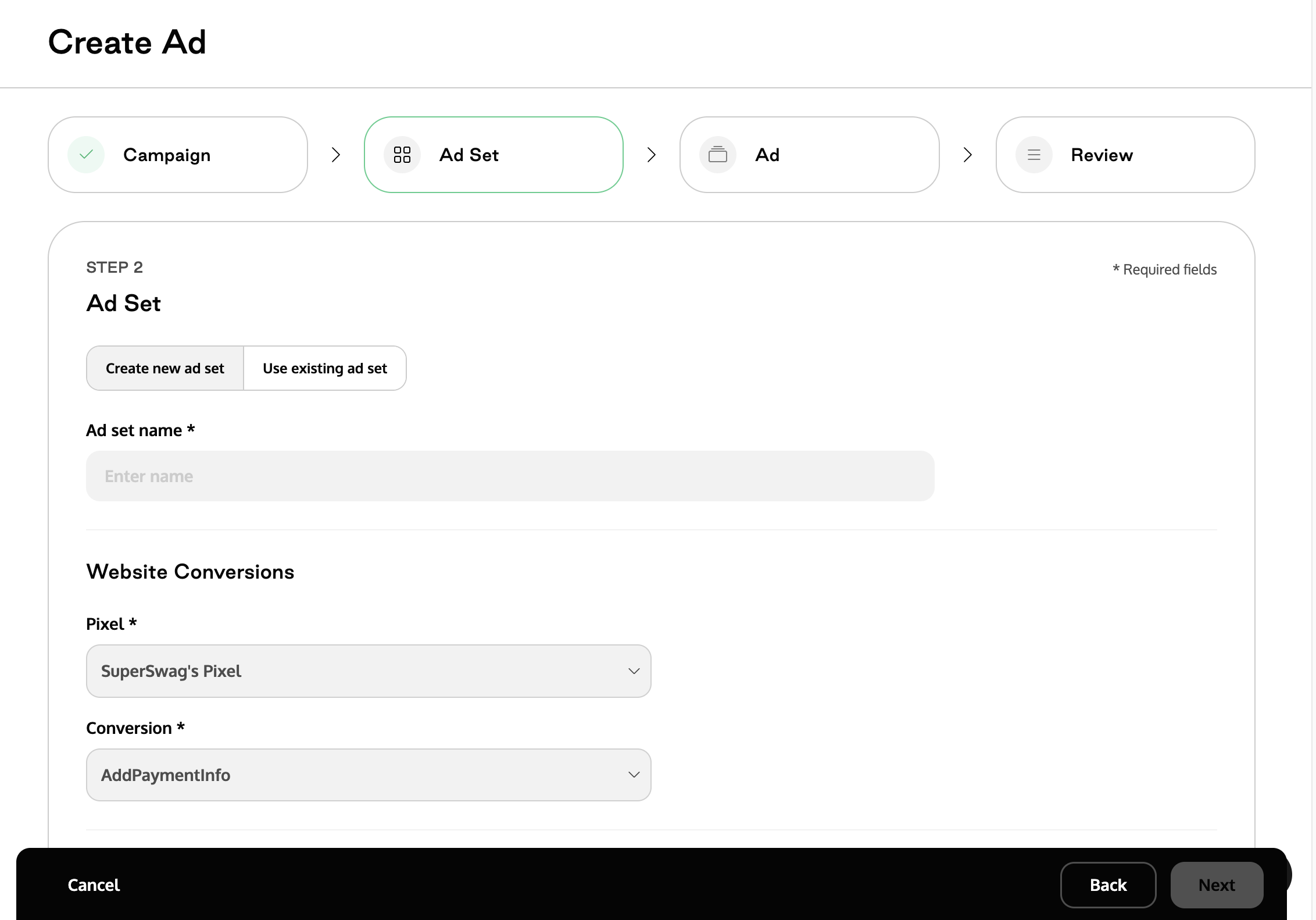
The Ad Set step defines how and to whom your ad is delivered.
If you clicked Create → Ad Set
You must select the campaign the ad set belongs to.
If you started from within a specific campaign in the table, the campaign field is already pre-filled and you can continue without selecting it again.
Here you configure:
Website conversions
Select the Meta Pixel
Choose the conversion event used for optimization
Audience
Use saved audiences, custom audiences, or Advantage+ audience expansion
Define location, language, and age range
Budget and schedule
Set a Daily or Lifetime budget (if campaign-level budget is disabled)
Choose to run continuously or set start/end dates
Placements
Advantage+ Placements are always enabled
Optimization and delivery
Define optimization goal and bid strategy
Attribution settings
Choose how conversions are attributed (e.g. 1-day click, 7-day click)
Ad spend limits
Available only when Advantage Campaign Budget is enabled
At the bottom of the step:
Click Publish Ad Set to create the ad set without continuing to ad creation, or
Click Create Ads to continue building the ad.
If you started from Create → Ads or Create → Campaign
The campaign is already defined in the previous step.
Here you configure the same fields listed above.
At the bottom of the step:
Click Create Ads to continue to the Ad step.
4. Creating Ads
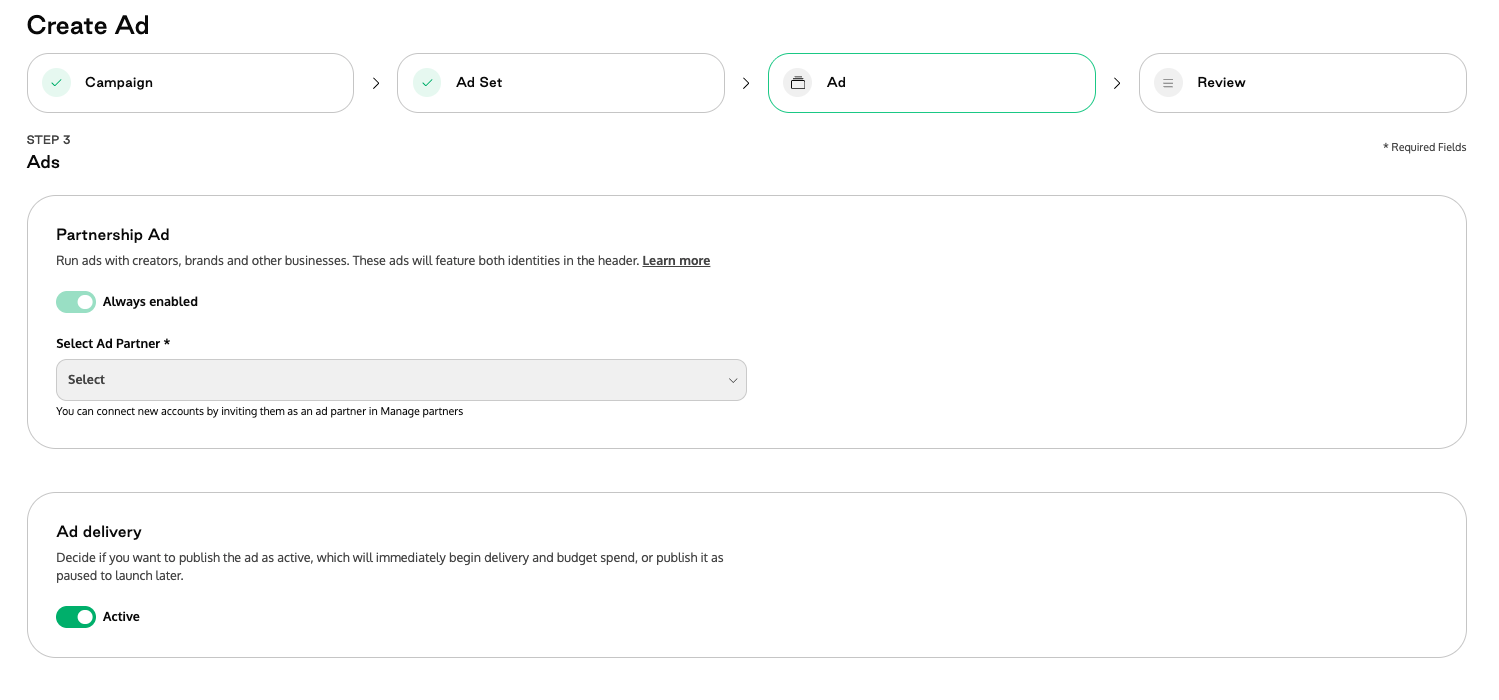
A. Partnership Ad setup
Before building your creative, configure the partnership:
Select Ad Partner — Choose from your active ad partners. Only partners who have granted permission are shown.
Identity — Choose how identities appear in the ad header:
Dynamic identity — Meta shows the combination likely to perform best (both identities or first identity only).
Both identities in the header — Always show both brand and partner.
First identity only in the header — Show only the first identity.
Identity order — Use the switch button to change which identity appears first.

B. Ad delivery
Choose the initial delivery status for your ads:
Active — Ad starts delivering immediately after creation.
Paused — Ad is created but won't run until you activate it.

C. Creating your ads
The creative section offers two view modes:
Detailed view — Build one ad at a time with full creative control, including carousel support. Navigate between ads using the pagination controls.
Table view — Build multiple single-image or single-video ads at once in a spreadsheet-like table.
Switch between views using the toggle in the top-right corner. You can also click + Add media to upload or select assets from any view.
Note: Carousel format is only available in Detailed view. If any ad uses carousel, the table view will prompt you to switch back.
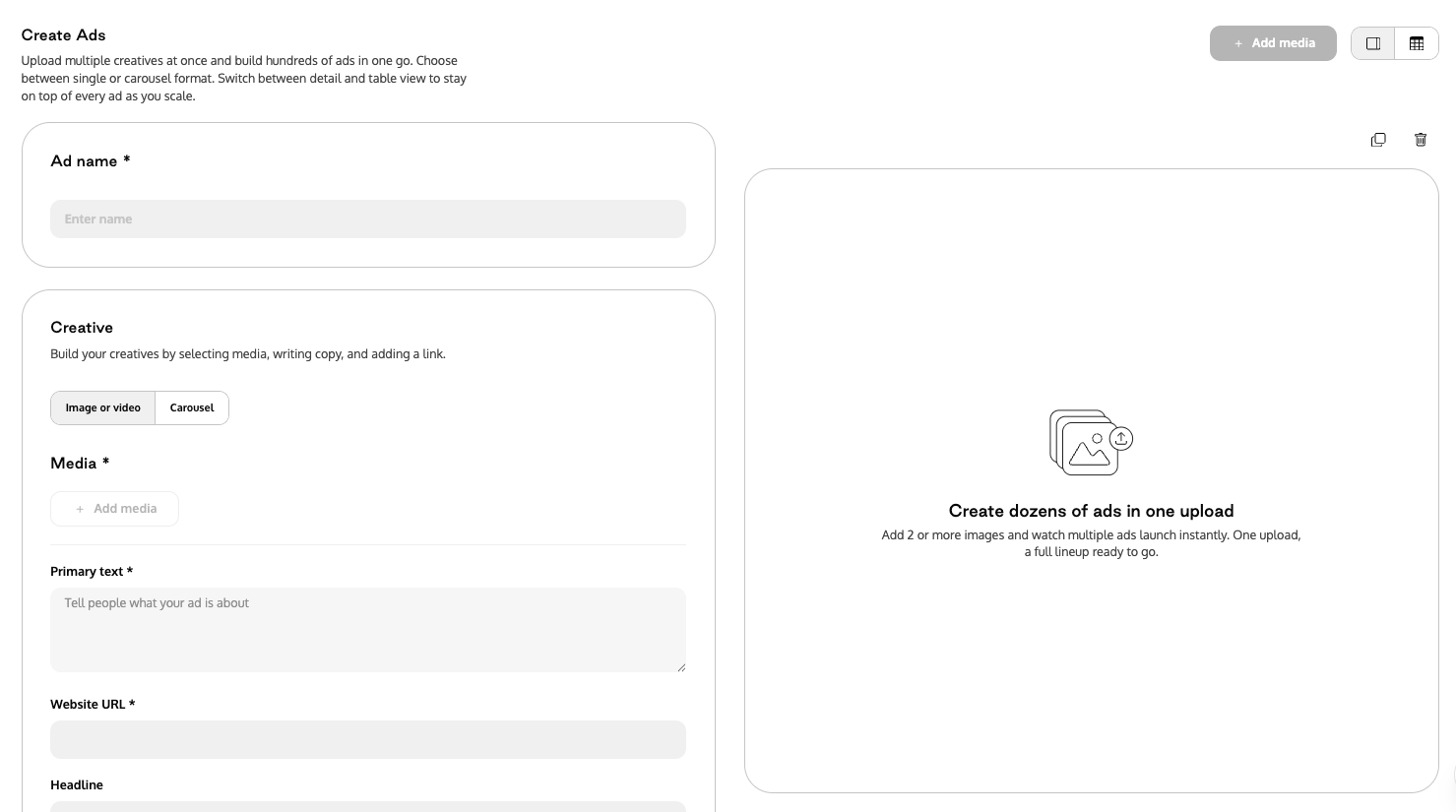
Detailed view
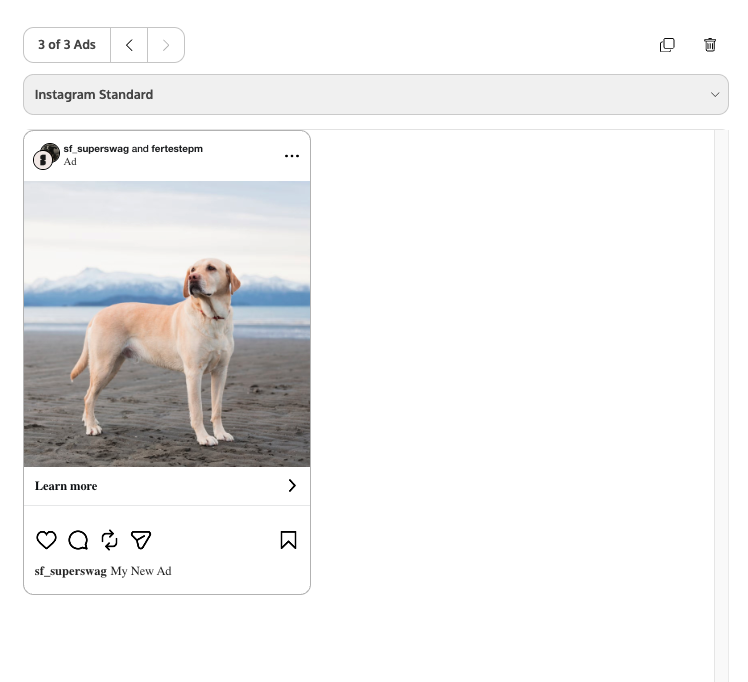
Each ad is shown one at a time. Use the pagination arrows to move between ads, or use the duplicate/delete controls.
1. Ad name
Enter an Ad name for the ad.
2. Creative
Choose a format:
Image or video — single file ad
Carousel — multiple cards (minimum 2 files)
Add media using one of the available sources:
Content Rights library
Superbrief campaigns
Upload Media
If you choose Upload Media, uploaded files are saved automatically to Content Rights as a new folder so you can reuse them later.
📄 Read more about Content Rights here: What is the Content Rights feature?
3. Placement groups and media overrides
After adding media, review the placement groups (Feeds, Stories/Reels, Search results).
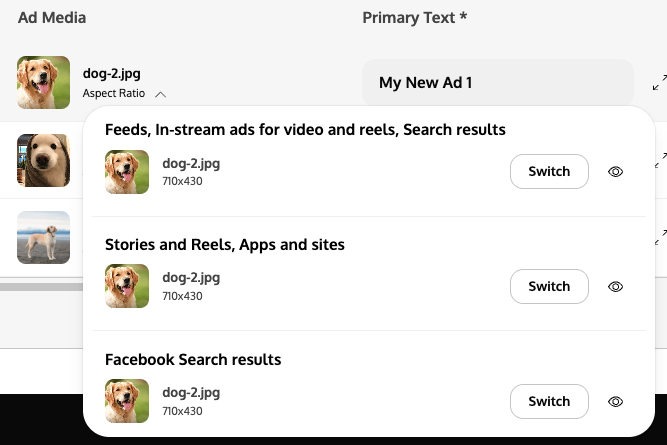
By default, the same media is used across all placement groups. To customize media for a specific group, open the aspect ratio section and click Switch on the desired group. This is useful for adapting aspect ratios (e.g. vertical media for Stories/Reels vs. square for Feeds).
4. Copy and destination
Fill in the creative text fields:
Primary text (required)
Website URL (required)
Headline (optional)
Description (optional)
Testimonial (optional) — add a quote attributed to the partner
Display URL (optional)
Call-to-Action (optional)
5. Tracking
Add optional URL parameters for conversion tracking (e.g. utm_source=facebook&utm_medium=cpc).
6. Preview
Check the Preview panel on the right to see how your ad will render across placements. Preview becomes available once required fields (media, primary text, website URL) are completed.
Table view
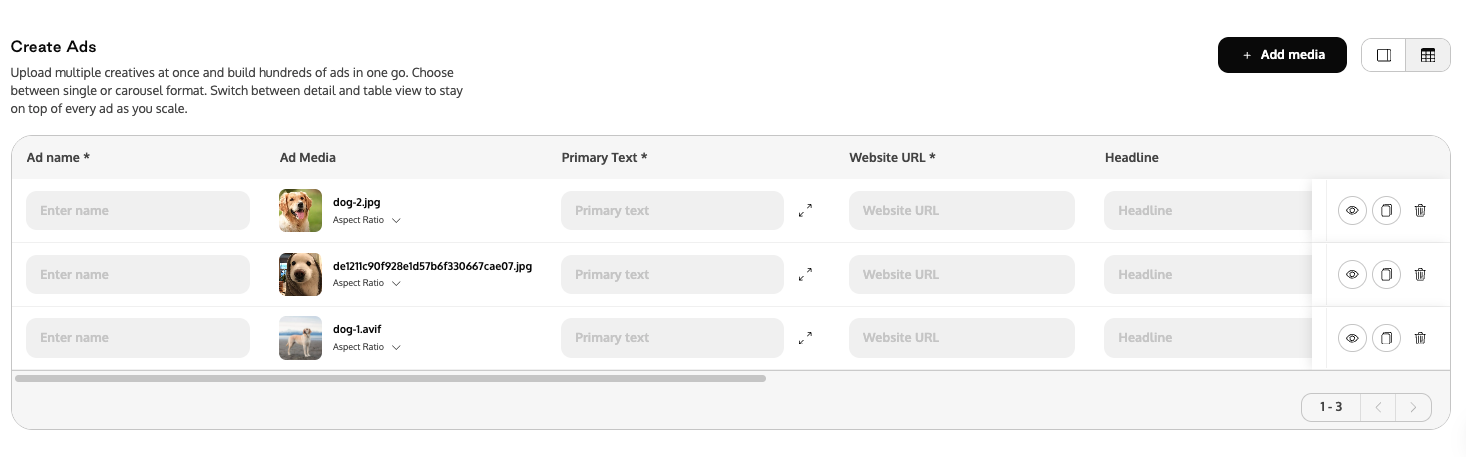
Each row in the table represents one single-image or single-video ad. You can create up to 100 ads at once.
1. Add media
Click + Add media and select assets from:
Content Rights library
Superbrief campaigns
Upload Media
Select one or more files. Each selected asset generates a new ad row automatically.
2. Complete required fields
For each ad row, fill in:
Ad name (required)
Primary text (required)
Website URL (required)
Optional fields (scroll horizontally):
Headline
Description
Testimonial
Display URL
Call-to-Action
Tracking (URL parameters)
Each row can be customized independently.
3. Manage individual ads
Each ad row includes action icons:
👁 Preview — opens a preview of that ad
📄 Duplicate — creates a copy of the row with all fields (media, text, URLs, CTA, tracking). The duplicated row can be edited independently. Useful for testing different copy with the same media.
🗑 Delete — removes the ad row

4. Placement groups and media overrides
In the Ad Media column, click on Aspect Ratio to open the placement breakdown. You will see grouped placements such as Feeds, Stories/Reels, and Search results. Each group shows the currently assigned media and a Switch button to replace the media for that placement only.
5. Preview your ads
The preview panel appears when you click the Preview icon on a row, or when you switch to Detailed view from a specific row. You can toggle between placements to see how the ad renders.
5. Review and publish
Before publishing, review all campaign, ad set, and ad settings in the Review step.
From here you can:
Go back and make edits to any step
Confirm budgets and delivery status
Click Publish to send your ads to Meta (or Schedule if a start date is set on the ad set)
Once published, ads will sync to Meta Ads Manager.
For bulk ads: After clicking Publish, you'll see a background progress notification. Once completed, a summary panel shows the total ads created, how many succeeded, and how many failed. Click Done or View Ads list to see all created ads.