Ads Management - How to Edit Ads?
Last updated: January 19, 2026
Overview
Ads Editing allows you to update the content and details of live partnership ads directly from Superfiliate, without needing to recreate the ad in Meta Ads Manager.
Use this feature when you want to:
Update messaging (text, headline, description)
Replace or update media (image or video)
Adjust URLs or tracking parameters
Change the ad name or pause/activate the ad
In this article, you will learn:
How to access Ads Editing
How to edit an ad step-by-step
Limitations, errors, and troubleshooting steps
Requirements
Make sure that:
The advertiser’s Meta account is connected through Superfiliate
The ad was created using a supported placement group (see limitations)
Important limitations
You can make creative edits (text, media, destination URL) only for ads that use supported placement groups and follow Superfiliate’s placement grouping: Superfiliate applies edits at the placement group level, so your updates are applied consistently across all placements in that group.
Crop variations are not supported: If an ad uses custom cropping Superfiliate can’t edit it, because edits must remain consistent across the full placement group.
Superfiliate supports editing ads with a single Primary Text and a single Description: Ads using multiple Primary Texts or multiple Descriptions can’t be edited yet.
Read more: 📄 Ads Management - Placement groups in Superfiliate
Step-by-Step
1. Accessing Ads Editing
There are two ways to access the editor:
(A) Editing an existing ad
(B) Editing while duplicating an ad
A. Editing an existing ad
Go to Ads in the left-hand navigation.
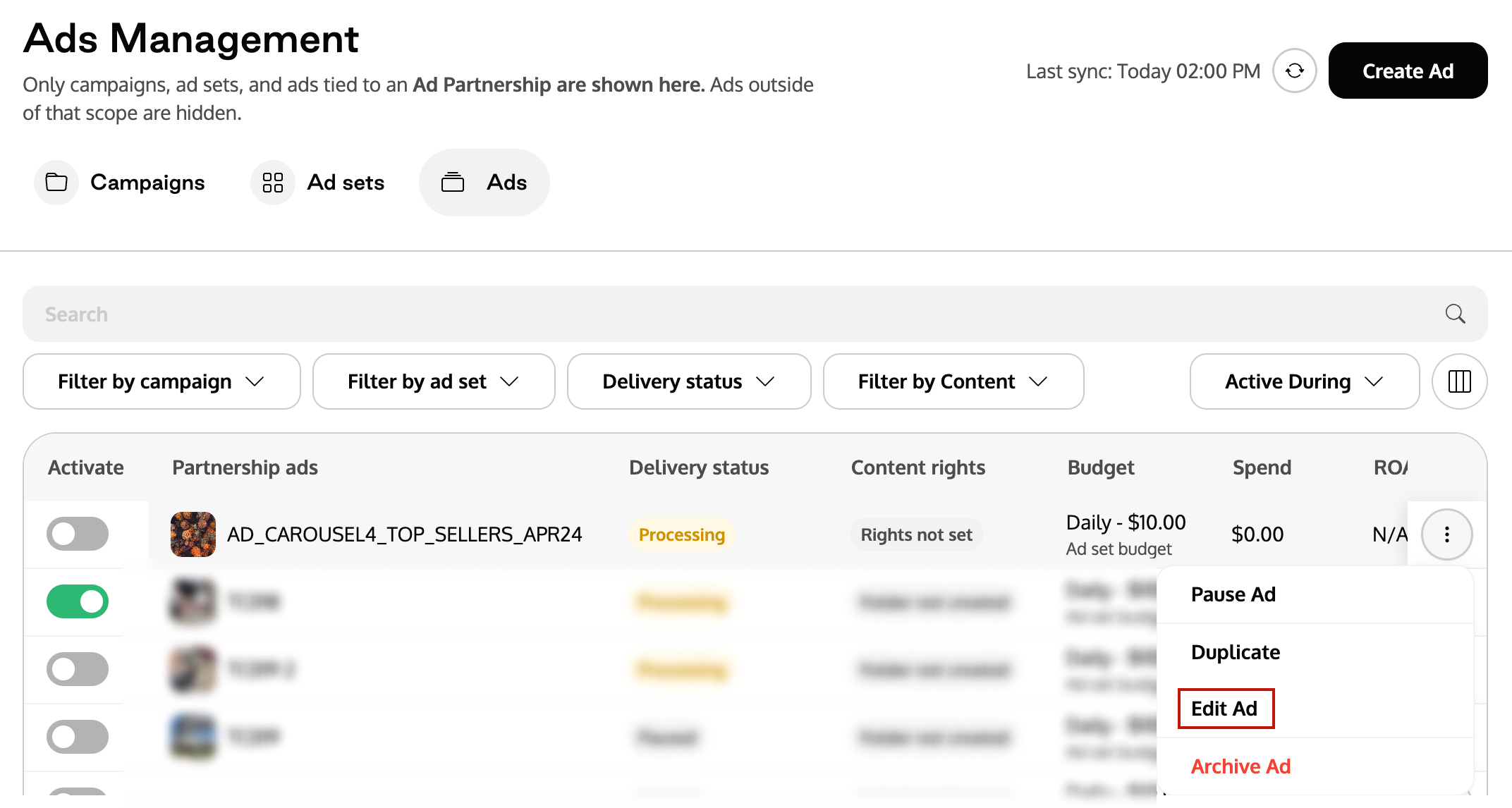
In the Ads tab, click on the three-dot menu (…) next to the ad you want to modify.
Click Edit Ad to open the editor.
B. Editing while duplicating an ad
In the Ads tab, click the three-dot menu (…) next to the ad you want to copy and select Duplicate.
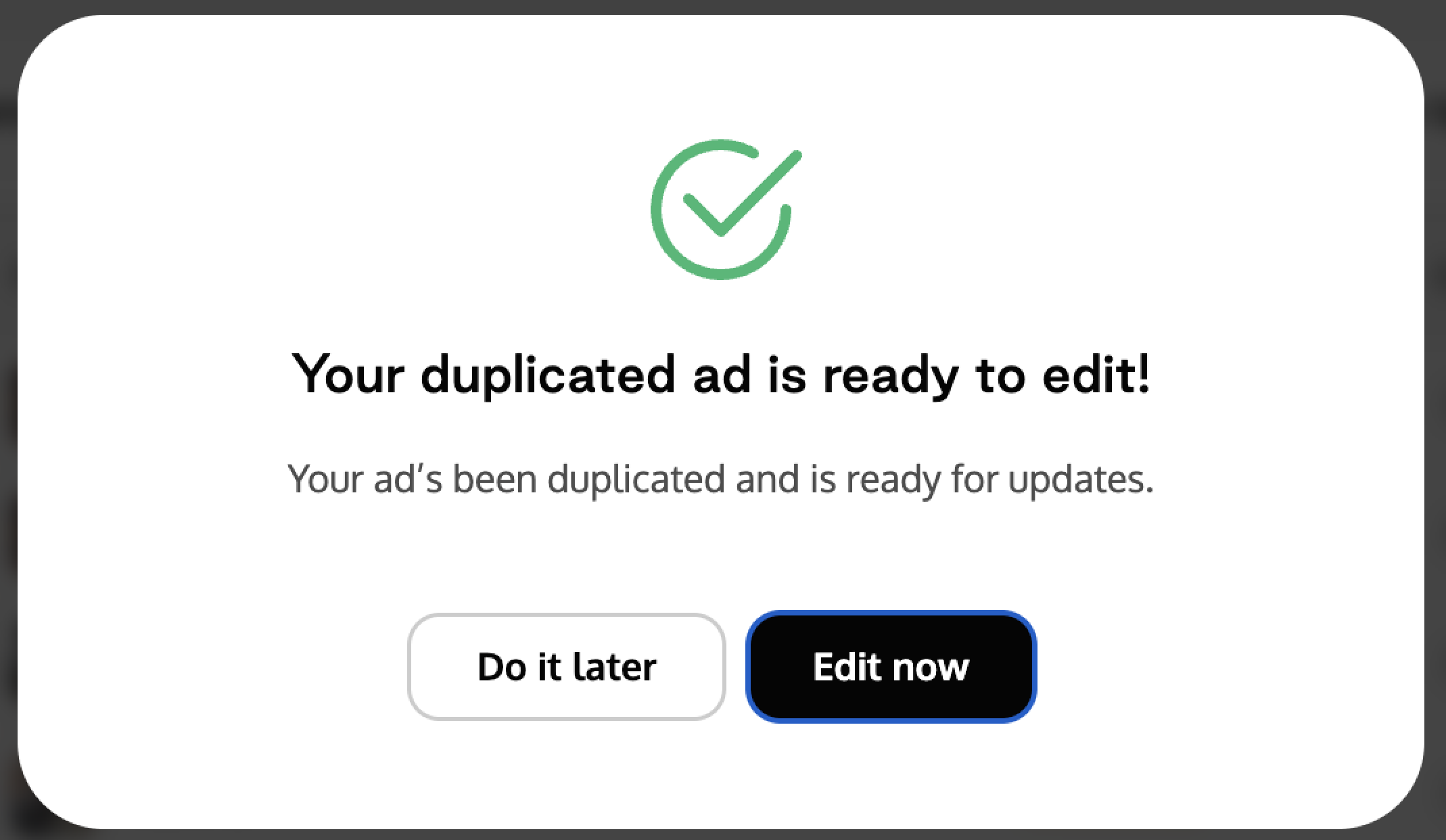
Once duplication is complete, you will see a confirmation modal:
Choose the Edit now option
Read more: 📄 Ads Management - How to duplicate Campaigns, Ad Sets and Ads?
2. Setting up Ads Editing
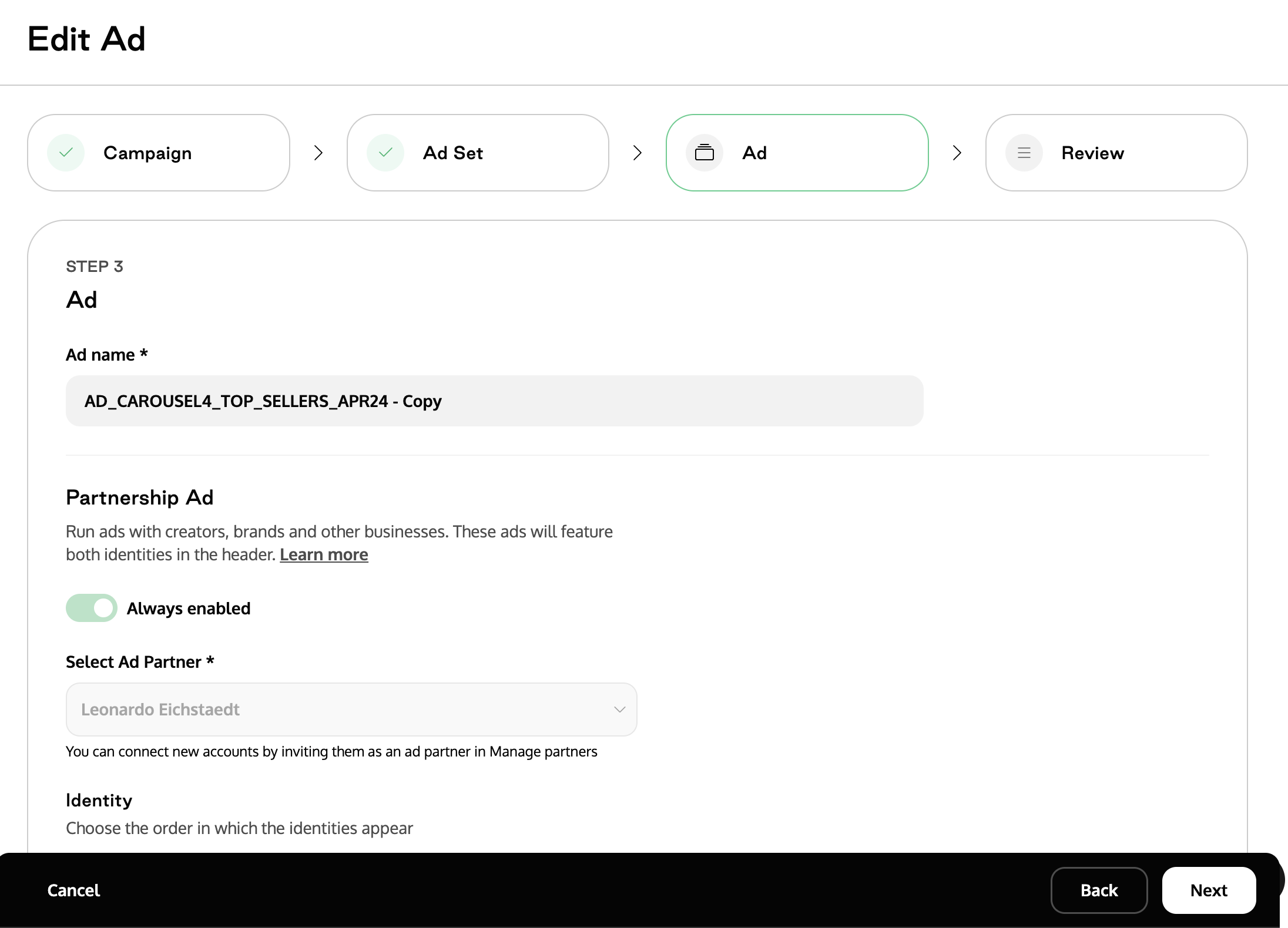
Inside the editor, you can configure:
Ad Name — Update the ad display name.
Status — Pause or activate the ad.
Primary Text.
Headline.
Description.
Media — Replace the current image or video.
Call-to-Action.
Website URL.
Display URL.
Tracking Parameters.
Ad Identity — Page/Instagram handle the ad runs from.
After making changes:
Click Save to submit the update.
3. Using ads editing day-to-day
Ads Editing helps you keep your live ads relevant and consistent with your ongoing campaigns. You can use it whenever you need to:
Update messaging — refresh text, adjust tone, or add new product details.
Optimize performance — test new headlines, swap media, or adjust UTMs.
Manage changes — pause/activate ads, rename them, or update URLs.
Maintain consistency — fix typos, update outdated visuals, or align branding.
Create new variations quickly — duplicate an ad and edit only the details you need.
Frequently Asked Questions (FAQ)
Q1. Why can’t I edit this ad?
A. Some ads cannot be edited if they use unsupported placements that have been manually customized inside Meta Ads Manager. Carousel ads with custom placements also cannot be edited.
Q2. Can I edit ads that were created in Meta Ads Manager?
A. Yes, as long as the ad uses one of Superfiliate’s supported placement groups and has not been manually customized by placement.
Q3. Can I swap media on an existing ad?
A. Yes, if the ad uses a supported placement group and only one creative asset. Ads with placement-specific creatives cannot support media edits.