Ads Management - How to duplicate Campaigns, Ad Sets and Ads?
Last updated: May 15, 2026
Overview
Duplication allows you to copy existing Meta campaigns, ad sets, or ads that include partnership ads, creating a new item based on the original configuration.
Duplication is useful when you want to reuse settings quickly without recreating items from scratch.
Use this feature when you want to:
Reuse campaign, ad set, or ad configurations
Create variations of existing setups
In this article, you will learn:
How duplication works for campaigns, ad sets, and ads
What is and is not copied during duplication
Important limitations of the duplication feature
Requirements
Make sure that:
The advertiser’s Meta account is connected through Superfiliate
The campaign, ad set, or ad you want to duplicate includes partnership ads
Important limitations
Limited duplication support
When duplicating a campaign, only the campaign-level configuration is copied. Ad sets and ads inside the campaign are not duplicated.
When duplicating an ad set, only the ad set configuration is copied. Ads inside the ad set are not duplicated.
Only items that include partnership ads are eligible for duplication.
Budget rules still apply after duplication.
Budget can be managed at only one level (campaign or ad set), according to Meta limitations.
Step-by-step
1. Duplicating a campaign
Go to the Campaigns tab.
Find the campaign you want to duplicate.
Click the three-dot menu (· · ·).
Select Duplicate.
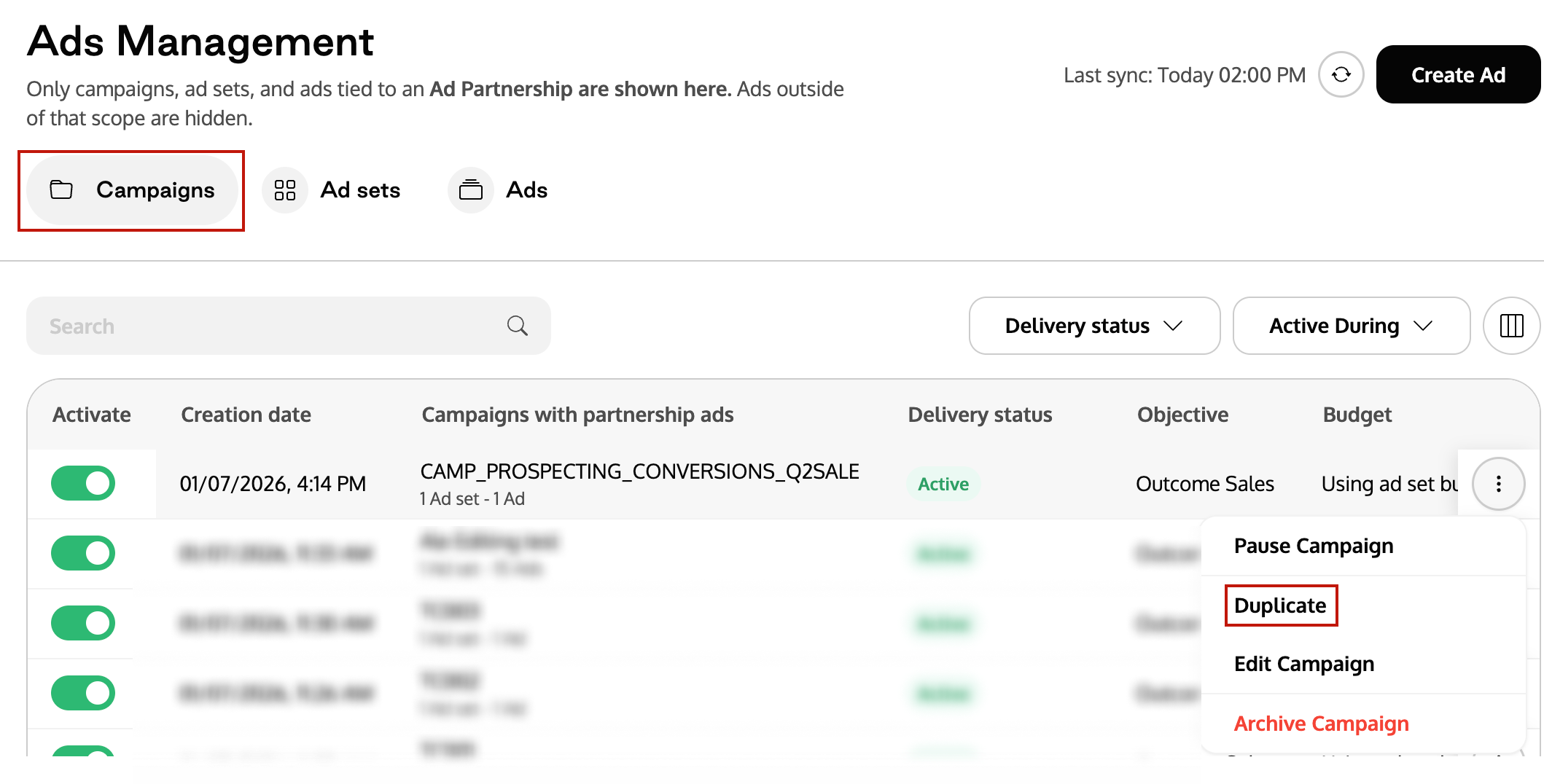
Choose the delivery status:
Active
Paused
Click Duplicate.
After duplication, you will be prompted to edit the duplicated campaign:
Click Edit Campaign to continue editing now (see Ads Management – Campaign & Ad Set Management), or
Click Do it later to return to Ads Management and edit it later if desired.
2. Duplicating an ad set
Go to the Ad sets tab.
Find the ad set you want to duplicate.
Click the three-dot menu (· · ·).
Select Duplicate.
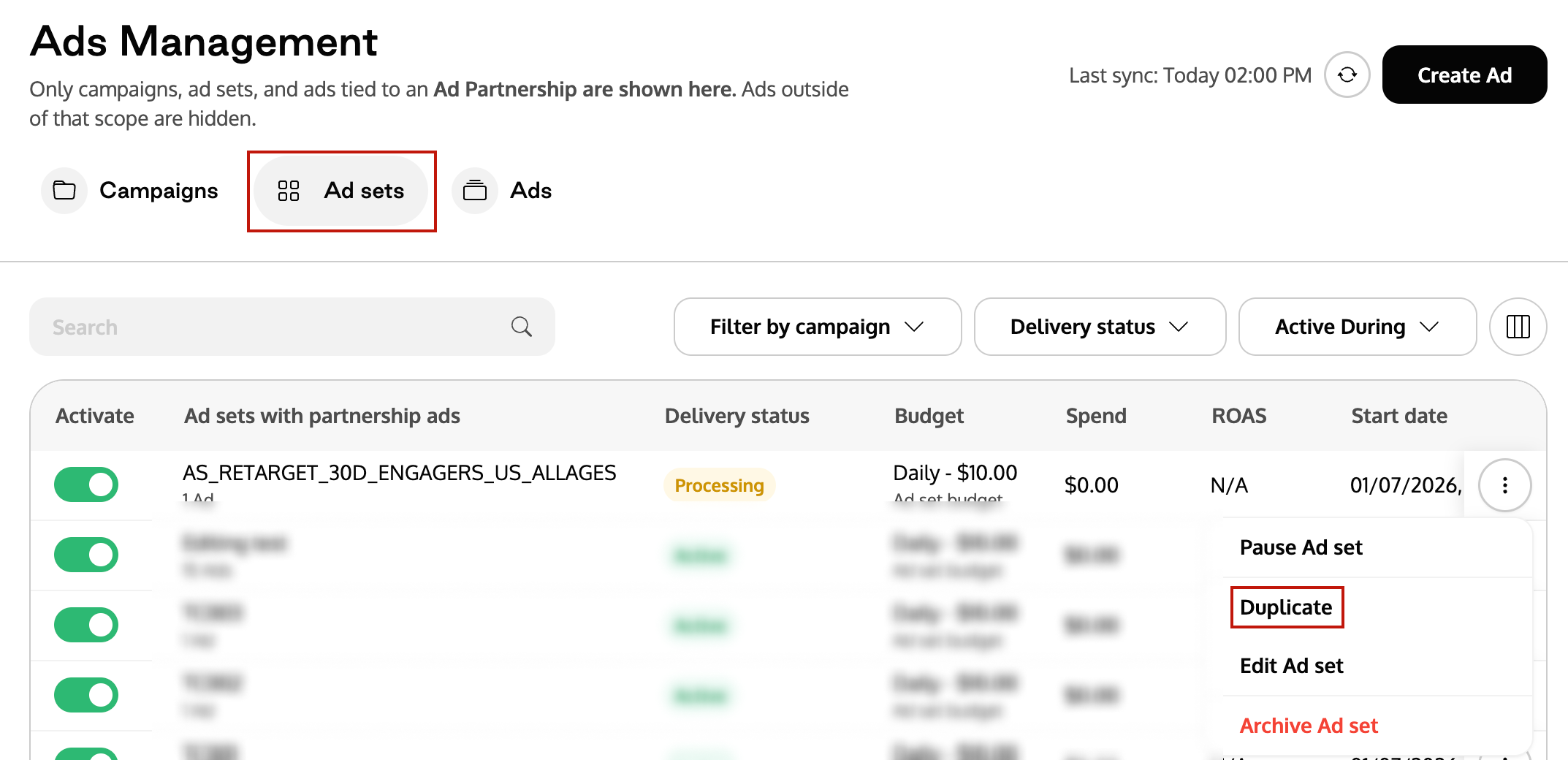
Change the destination campaign (if desired).
Choose the delivery status:
Active
Paused
Click Duplicate.
After duplication, you will be prompted to edit the duplicated ad set:
Click Edit Ad Set to continue editing now (see Ads Management – Campaign & Ad Set Management), or
Click Do it later to return to Ads Management and edit it later if desired.
3. Duplicating an ad
Go to the Ads tab.
Find the ad you want to duplicate.
Click the three-dot menu (· · ·).
Select Duplicate.
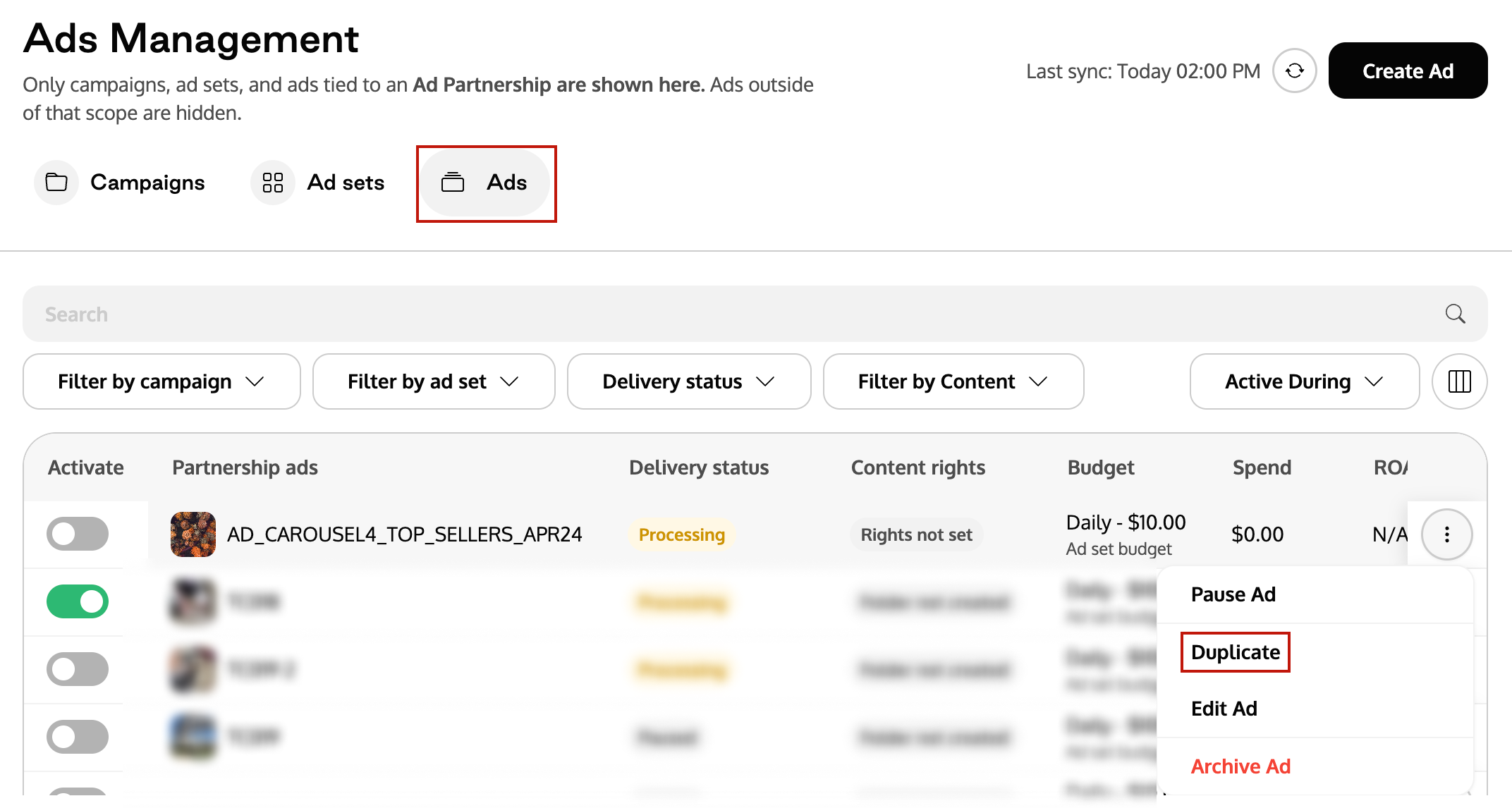
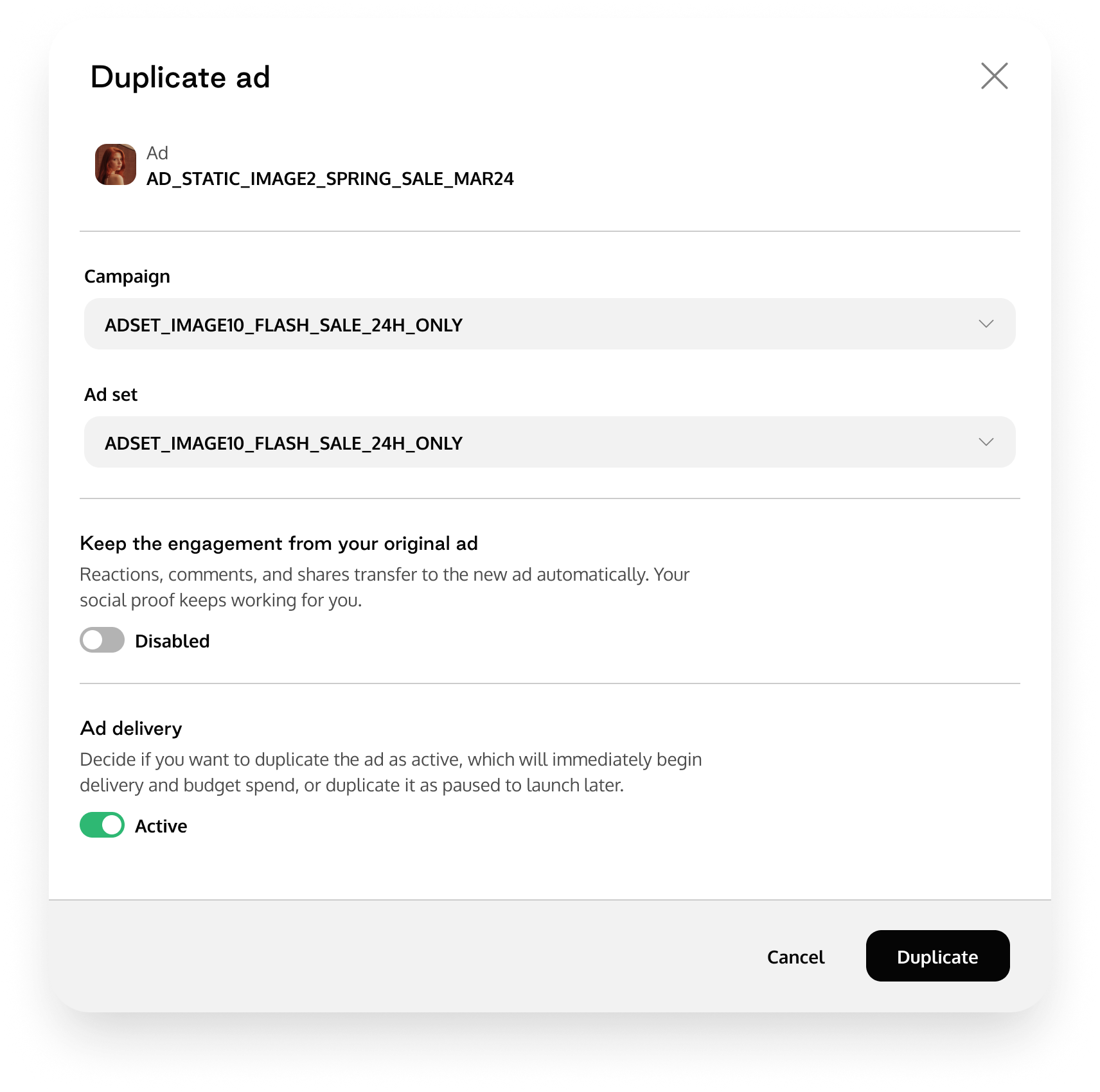
Change the destination campaign and ad set (if desired).
Choose the delivery status:
Active
Paused
If you want, you can enable the Keep the engagement from your original ad toggle. When active, reactions, comments, and shares from the original ad transfer to the new ad automatically.
Click Duplicate.
After duplication, you may be prompted to edit the duplicated ad:
Continue with Ads Editing to make creative or ad-level changes, or
Choose to do it later and return to Ads Management.
Frequently Asked Questions (FAQ)
Q1. Why doesn’t duplicating a campaign also duplicate its ad sets and ads?
A. Currently, Superfiliate Ads Management duplicates only the campaign settings when duplicating a campaign. Ad sets and ads need to be created or duplicated separately.
Q2. Why doesn’t duplicating an ad set also duplicate its ads?
A. At this time, duplicating an ad set copies only the ad set settings, and ads must be duplicated separately.
Q3. Can I duplicate items that don’t include partnership ads?
A. No. Only items that include partnership ads appear in Ads Management and are eligible for duplication.