How to Scale an Existing Ad?
Last updated: May 15, 2026
Overview
Scaling allows you to create a new ad based on an existing one while reusing the original ad post, so that reactions, comments, and shares carry over to the new ad automatically. This preserves the social proof your ad has already earned.
Scaling is useful when you have a high-performing ad and want to expand its reach into different campaigns or ad sets — without losing the engagement that makes it effective.
Use this feature when you want to:
Test a proven ad in a different campaign or ad set
Expand reach while preserving social proof (reactions, comments, shares)
Quickly create a new ad without rebuilding the creative from scratch
In this article, you will learn:
How scaling works and how it differs from duplication
What happens to engagement when you scale
Important limitations of the scaling feature
Requirements
Make sure that:
The advertiser's Meta account is connected through Superfiliate
The ad you want to scale includes partnership ads
Important Limitations
Scaling is only available at the ad level.
Campaigns and ad sets cannot be scaled. Only individual ads support scaling.Only ads that include partnership ads are eligible for scaling.
Editing the creative of a scaled ad permanently removes all engagement.
If you edit the creative (image, video, or carousel) of a scaled ad, the link to the original post is broken. All reactions, comments, and shares will be permanently lost and cannot be recovered.Budget rules still apply after scaling.
Budget can be managed at only one level (campaign or ad set), according to Meta limitations.
Step-by-step
Scaling an ad from Insights
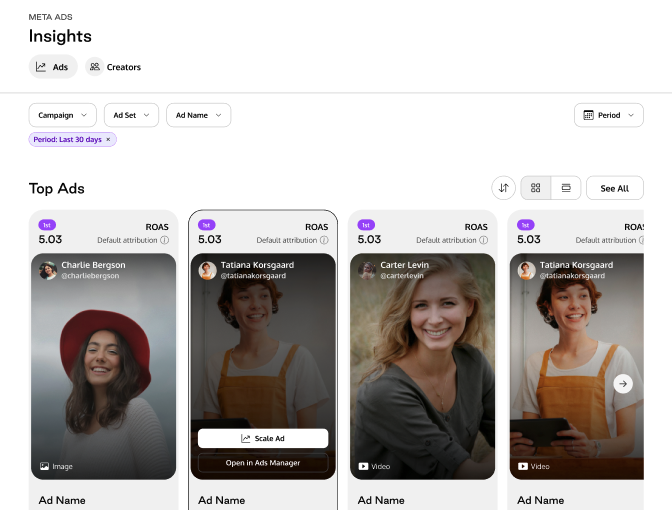
Go to Insights.
In the Top Ads section, find the ad you want to scale.
You can view your top ads in either card view or table view.Click the Scale Ad button.
Choose the destination Campaign.
Choose the destination Ad Set.
The Keep the engagement from your original ad toggle is enabled by default.
When active, reactions, comments, and shares from the original ad transfer to the new ad automatically. You can disable it if you prefer to start fresh.Choose the Ad delivery status:
Active — the ad begins delivery and budget spend immediately.
Paused — the ad is created but does not deliver until you activate it.Click Scale.
After the ad is scaled, you will be prompted to edit it:
Click Edit now to continue editing the ad, or
Click Do it later to return to Insights and edit it later if desired.
If you want to better evaluate the data before making a decision, you can also analyze the ads using the table view:
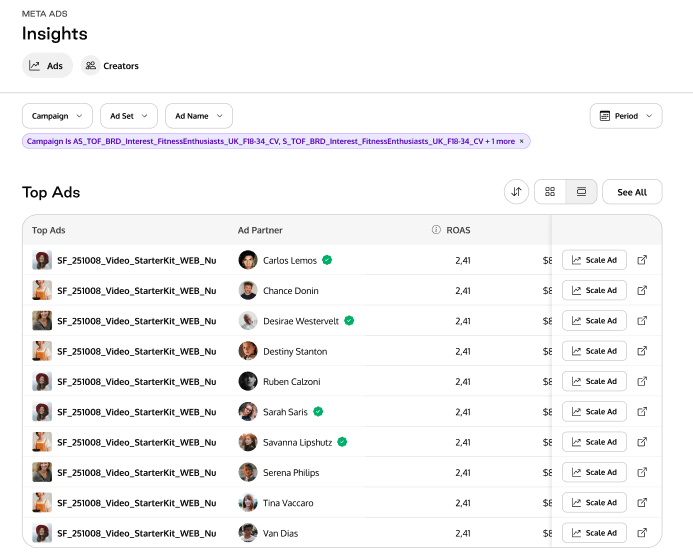
Editing a Scaled Ad
When you open a scaled ad for editing, the creative section shows the original ad's details and a notice that the ad is carrying reactions, comments, and shares.
If you want to change the creative (image, video, or carousel), a warning will appear:
"This will remove your engagement" — Editing the creative removes all reactions, comments, and shares. You won't get them back.You can click Edit anyway to proceed, or Cancel to keep the engagement intact.
Non-creative changes (ad name, URL parameters, delivery status) can be made without affecting engagement.
Frequently Asked Questions (FAQ)
Q1. What is the difference between scaling and duplicating an ad?
A. Both create a new ad based on an existing one. The key difference is that scaling reuses the original ad post, so reactions, comments, and shares carry over to the new ad. Duplication without keeping the engagement creates a fully independent copy with no shared engagement.
Q2. Can I scale a campaign or an ad set?
A. No. Scaling is only available at the ad level. Campaigns and ad sets can be duplicated but not scaled.
Q3. Will editing a scaled ad remove the engagement?
A. Only if you edit the creative (image, video, or carousel). Changes to the ad name, URL parameters, or delivery status do not affect engagement. You will always see a warning before any creative edit that would remove engagement.
Q4. Does scaling affect the original ad?
A. No. The original ad continues to run independently. Scaling creates a new ad that shares the same post, but both ads operate separately.
Q5. Why is the "Keep engagement" toggle on by default when scaling from Insights?
A. When you scale from Insights, the intent is typically to expand a high-performing ad while preserving its social proof. The toggle defaults to on to match that intent. You can disable it if you prefer a clean start.
Q6. Can I scale an ad that doesn't include partnership ads?
A. No. Only ads that include partnership ads appear in Ads Management and Insights, and are eligible for scaling.
Q7. What happens if the original ad's creative is updated after I scale it?
A. The scaled ad keeps its own version of the creative. If the original ad's creative changes, a badge reading "Original ad updated" will appear on the scaled ad's creative card, with a link to find the original ad in Ads Management.